More details surrounding the Galaxy S20 Fan Edition have come forth thanks to well-known tipster Ice Universe. The Galaxy S20 Fan Edition is said to be the Galaxy S20 Lite; it’s just that it will most likely be called by a different name in some markets, though one thing is for certain. It will be the successor to the Galaxy S10 Lite that Samsung launched earlier.
Galaxy S20 Fan Edition Also Expected to Feature an Affordable Price, Similar to the Galaxy S10 Lite
The Galaxy S20 Fan Edition is said to feature a 120Hz refresh rate, and while Ice Universe hasn’t mentioned the resolution of the upcoming model, we believe it to be no more than FHD+. If the Galaxy S20 Fan Edition will have a higher resolution than this, then it’s highly likely that the 120Hz refresh rate won’t be supported at that resolution. The handset is also said to feature a Snapdragon 865, but most of you may have already known this, thanks to a leak that revealed the presence of this chipset, along with 8GB RAM.
The tipster also reveals that the Galaxy S20 Fan Edition will support IP68 dust and water-resistance certification, along with an affordable price tag coupled with a 3.5mm audio jack. He hasn’t provided details regarding the camera hardware, but we’re expected to find out more about these in the future when the Galaxy S20 Fan Edition is nearing its launch date, which at this moment, we don’t know as yet. Fortunately, Ice Universe does mention the unveiling will happen sometime in Q4, 2020, so let us keep our fingers crossed.
Galaxy Fan Edition
Snap865、120Hz、3.3mm Hole
IP68、Price nice 、Q4
Apparently, there are going to be two variants launching in the near future.
SM-G780 (Global variant with and without 5G support)
SM-G781 (Headed to the U.S. and the only one with 5G support)
Unfortunately, it’s unconfirmed if the model that supports 5G connectivity will be priced higher than the 4G-only version, so all the answers to these questions and more will be provided very soon, so stay tuned for more updates.
The Galaxy Note 20 Ultra is becoming a reality with each passing day. We did hear that there will not be an ultra variant this time around but that was debunked pretty quickly. Then a few days ago, Samsung Russia ended up posting renders of the Galaxy Note 20 Ultra on their website and while they were taken off, we did manage to look at how the device looks like.
We now have our first look at the Galaxy Note 20 Ultra in the wild, confirming almost all the design rumours that we have managed to speculate so far.
Galaxy Note 20 Ultra Finds its Way into the Wild, Carries the Traditional Design Language
The leak is coming from Jimmy is Promo who went ahead and leaked a chunk of pictures of the Galaxy Note 20 Ultra in black, and it looks absolutely beautiful, to say the least. We will not be taking much of your time, so you can look at the pictures below.
Now the biggest take away here is that camera bump at the back. Why? Well, aside from looking just a bit out of the way, but it also brings a pretty massive camera bump. Something we have expected by now. The boxier design synonymous with the Galaxy Note series is still there, and as is the punch-hole camera we first saw on the Note 10 series. So, there is a huge reason to believe that this is how it the Note 20 Ultra is going to look like.
Not just that, the leaked pictures look just like the ones Samsung Russia leaked a week ago, confirming that this is how the device is going to look like, in the first place. As far as the specs are concerned, the Note 20 Ultra is going to bring the absolute best of the specs with a Snapdragon 865, 120Hz and all the other good stuff. The phone is to go official next month at the Unpacked event.
If you’re reading this article, you’re looking for a way to reset your Samsung Galaxy S10. The Samsung Galaxy S10+ is one of our favorite smartphones from 2019, but sometimes a reset may be necessary to improve performance, fix a bug, or to wipe the phone’s storage completely.
Why reset the Smasung Galaxy S10+?
As mentioned already, there are quite a few reasons why you may want to reset your smartphone. Below is a quick overview highlighting the differences between a restart and a reset and the different scenarios that may require either.
Restart: also know as a reboot, this function simply turns your device off and then back on again. A restart or a reboot can be helpful to solve common issues you may have with your Samsung Galaxy S10+ may include:
Unresponsive device
Slow device
Unexpected errors
App crashes
Reset: also known as a hard reset, factory reset, or system wipe, this function will restore your Samsung Galaxy S10+ to its original settings while also erasing all of your files, settings and personal data on the phone. A hard reset is advisable when:
Smartphone issues, app crashed or errors are not resolved with a restart
Your Galaxy S10+ is unresponsive
You are selling your phone or handing it off to another family member
Now that we have that out of the way, below are a handful of different methods with step-by-step instructions on how to restart or reset your Samsung Galaxy S10+.
If you have any additional suggestions we should add to the list, please share them in the comments.
How to restart your Galaxy S10 (reboot or soft reset)
Modern smartphones are designed to stay on all the time so that you don’t miss any important phone calls, text messages or notifications from the dozens of apps you have installed on your device. That being said, you may want to consider restarting your phone if you notice that it is running slowly, apps seem to crash for no reason or the device doesn’t seem to perform as it typically does.
Below are three different ways you can restart your Samsung Galaxy S10+.
Samsung Galaxy S10+ restart
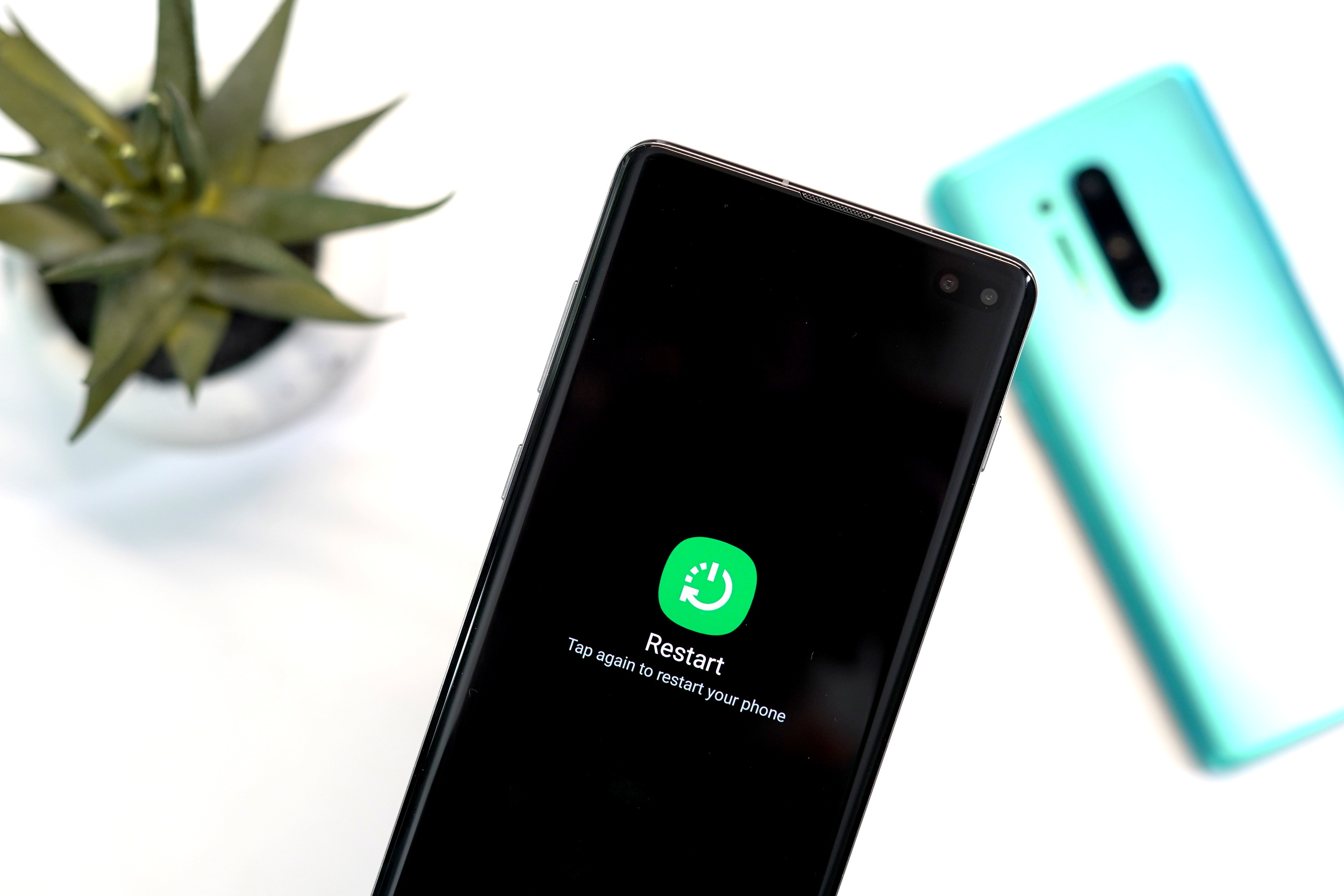
Press and hold thePowerbutton on the side of the Galaxy S10+
When the power button menu appears, press Restart twice
Your Galaxy S10+ will restart after a few seconds
Samsung Galaxy S10+ quick restart
This method works best if your phone is unresponsive, but you can also use it instead of the method listed above since it can be a bit quicker.
Simultaneously press and hold the Power and Volume down buttons for seven seconds
Your Galaxy S10+ will restart
Samsung Galaxy S10+ Schedule auto restart
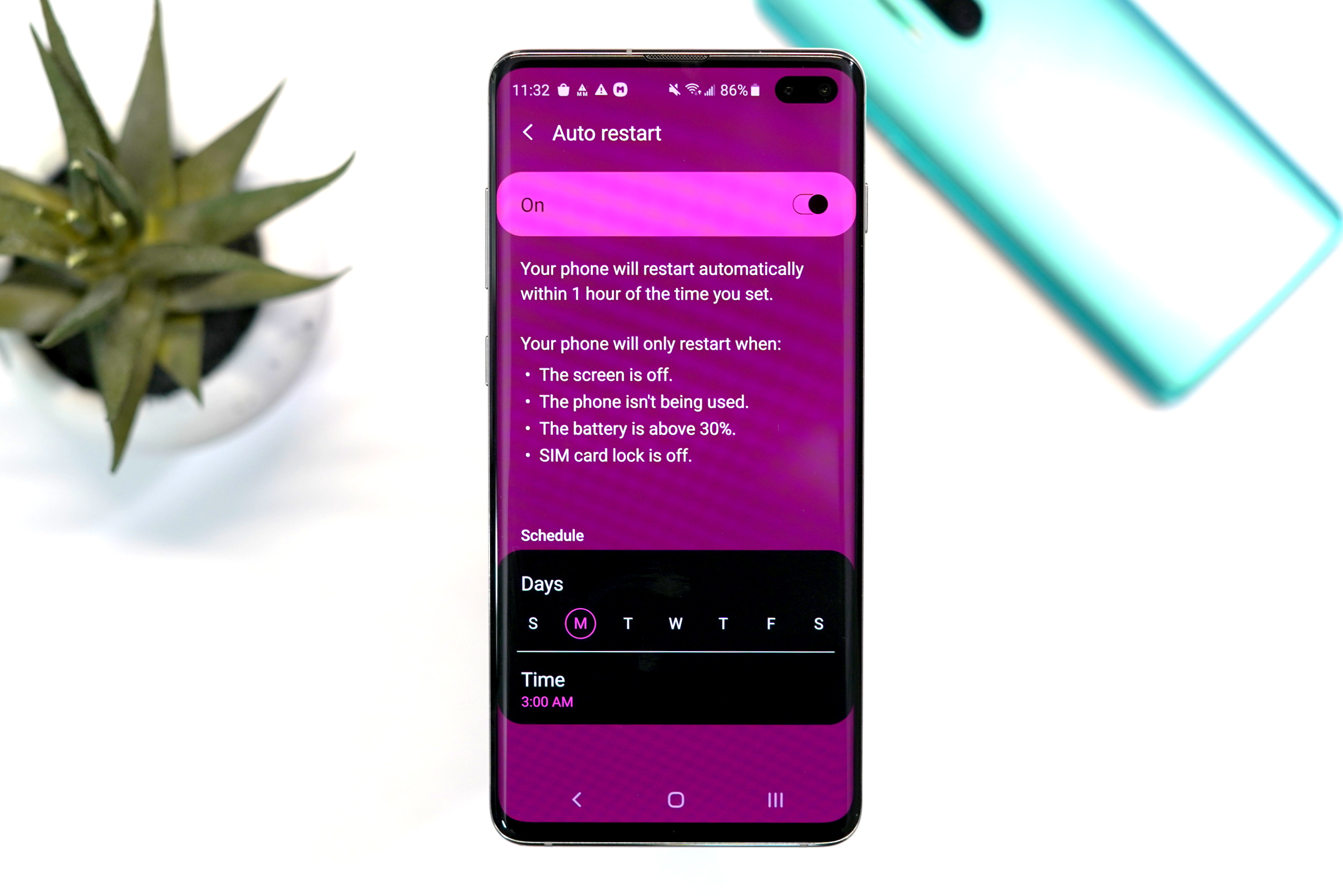
A new feature Samsung is building into its phones is an auto restart scheduler. This feature allows you to set a time and day of the week to automatically restart the phone. The restart scheduler allows you to schedule up to one auto-restart time per day.
Open Settings > Device care > Three-dot menu in top right corner > Advanced > Auto restart > Off/on toggle
Tap at least one day of the week in the schedule section
Tap Time to change the scheduled hour for the auto restart.
How to factory reset the Galaxy S10+ (hard reset)
Like the soft reset, the Galaxy S10+ has a few different ways to perform a factory or hard reset.
Samsung Galaxy S10+ simple factory reset
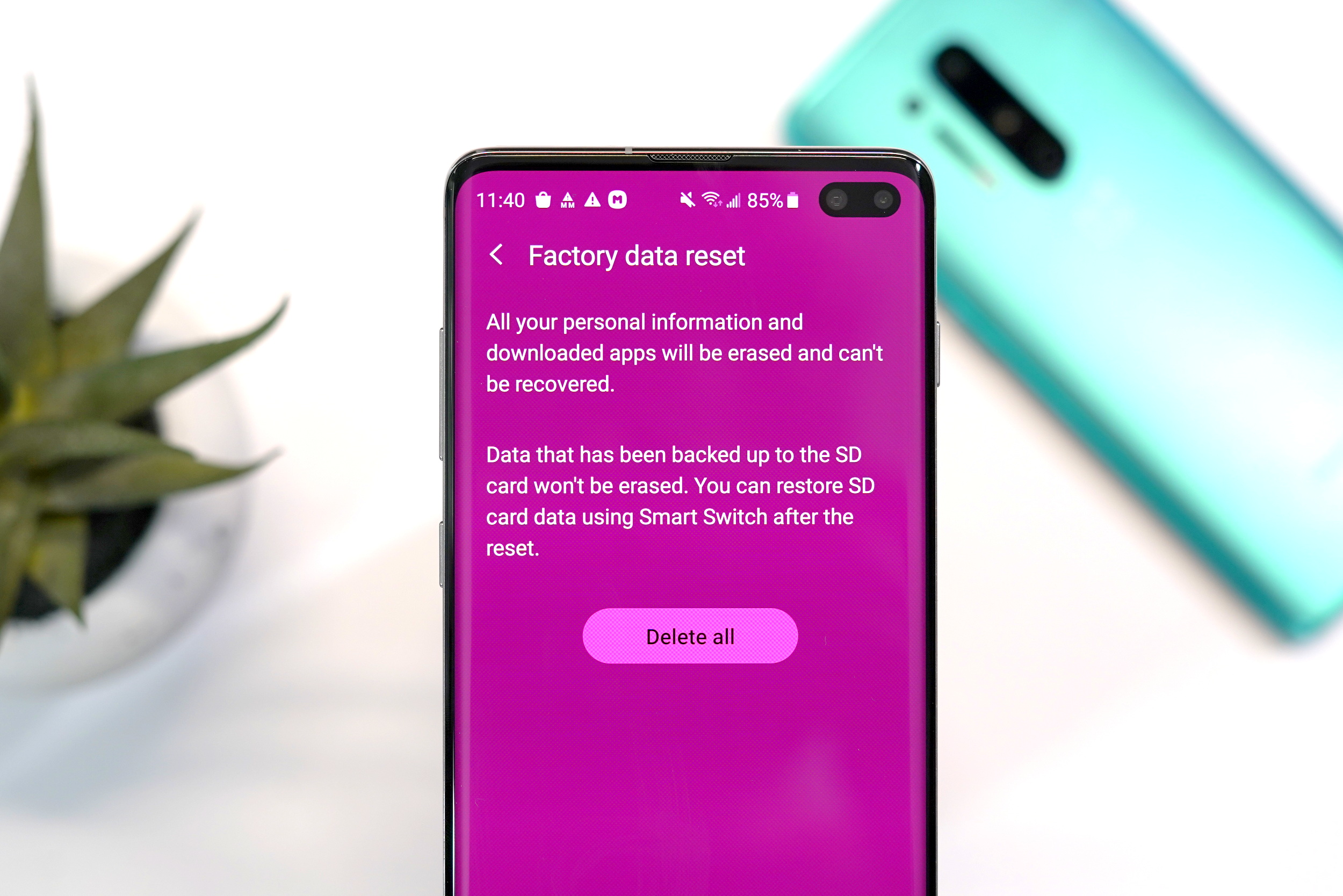
Open settings Settings >General Management > Factory Data Reset > Reset
Enter your PIN, Password or Unlock Pattern
Tap “Delete all”
Enter your Google Account password to start the factory reset process
The reset process will take several minutes
After the reset has completed, the phone will reboot to start the setup process
Samsung Galaxy S10+ Recovery mode factory reset
If your Samsung Galaxy S10+ is unresponsive or you are locked out of the device, you can perform a factory reset through the phone’s recovery system.
Turn off the Samsung Galaxy S10+
Simultaneously press and hold the Volume Up, Bixby and Power buttons for 15 seconds
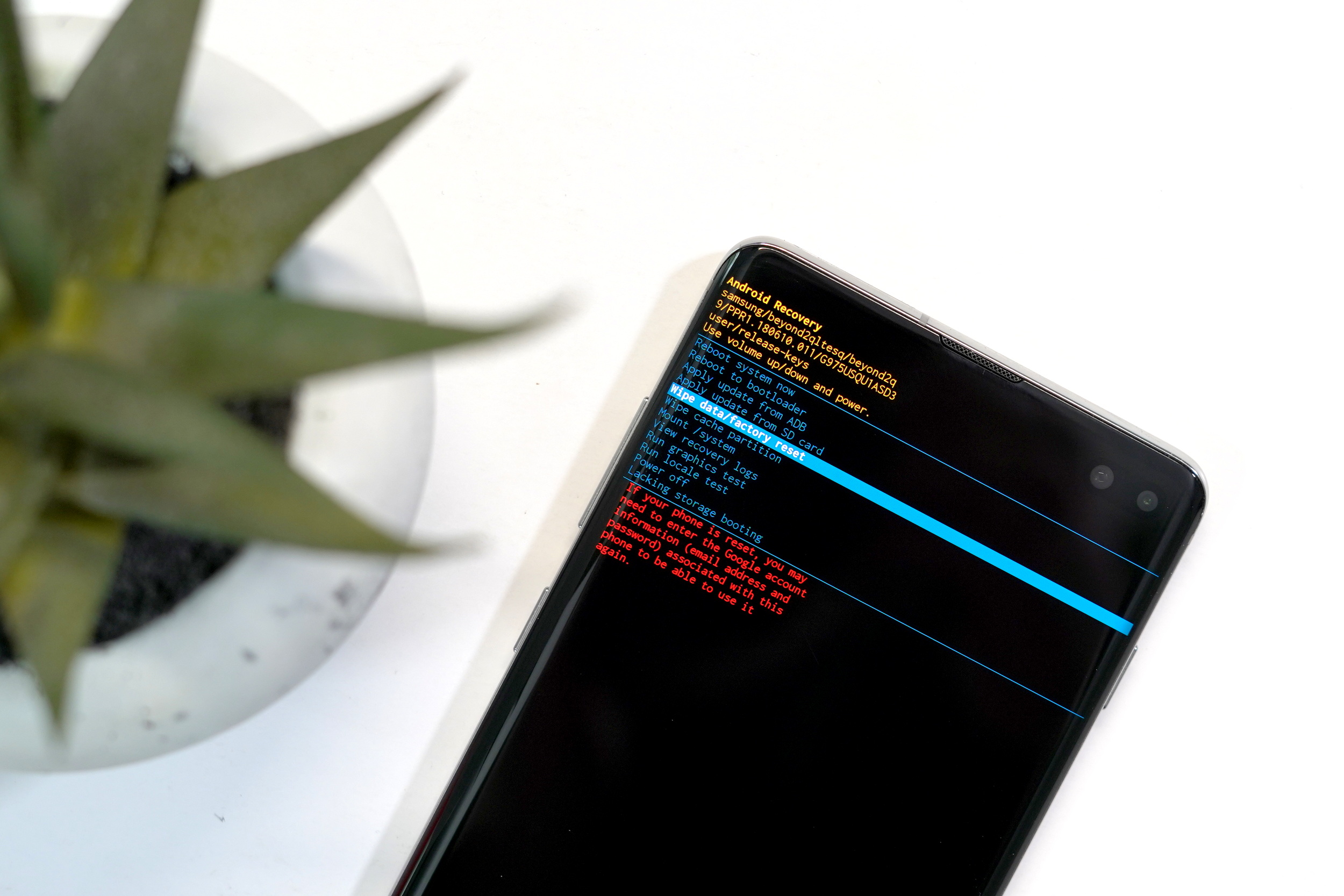
When the recovery screen appears, you can use the Volume Up/Down buttons to navigate and power button to select
Highlight Wipe data/factory reset and press the Power button
Highlight Yes and press the Power button
The reset process will take several minutes
After the reset has completed, the phone will reboot to start the setup process
If the Galaxy S10+ reboots into recovery mode, highlight Reboot system now and press the Power button
Remote factory reset and wipe
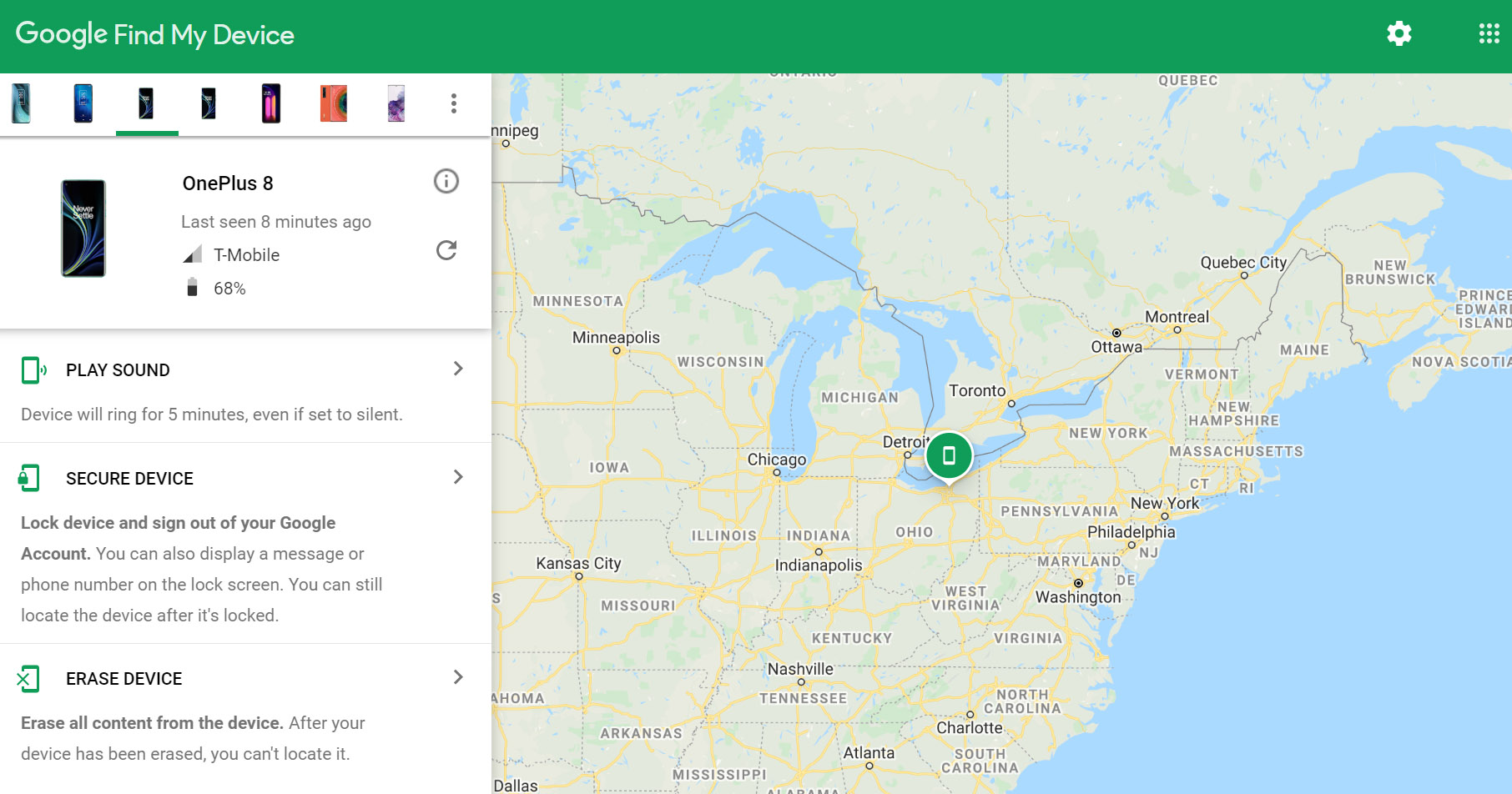
I the event that your Samsung Galaxy S10+ was stolen or lost, the Google Find My Device website allows you to track the location of your phone to help you find it. The service also includes a feature that allows you to factory reset the phone so that your information doesn’t fall into the wrong hands.
We have a detailed How to find your lost or stolen smartphone article, but if all you need to do is remotely reset an wipe your Galaxy S10+, simply follow the instructions below.
The Samsung Galaxy Note 8 has been out for quite some time, and we’ve spent enough time with the device to compile a list of the best tips and tricks for Samsung’s latest and greatest. So without further adieu, here are the best tips and tricks for the Galaxy Note 8.
The Galaxy Note 20 is going to be Samsung's upcoming Note device, and we all know just how successful the lineup has been. You could call it a no-compromise lineup when it comes to delivering all the features in one device. However, recent information tells us that it may no longer be the case.
Before we go any further, let's talk about the Galaxy S20 series, the devices which have laid down the foundation for the Galaxy Note 20 series. When Samsung launched these devices, the best part about them was that all of them had the same 120Hz display. Granted, there were some differences but the star of the show was consistent across all three devices.
However, it seems that it may no longer be the case as the base model of the Galaxy Note 20 series will not have a higher refresh rate display or at least a 120Hz display.
Report Suggest That the Galaxy Note 20 May Not Come with a 120Hz Display
The information comes from Ross Young, who is the founder and CEO of Display Supply Chain Consultants (DSCC). In replying to a tweet, Young talked about how the Note 20 Plus will have a 120Hz screen but Samsung has confirmed that the Galaxy Note 20 will not come with a higher refresh rate screen.
Ice universe@UniverseIce
·
Replying to @DSCCRoss
Note20 does not support 120Hz?
Ross Young@DSCCRoss
Note 20+ supports 120Hz, but Samsung confirmed to us that Note 20 does not.
Now, this does raise a few concerns. Does it mean Samsung is equipping the Galaxy Note 20 with a 90Hz panel or are they going down to the base 60Hz? That is something we have to wait on. Other than that, this is a rather odd choice, to begin with. Especially when the one thing that sets the current Samsung flagships apart was the higher refresh rate display. However, a Galaxy Note 20 with a lower refresh rate panel makes little to no sense.
Obviously, we cannot say much at the time of writing since there is no official confirmation and the Galaxy Note 20 is still months from an official confirmation but if we are to take this tweet seriously, we can say that users and critics will not be happy with such a move. There is also a rumour that Samsung might skip on the Ultra variant for the device altogether and stick to just two devices.
So far, we cannot comment on what the situation is going to be like for upcoming Note 20 lineup. We are definitely looking forward to more information on this latest revelation and hoping to be proved wrong.
Paypal means real cash in your bank account By using PayPal you can easily transfer ypur earnings to PayPal and from PayPal to your indian bank account Paypal is one the greated way to receive paypal cash balance from various Earning apps If you heard like this Earn Paypal cash, Get free paypal cash etc than many of you won't know about it
Here Goto Paypal India website and create a Individual/Bussiness Account For paypal
With paypal You can transfer it to Your Bank account
You will know well how paypal works if you explore on paypal website
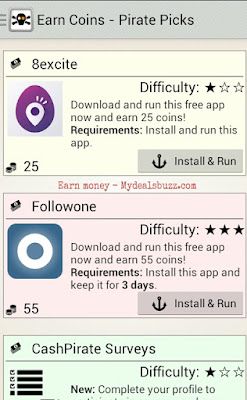
So here is How to make money with android/IOS apps Various apps pays Gift cards/paypal cash by completing offers or surveys or downloading apps etc Also 100+ Apps are available to Earn Mobile Recharge from apps
But like anything If you want to Make money instead of Shopping gift cards or Mobile Recharge You can try below apps to Earn Paypal cash or bank account
How to make Money From Android phone
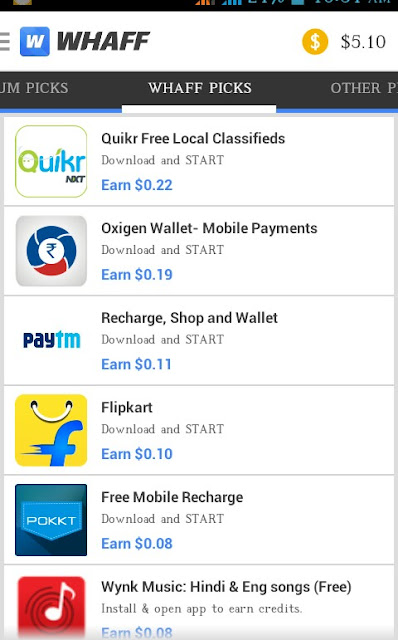
Whaff App Whaff Is one the best app to earn paypal cash + 10+ online Gift cards They also gives gift card for amazon * First Download whaff App from Google play store
* Sign Up with facebook /Create account
* After Registration a popup will appear asking for Enter Invite Code
Enter This Code - AO12690
By this Invite code you will Get $ 0.30 = 20 Rs
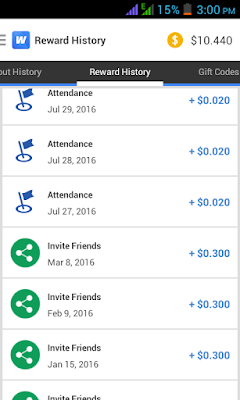
Note - Earn money with whaff without doing nothing | Goto Rewards everyday daily and Get 0.020 $ daily
Payout Methods
Paypal Amazon Giftcard Google Voucher Pokecoins (For Pokemon go) Stream
And many more
Now start Earning $$$ from Apps like completing offers and downloading apps
Earn back (New added)
Earn Back app is one of the good app that lets you earn money by completing tasks and by referring friends to download the app ,earn points and redeem to paypal account or mobile recharge
EArnback currently Paused So Dont app Try later
How earnback works
EarnBack helps you get more top-up data, recharge your talk-time and SMS, and get PayPal money…all for FREE!
EarnBack is easy:
1. Download EarnBack. 2. Earn reward points for trying apps, playing games, and other fun tasks. 3. Redeem your points for airtime or cash
Cash quiz app
This app lets you earn paypal money and many other shopping vouchers like amazon giftcards you can earn by completing tasks and quiz If you wanted to huge money from this app you can complete daily offers and paticipate in draw and challenges their are many way to earn in this app This app is verified and safe to start earning vouchers and money
You can earn points on quiz And redeem as paypal cash or anything you can choose want you want from the app menu while redemption
About this app and official earning guides by this app
▶ WIN REAL PRIZES - NOW FOR UK Win prizes every day, such as Amazon Gift Cards, Paypal Vouchers & Google Play Gift Cards for the UK. Every day Cash Quiz distributes 100 GBP prize money among all smart players. Answer 12 questions in the Daily Quiz Tournament and try to get as many correct answers as possible. The next day you'll find out whether your result was high enough & you are among the winners. Collect Coins every day & exchange them for vouchers and gift cards!
▶ MANY REWARDS & PRIZES FOR UK Compare your knowledge with others & win money. Collect coins to earn rewards, just by knowing TV stuff. It’s easy to win money and the best rewards. Look forward to fast payout via PayPal, Cash Back, Amazon Gift Cards or Google Play Gift Card Vouchers. Let's win real money - it's quick & easy!
▶ NEW QUIZ APP Test your knowledge in more than 45.000 questions about the United Kingdom and win real money. Play in the free Duel Quiz game mode, in order to collect Coins & exchange your coins via payout, cash sweepstakes or Gift Card. It's maybe the best reward quiz game to win money, earn vouchers & earn rewards!
▶ DAILY WINNER DRAWING Every day Cash Quiz distributes 100 GBP prize money among the smartest Top 3 winners that got the most correct answers. 1st Rank: 50 Pounds 2nd Rank: 30 Pounds 3rd Rank: 20 Pounds
▶ CHALLENGE FRIENDS
Challenge friends with your knowledge and your free Coin stake. The winner of the duel doubles his Coins! You can exchange your earned Coins directly in Cashback rewards, Google Play credit or Gift Cards for Netflix, Spotify, Visa, Tesco, Intu, Steam, PS4, Primark, Xbox, Starbucks & League of Legends. Our App also offers real prizes for PayPal rewards, Cash Back offers or free sweepstakes 2017 to win money - oh whaff!
▶ AWARDS "This Cash for Apps game is among the best sweepstakes apps 2017. FINALLY - The UK Version is here ." »- (App Like Magazin) “Easy to earn money or win vouchers. It's a Cash for Apps hack!" - (AndroMag 2017) "Oh whaff, free Gift Card, Rewards Cards and best Rewards! »- (Allaboutapps.at)
▶ 16 QUIZ GAMES CATEGORIES Answer questions in the Scratch Card Quis with 16 quiz games categories, including a quis cash contest. It’s one of the best quiz games, free of charge! Coming soon - Scratch card! The new scratch card feature to earn money via survey code generator in our "Quz" special.
TapCash App
Earn real money Points by Surveys ,Download android apps ,Offers or by inviting friends
Tap cash is shut down Google play
Just open it and start earning points 1000 points = 1$ = 65 Rs Minimum redeem points is 2000 Points
Top Payout Methods
- Paypal cash - Google Play - Amazon - Skype -Freecharge - Koodo - Fido - TrueMoney - Happycash - T-Mobile - Target - G2A - Tama Reload and many more
Invite and earn option for this app is closed now so can not make money inviting friends
Earn points daily by going to daily Rewards you can get free points daily upto 30$ per month
New payout details, Now redeem $1 in paypal account
You can earn unlimited points by daily ligin and reffering also 100 points per refer
Grabpoints app
Grabpoints app is similar to above apps and pay various Gift card + paypal Cash Earn Amazon-flipkart-shopping sites gift cards by
Note - Grabpoint app Gives you 20-30 points daily without doing Nothing, Just turn on Internet and you will get Promocodes daily thats contains points
Cash wallet app
Cashwallet is same as other app in the list however if you are looking best android apps to earn money ,give a try to this app this not only earn by completing offers you can make money by completing surveys every survey give you huge points
It gives you points on by watching videos ,watches small videos are the best way to earn more points
Invite and earn 50 Rs points on every friends refer ,both of you get 50 points by using invite code
Download this app cash wallet from google play
Sign up by google account or facebook id
Enter this refer code for 50 points on registration [Sometimes it will give you 500 premium coins so hurry up try your luck]
CW6F203
Daily do some little activities and earn points daily You can redeem to paypal or recharge after earning 1$ only
Polycash
Polycash is one the best app for making money by completing offers and watching video ,not only this app gives also surveys and various features to earn money
Enter code ............ if needed ( By using this code you will get first 100 points in your account)
Their are various ways to earn points like by watching videos,completing offers etc
Payout Methods
1000 points = 70 Rs paytm or airtel money
Amazon gift voucher
Flipkart gift card
Paypal
Paytm
And many more
Start using and start earning Redeem points as paypal money
Their are more apps from you can earn bank money and gift card that are available Top apps are above in the list you try them out to earn money 100% safe way to earn online
I’ve been around the smartphone world since the very beginning (2002, with the Nokia 7650) and have seen cameras improving dramatically year on year. And the LG G4 and Samsung Galaxy S6 (here in its Edge variant) each have the very latest camera hardware, itself a surprising leap up from 2014’s technology. Can this space improve any further, into 2016? Oh, quite possibly, there are still some tweaks left to add back in (cough, Xenon flash), but the performance here, in almost all light conditions, is astonishing. However, there’s one obvious question that needs answering – which (G4 or S6) smartphone camera is better?
In a sense, of course, the question, and this entire feature, is irrelevant, since the image quality is SO good that, at all normal viewing sizes, users won’t be able to tell the results apart. However, there are some characteristics worth noting, plus there are definite bragging rights for the overall winner.
[For those following my other writings, you may be wondering how these two camera-toting flagships stack up against the traditional camera champions with the ‘Nokia’ name on – the Lumia 1020 and 808 PureView? In short, the G4 and S6 even blow the two Nokias away for general imaging, though the latter do still have a slight edge in terms of zooming and that Xenon flash evening event use case.]
As it turns out, the overall specification of the G4 and S6 rear cameras are surprisingly similar, both 16MP and with a sensor size of 1/2.6″. The G4 has a larger aperture, at f/1.8, though the S6’s camera is only slightly smaller at f/1.9, while the G4 scores with the laser focussing and ‘colour spectrum sensor’, though as we’ll see below, this isn’t infallible. The specs are close enough, and the resolution certainly so, that I can compare 1:1 crops from the same photos taken with each smartphone and you’ll be able to spot any differences, where appropriate.
A few notes before diving into the images:
Both smartphone cameras were used on full ‘Auto’, i.e. how end users would shoot photos 99% of the time. Do note though that both camera interfaces allow complete control over things like ISO, white balance, exposure, etc. through a ‘Pro’ mode. In fact, almost everything a DSLR user would get to fiddle with – so any perceived deficiencies in imaging settings could be easily rectified. But testing has to be on full ‘auto’, of course, since there are millions of parameter combinations that would otherwise have to be compared!
Cropping in so that you can ‘see’ detail down at the pixel level is revealing, sure, but it’s also a little artificial. Bear in mind that out of 16 million pixels per photo, I’m only showing you central detail from around 240,000. Still sounds a lot, but in fact, it’s only 1/64th the size of each complete frame. So view the crops in context!
On then with the test scenes and 1:1 crops, I’ll comment on each as I go along:
Test 1: Landscape, sunny
In this case, down at the local golf club, with the clubhouse nicely lit up and with plenty of detail:
Here then are the 1:1 crops, firstly on the LG G4:
And then the same framing 1:1 crop on the Galaxy S6 (/Edge):
Great though the S6’s image was, the clarity and sharpness in the G4’s is astonishing. I might expect such sharpness in a downsampled image, perhaps at 5 Megapixels (for example), but to be this precise right for every one of the 16 million pixels is incredible. Bear in mind that, at the pixel level, we’re talking pixels taking it in turns across rows to either be Red, Blue or Green, and then software intelligently averages things out so that both detail and colour end up about right. With the miracle above.
I’m speechless. The G4 camera is right up there with the best DSLRs for shots like this. The S6 is close behind, but it is… behind, at least according to this test shot.
Test 2: Natural detail
One of the biggest tests of camera phones is how they handle nature – petals, leaves, grass, and so on. Here’s another test scene:
Here then are the 1:1 crops, firstly on the LG G4:
And then the same framing 1:1 crop on the Galaxy S6 (/Edge):
Now, the 1:1 pixel detail from the S6 is exactly what I’d expect to see from a 16MP camera module at this level – some smearing, some artefacts, some processing. This isn’t a criticism, it’s just how digital cameras work, especially when the detail is massive and the sensor relatively small (compared to DSLRs). However, the G4’s output is again astonishing. There’s magic sauce at work, I tell you, imaging alchemy. The LG G4’s detail is massive.
As an anecdote, I also did some zoom and raw detail tests today against the Lumia 1020’s physically much larger, 41MP sensor. And the G4 was quite comparable. How is this possible?
Time to move indoors, to a scene with much less light and more chance of digital noise and uncertainty.
Test 3: Indoors, low light
In this case, inside a local church, still with plenty of detail, as you can see in this overall scene:
Here then are the 1:1 crops, firstly on the LG G4:
And then the same framing 1:1 crop on the Galaxy S6 (/Edge):
Again the G4 camera manages to achieve more detail and less noise, under what are trying circumstances – low light, distant subject, etc. It’s as if LG’s camera engineers have managed to warp the laws of physics. Again, the S6’s camera is good, but not good enough to win out.
Test 4: Indoors, macro
Under a single 60W room light, so not that bright, but up close with some Sharpies:
Here then are the 1:1 crops, firstly on the LG G4:
And then the same framing 1:1 crop on the Galaxy S6 (/Edge):
Though you could argue that the G4’s photo is ‘warmer’ and with less noise, I’m actually going to plump for the Galaxy S6 camera here. The colours are more accurate – the Sharpie barrels should be grey and the tip top right of the crop is a red-brown, not the bright red shown by the G4. This is all a little odd, considering that it’s the G4 that has the ‘colour spectrum sensor’ and that it’s supposed to get colours right under all conditions, so perhaps just take it that the Galaxy S6 camera does especially well here, so a point in the other direction.
Test 5: Extreme low light
Out in the road, it was almost completely dark, with just a faint glow left in the sky (to my naked eye), it was much dimmer than the photos make it look:
Here then are the 1:1 crops, firstly on the LG G4:
And then the same framing 1:1 crop on the Galaxy S6 (/Edge):
This comparison’s interesting in a number of ways. Remembering that I deliberately left both smartphone cameras on ‘Auto’, the G4 leapt in and used multi-shot HDR here. Which I wouldn’t normally associate with extreme low light shots, but then multi-shot attempts at improving low light performance have become possible now that these smartphones all have optical image stabilisation (OIS), so who knows what the S6 is also doing behind the scenes.
In any case, on full ‘auto’, both smartphone cameras do very well considering the extreme challenge here. Both produced a better result than my three year old Nokia 808 PureView, which has a sensor that’s four times larger. The S6’s image is dark, as it should be, and does a great job of smoothing out the inevitable digital noise. But the G4 eschews noise reduction in favour of squeezing in light and detail. Look at the illuminated window, for example, look at the car and other fine detail. Low noise or maximum detail is a necessary compromise under such extreme conditions, so let’s call this one a draw!
Verdict
With three distinct wins, one ‘draw’ and one loss, the LG G4 comes out of my five scene test here as the winner. Yes, the Galaxy S6 (and Edge) 16MP unit is terrific too, definitely the second best imaging powerhouse in the world for all purpose snapping, image quality, and so on. But the G4’s results are astonishing (I’ve put one of them from my tests up here, for you to download and analyse, should you feel inclined) and it has me rocked back on my heels – I never expected anything this good could exist housed within a standard smartphone body.
Most modern Android devices come with a hidden diagnostic menu that allows users and service center folks to test various components of the phone easily.
Usually, this diagnostic menu is accessed by entering some a particular key combination. Samsung had included a diagnostic menu on the Galaxy S5, and the Galaxy S6 andGalaxy S6 edge are no different. The hidden menu is also a great tool to check that the phone you are buying from the store has no issues with the accelerometer, dead pixels on the AMOLED display, or any issues with the flash.
To access the hidden diagnostic menu on your Galaxy S6 or Galaxy S6 edge, simply open the stock Dialer app and key in *#0*#. As soon as you key in this code, the diagnostic menu will automatically appear on your Galaxy S6. You can tap on the different options in the menu to test different components of your handset, including the accelerometer, rear camera, speaker and more.
So, the next time you think your Galaxy S6 or Galaxy S6 edge has a faulty camera or any other hardware related issue, make sure to use the diagnostic menu to test the part properly.
Samsung has confirmed that a RAM issue is causing performance problems for some on its new Galaxy S6 and S6 edge. The South Korean company has vowed to address the issue with a series of “micro-updates” that will begin reaching users soon.
The Galaxy S6 and S6 edge certainly aren’t slouches. In fact, they’re two of the fastest smartphones you can buy right now. They also pack 3GB of RAM, which should be more than enough for day-to-day use in 2015. But thanks to a bug, that RAM isn’t being used effectively.
Like all Android devices, the Galaxy S6 and S6 edge store application data in the RAM for quick access, so if you’re switching between apps or using multiple tabs in the browser, they don’t have to keep reloading. When you stop using those apps, the data is then purged from the RAM.
But the Galaxy S6 and S6 edge are having trouble doing that. The 3GB of RAM they have available is filling up quickly and not being cleared properly, which is causing apps to crash and the system to become unstable for lots of users.
Fortunately, Samsung is already aware of the issue, and it is working to fix it.
“Micro-updates are in the process of being rolled out to correct issues relating to device performance and stability,” the company posted on its U.K. Facebook page. “Keep checking for these on your device via Settings > About device > Software update > Update now.”
I haven’t seen any new updates on my Galaxy S6 yet, but fortunately, I haven’t experienced the RAM issue yet, either.