Android Tricks 4 All: Mac
News Update
Loading...
Showing posts with label Mac. Show all posts

Monday, July 27, 2020

2020 iMac With Intel CPUs Slated to Arrive in August; Fully-Decked out 27-inch Model May Arrive in September

2020 iMac With Intel CPUs Slated to Arrive in August; Fully-Decked out 27-inch Model May Arrive in September

2020 iMac With Intel CPUs Slated to Arrive in August; Fully-Decked out 27-inch Model May Arrive in September
With an earlier report stating the 2020 iMac refresh with Intel processors will be expected this week, we’ve received another update that the new machines won’t be arriving this soon. While this might come as a disappointment for a lot of people, the 2020 iMac with Intel processors won’t take several months to arrive, with the latest info claiming that we might see them as early as August.

Mid-Tier 27-inch Model Might Get Released Alongside 21.5-inch Version but Don’t Expect the Top-End Model This Soon

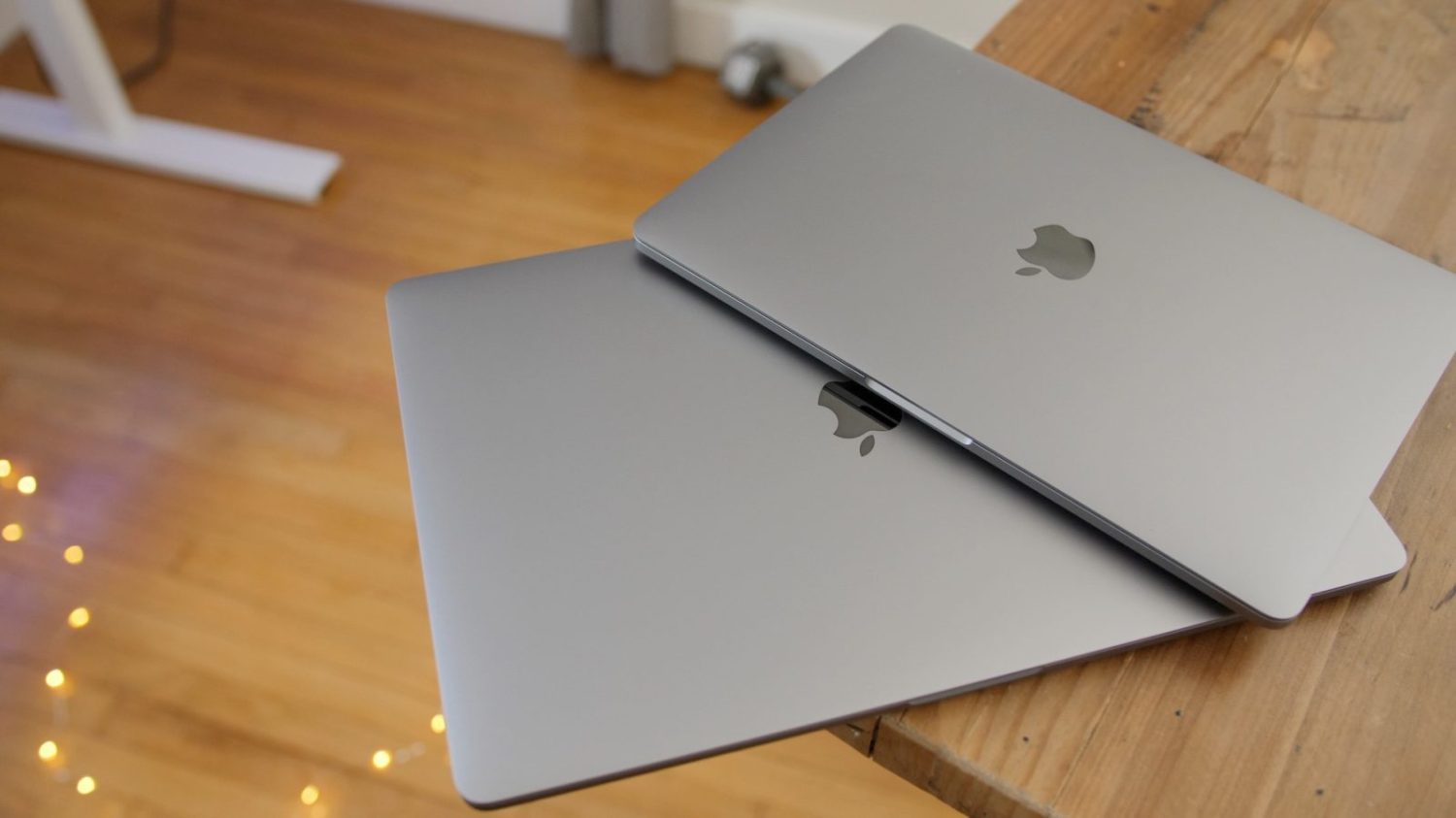
If you wanted to see the fully-decked-out 27-inch iMac with an Intel processor, Twitter user Micha claims that you’ll have to wait until September 30 as that’s when Apple is expected to unveil this version. As for the 21.5-inch and mid-tier 27-inch 2020 iMac, we can expect them on August 18, which isn’t that far away, to be honest. However, it should be noted that these display sizes are consistent with the models that Apple has released previously, meaning that we shouldn’t expect a redesign from the new machines.
Instead, it looks like a redesigned iMac which was supposed to be previewed during the 2020 WWDC keynote will sport that much-needed aesthetic change and from the look of things, it will be powered by Apple’s A-series silicon and according to a previous report, it will have a 24-inch display. There aren’t any concrete findings related to the kind of hardware found in the upcoming 21.5-inch and 27-inch 2020 iMac models, though a previous leak suggests that one of them will feature a custom 95W Intel chip sporting a total of 10 cores and 20 threads.

This processor might be running at lower clock speeds to prevent unnecessary thermal throttling when stacked inside the 2020 iMac because if history has taught us anything, these machines don’t offer the best cooling performance. That’s about all the information we can give you at this time, and if Apple surprises us with a new 2020 iMac with an Intel CPU this week, then you guys will be the first to know.
If not, well then we’ll have to see what the company has in store for us in August, so stay tuned.


Saturday, July 11, 2020

Keyboard Shortcuts for Calendar, Reminders, and Notes on Mac

Keyboard Shortcuts for Calendar, Reminders, and Notes on Mac

A notebook placed next to a MacBook keyboard
If you’re a Mac user looking for a simple and effective day planner, consider this trio of native macOS apps: Calendar, Reminders, and Notes.
Once you set up these apps to your liking, you have a fuss-free system to manage your schedule, tasks, and notes. Plus, if you learn how to control them with keyboard shortcuts, so much the better. And what’s more, you can discover various useful keyboard shortcuts for these macOS productivity apps in the cheat sheet below.

Sunday, July 5, 2020

20 top tips to help you master your Mac

20 top tips to help you master your Mac

mac.JPGMacs are more popular than ever before - but for people still making the switch from Windows to Apple’s OS for the first time there can be a lot to take in. Here are 20 of our top tips to help you master your Mac 

1. Take a screenshot of a specific part of the screen

Mac_Screenshot.png

Taking a screenshot is all well and good, but more often than not you don’t actually need the whole screen in the capture. On Macs there’s a simple way to grab just the part of the screen you want: Cmd + Shift + 4.
From there, click and drag out a box over the part of your screen you wish to capture. Upon release the image will be saved to the desktop. If you do just want to grab the whole screen, press Cmd + Shift + 3 instead.

2. Rename large batches of files all at once

Mac_Rename_Files.jpg

Renaming files is tedious at best. Renaming a hundred holiday snaps in one sitting is downright torturous. If you’re running the latest version of OS X – Yosemite – you can do it with one simple action.
Select all the files you want to rename and right-click them, then click Rename. This presents you with three options for renaming. Replace Text allows you to change, for example, the ‘IMG’ part of a set of files with something more relevant. Thus ‘IMG_01’, ‘IMG_02’ and so on become ‘Dad’s birthday_01’ and ‘Dad’s birthday_02’, or somesuch.

3. Run Windows on your Apple machine

Run_Windows_Mac.jpg

Contrary to popular belief, it is possible to run a copy of Microsoft Windows on a Mac. It’s also surprisingly simple to do.
Navigate to the Applications folder on your Mac, and then to the Utilities folder. Within that is a programme called Boot Camp. It will now ‘partition’ your hard drive – this essentially means split it between Windows and Mac. You can choose how you split the ratio, but remember that storage allocated to one OS is not accessible by the other. Click Partition to start the process.
Upon restarting your Mac will ask for a Windows installation CD. If you don’t have one you will need to purchase one – it can be either Windows 7 or Windows 8. When it asks where it should install select the partitioned section of your hard drive.
Want some more help with your Mac? Our friendly tech team can help you with one-to-one support on a range of tech issues. Find out more here.
Once completed your Mac will boot into Windows for the first time. Surreal eh? From now on, whenever you turn your machine on simply hold down the Option key and you can choose between Windows or OS X. Bear in mind there is no way to switch operating systems on the fly, so make sure you choose the right one or you’ll have to restart.

4. Add your signature to documents

Mac_Signature.png

If you’ve ever had to return an official document that’s been sent to you digitally you’ll know the pain of having to add your signature. With Mac OS X, there’s a much better way.
Open the document you need to sign within the Preview application. Click the pen icon near the top right-hand corner of the screen and select Create Signature from Built-in iSight. iSight is your Mac’s built-in webcam, which it will use to capture your signature. Sign your name on a plain white sheet of paper and hold it up to the camera. Align it properly using the guides on screen and the camera should automatically extract it. Click Accept to save it.
To use it in the future just follow the first steps of this guide, only instead of clicking the Create Signature option there will be a preview of your existing signature.

5. View all special characters

Mac_characters_and_emojis.jpg

Click on the magnifying glass icon in the top right of your screen and search for a program called Character Viewer. Open it and you’ll be granted access to every special character Mac OS is capable of displaying. When you find the character you want double-click it to insert it into the text field you’re currently editing.

6. The Mac equivalent of Ctrl + Alt + Delete

Mac_Force_Quit.png

Mac has it’s own equivalent of Ctrl + Alt + Delete. Should you find yourself unable to exit a program, hold down the Cmd + Option keys and press Esc. This will bring up the Force Quit dialog box, which will show you all running applications and allow you to forcefully terminate them.

7. Switch between multiple windows within the same program

Mac_Switch_Windows.jpg

Using the Cmd + Tab keys you can quickly switch between your open programmes. However if you have, say, three Word documents open at once that you wish to switch between, you’ll need a different shortcut.
Cmd + ~ will instantly switch between multiple windows of the same programme. This will work for any application.

8. Instantly look up a word in the dictionary or thesaurus

Mac_Dictionary.jpg

OS X’s reference tool is wonderfully integrated. You can access it from just about anywhere to look up whatever word may be causing you trouble. Select the word you wish to learn more about and press the Cmd + Ctrl + D keys. Alternatively, if you’re on a MacBook just click it with three fingers on your trackpad.

9. Start up your Mac silently

Mac_mute_startup.jpg

Even if you’ve never used a Mac before you may well be familiar with the iconic chime it lets off every time it starts up. Unfortunately, that sound is often quite the inconvenience. If you’re somewhere where silence is paramount, such as a class or library, just hold down the Mute key at startup.

10. Convert any sort of unit within Spotlight

Mac_Unit_Conversion.png

Spotlight can find things both on your Mac and online, and also solve some basic queries without resorting to opening a new window. One such query is unit conversion. All you need to do is type in the figure you want converted, for example ’57kg’ and it will show you a list of conversions as a search result. This even works with currency, provided you’re connected to the internet.

11. Trouble finding your cursor? Make it grow

Mac_enlarge_cursor.jpeg
One of the most innovative features of the El Capitan update to OS X was the ability to make your cursor reveal itself if you’re having trouble finding it. Simply wiggle your mouse or run your finger rapidly back and forth across the trackpad to have it balloon in size. Once you’ve located it, simply stop and it will shrink back to normal.

12. Merge Finder windows

Merge-All-Windows_Mac.jpg
Gone are the days of having to open up a thousand Finder windows when attempting to manage files all around your Mac. If you find your screen filling up with new windows then click on the Windows option in the menu bar, then click Merge all windows. What was previously multiple windows will now appear as neat little tabs within one window.

13. Disconnect from a wi-fi network without turning off wi-fi

disconnect-wi-fi-mac-os.jpg
Hold down the Alt key and click on the wi-fi icon in your Mac’s menu bar. This will reveal all the options you usually see when clicking on it, plus a larger list of information underneath the name of the network you’re connected to. Directly underneath your network should be an option labelled Disconnect from [your network name]. Give it a click and you’ll disconnect – no need to restart your wi-fi.

14. Record your screen

quicktime-screencasts_Mac.png
Sometimes a simple screengrab isn’t enough, and you’ll want to capture something animated. To do this you can use a feature built in to QuickTime, a program that comes with every Mac as standard. Go to your Applications folder (if it’s not already on your shortcuts bar) and open it. Click File > New screen recording. This will allow you to record the whole of the screen, or just a portion of it. It’s super useful for things like tutorials – it can also capture sound.

15. Calculate sums in Spotlight

SpotlightCalculator_Mac.png
OS X may have a calculator widget built in, but there’s an even easier way to do quick calculations. Click on the Spotlight icon in the top-right corner of your screen, and then go to type in your sum. +, -, /, * and = correspond to the plus, minus, divide, multiply and equals functions on a conventional calculator. Your result will pop up in the Spotlight box beneath.

16. Quickly add a foreign or accented character

Foreign_characters_accents_Mac.jpg
Those of you who are used to Windows computers may well be familiar with what a nightmare it is remembering and executing the shortcuts for common foreign characters, such as é or ü. Fortunately, OS X makes things infinitely easier.
To type a foreign character or character with an accent above it, first find the simple version of the letter you require (e.g. a for á or s for ß) and hold the key down. After a brief pause, you’ll be offered a choice of which variant on the letter you want in a little pop-up box above where you’re typing the letter. Select the one you want and it will be inserted into the text field.

17. No Delete key? No problem

apple-keyboard-fn-delete.png
Not every Mac keyboard comes with a Delete key (often stylised as ‘Del’). Instead of jumping to the end of the word you want to erase via backspace every time, just hold down the Function key and press Delete. This is mainly a problem that will affect MacBook users, but in the event that you’re using a separate keyboard with neither a Delete key or a Function key, holding down Control and pressing D also works.

18. Change volume silently

change-your-mac-volume.jpg
The volume keys on Apple keyboards are undeniably useful, but there’s one big problem with them – they make noise when you press them, meaning that any attempt to stealthily silence your Mac is immediately thwarted. Unbeknownst to many, though, you can actually mute those volume keys – just hold down Shift whilst pressing them.

19. Find a forgotten password for a website or program

Mac_Password_recovery.jpg
For almost all of the programs on your Mac, as well as many of the websites you visit on it, your login and password details will be stored away, deep within your Mac’s keychain. Don’t worry, they’re encrypted and only accessible locally by the user they apply to.
If you forget one of these passwords, you can actually recover them from within your Mac – as long as you remember the password for your user account.
Open a new Finder window and head into your Applications. Within this folder should be another folder named Utilities. Open up a program within it called Keychain. You can now see every login stored on your computer. You can sort them by name or type, or you can search for the one you’re looking for using the search tool in the top-right corner.
If you want to view the password for any of the logins, you’ll be prompted for your username and login, just as you would be if you were to install a new program or make security changes to your Mac.

20. Annotate a PDF or image

Mac_annotate_PDF.png
With PDFs – the predominant file type of choice for business communications – it can be very frustrating that you have no way to easily edit them – until now. Double click on your desired PDF file and it should open up in Preview, the default PDF viewer on OS X (if not you can find it within your Applications folder. Open it and then select File > Open from the menu).
Now, click on View in the menu bar and select Show annotations toolbar. From now on, this toolbar will always display alongside PDFs you view. It lets you highlight, scribble, annotate and draw shapes. You can then save a fresh copy of your PDF (using File > Save As) and return it to the sender so they can see your changes.

Wednesday, June 24, 2020

Apple’s ARM Macs Will Ditch Support For Windows Via Boot Camp

Apple’s ARM Macs Will Ditch Support For Windows Via Boot Camp

ARM Macs Boot Camp

While some users prefer Windows over macOS, we can't deny that Apple's hardware and attention to detail beat all. While officially Apple does not allow you to install Microsoft's desktop operating system on a Mac, we have always been able to install it on the machine via Boot Camp. However, it looks like ARM Macs will not be able to run Windows via Boot Camp.

Say Goodbye To Windows On ARM-based Macs As Boot Camp Won't Be Able to Do It Unless Microsoft Decides So

Tim Cook took the stage at the WWDC 2020 keynote, officially announcing that the company will be moving to its in-house, custom silicon in the future. The transition will take up to two years but we will see the first Mac with ARM-based chip later this year.  The Verge reports that Boot Camp will not run Windows on ARM-based Mac when the machines will be launched. However, it might be possible in the future.

The possibility lies in the hands of Microsoft and if it is willing to make the functionality available for all users. The software giant only licenses Windows 10 on ARM to PC manufacturers so they can preinstall it on their devices. The operating system is not designed for anyone to use it freely or even license it. Here's what the Microsoft spokesperson has to say on the subject.

Microsoft only licenses Windows 10 on ARM to OEMs,” says a Microsoft spokesperson in a statement to The Verge. We asked Microsoft if it plans to change this policy to allow Boot Camp on ARM-based Macs, and the company says “we have nothing further to share at this time.

Apple did not announce the deduction of the feature on stage. While Microsoft's Office Suite of apps will run on ARM-based Macs, Boot Camp will not be part of the mix. However, the details are still scarce and hopefully, it can change in the future so we can't be too certain on the fact that you won't be able to run Windows on an ARM-based Mac. There can be tools developed to make it happen but we're not certain when.

Share your views with us in the comments.

Thursday, June 11, 2020

How to get the WWDC app on iPhone, iPad, and Apple TV

How to get the WWDC app on iPhone, iPad, and Apple TV


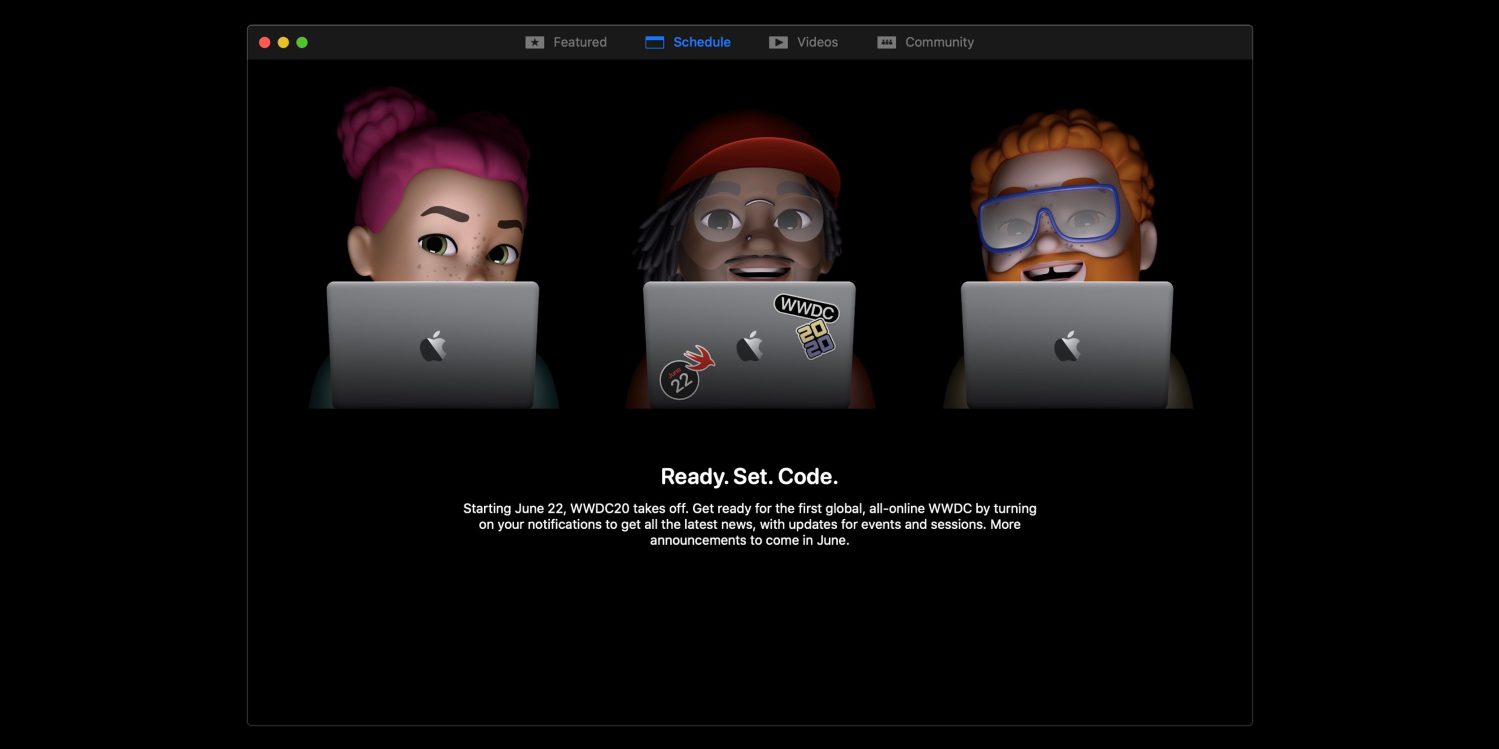
WWDC 2020 is approaching quickly, and with this year’s event being totally virtual due to the pandemic, the WWDC app will be more important than ever. Follow along for how to get the WWDC app for iPhone, iPad, Apple TV, and the best unofficial option for Mac.

Best Mac WWDC app gains clip sharing, transcripts, and ‘Community’ feature ahead of Apple’s virtual keynote


WWDC 2020 is set to start on June 22nd as a virtual event and Apple has said it’s planning to share more about what to expect through its Developer app later this month. However, a Mac version of the app is still missing. Fortunately, the unofficial WWDC app for Mac has been updated and is ready for this year’s digital WWDC with some notable new features.

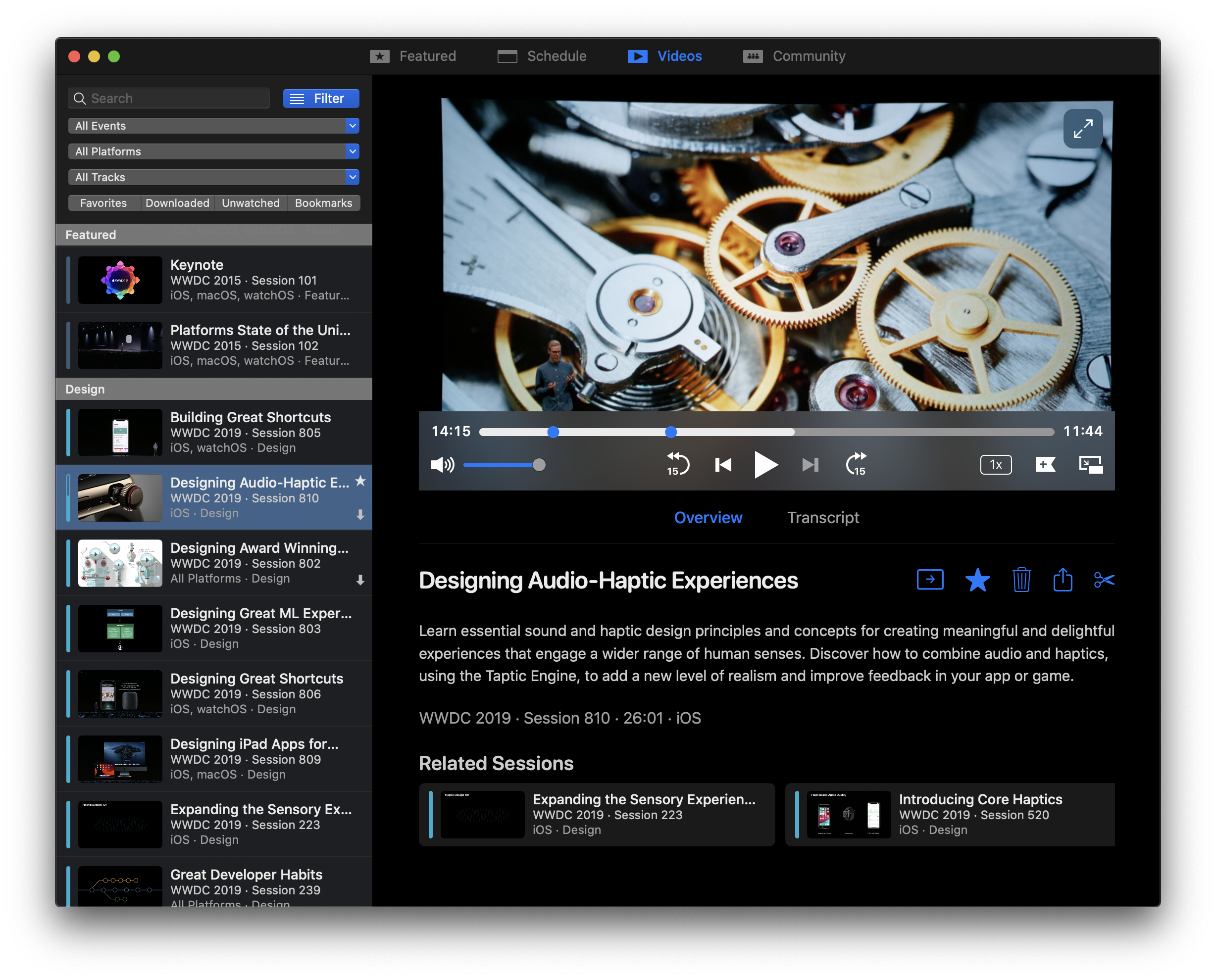
Created by 9to5Mac’s Gui Rambo along with a small global team, the Unofficial WWDC app for macOS (free) is the best way to plan what you want to get out of the event, livestream current sessions, rewatch past ones, and connect with the Apple dev community on your Mac. This year with WWDC going virtual for the first time due to the pandemic, a Mac app will be more useful than ever.

At the end of 2019, Apple rebranded the WWDC app as the Apple Developer app. It will be a crucial piece of the WWDC 2020 experience and is available for iPhone, iPad, Apple TV, and Apple Watch, but a Mac app is still missing.

The Unofficial WWDC macOS app has a clean, native interface for the best WWDC experience on your Mac and has been updated today with a number of new features including an all-new Community tab that features content from Apple devs from a variety of sources and a new clip sharing tool to easily share small portions of sessions.

Two other handy updates include support for Universal links as well as transcripts in English, Chinese, Korean, and Japanese.

You can download the latest version of WWDC for macOS for free now.

WWDC for Mac app


Monday, May 11, 2020

Rumor: 14-inch MacBook Pro to launch in 2021

Rumor: 14-inch MacBook Pro to launch in 2021


There have been a lot of rumors about a 14.1-inch MacBook Pro, and many expected it to appear in the spring when the 13-inch was due for an update. But the 2020 MacBook Pro is now on sale, and it featured no larger screen nor any design changes to speak of. One Twitter leaker says to expect the 14-inch to appear next year.


The @L0vetodream account has been on a bit of a tear with leaks and rumors in the last few months. Having correctly predicted the iPad Pro, Magic Keyboard and iPhone SE launches months ahead of plans, the anonymous account has released a tumult of information about various upcoming Apple products from game controllers to bezel-less Touch ID iPads.

At least based on his track record, the account’s “dreams” are really advance information of Apple’s latest product plans. We still need to wait for more of the predicted products to come to fruition to know for sure though.

Nevertheless, today @L0vetodream tweeted that the 14-inch MacBook Pro is set for 2021.


有没有搞措
@L0vetodream
in my dream    MBP14 next year

304
2:58 PM - May 11, 2020
Twitter Ads info and privacy
35 people are talking about this
Whilst Apple did not replace the 13-inch with a 14-inch redesign this spring like they did with the 15->16-inch MacBook Pro in the fall, the 14-inch laptop is still believed to be forthcoming. There had been some speculation that the laptop would ship later in 2020, perhaps with a 14-inch mini-LED display as a higher-end option. However, prospective customers may want to adjust their expectations assuming this leak is accurate and the machine is not set to arrive until next year.

The ‘new’ 13-inch MacBook Pro lacks most of the innovations that the 16-inch introduced, like improved speakers and microphones or the thinner bezels around the display. It really seems like Apple prioritized removing the butterfly keyboard from the lineup over all else. Outside of the keyboard change, the 13-inch MacBook Pro offered little more than a spec bump, and you only get new-generation CPUs on the $1799 and higher configurations. So, a bigger redesign in the form of a 14-inch form factor (which shouldn’t be bigger physically than the 13-inch due to the shrinking bezels) could easily supplant the 13-inch as soon as it is available. It just seems like that the transition is probably still a year away.

Note L0vetodream has previously predicted that Apple will revive the 12-inch MacBook next year, and it will be Apple’s first Mac to run on an Apple-designed ARM chip. That’s a whole separate chain of rumors that could start to see validation next month at WWDC; Apple may want to announce the architecture transition ahead of time to let developers get started on migrating their applications

Saturday, April 25, 2020

Apple iPhone 5G: When is it coming and what do we know so far?

Apple iPhone 5G: When is it coming and what do we know so far?

Apple iPhone 5G: When is it coming and what do we know so far?
Although still limited in scope, 5G networks are here. The only issue, apart from living in a compatible location and being on a compatible network, is that you also need a 5G-enabled phone too.
Most phone makers have now released 5G devices already but we're still awaiting the first 5G-enabled iPhone. 
Many US cities already have mmWave (millimetre wave) 5G networks but in limited areas, with other US towns and cities using lower-band 5G. UK 5G networks are using sub-6 (mid-band) bands at the moment, but plan to roll out mmWave in cities for higher-capacity coverage in 2020 or 2021. 
It's worth remembering that although the iPhone 5G might seem late to the party for some, it's still very early days for 5G while Apple has form for being late to embrace network upgrades - remember the 2G-enabled debut iPhone living in a 3G world?
This is everything we know so far about a 5G-enabled iPhone, including when it might arrive and what the rumours say.

Apple iPhone 5G release date

  • Probably September 2020
  • Coronavirus effect unknown
Apple hasn't announced when it will officially announce a 5G iPhone of course, but we're expecting the models debuting in late 2020 to support 5G.
Reports suggest Apple will support 5G in at least one of its 2020 iPhone models. It's worth remembering that the coronavirus is causing havoc with production in China and huge swathes of tech launches are set to suffer as a result - so things that were previously worked out could change, especially for next-generation products like a 5G iPhone. 
Apple itself issued guidance on its quarterly earnings in February 2020 which reflected the coronavirus outbreak and stated "work is starting to resume around the country, but we are experiencing a slower return to normal conditions than we had anticipated.
"As a result, we do not expect to meet the revenue guidance we provided for the March quarter due to two main factors. The first is that worldwide iPhone supply will be temporarily constrained.
"While our iPhone manufacturing partner sites are located outside the Hubei province — and while all of these facilities have reopened — they are ramping up more slowly than we had anticipated."
While this appears to point specifically to the current situation, the implication is clear to us that there could be some knock-on effects for the rest of 2020. 

Apple iPhone 5G rumours: What's happened so far?

This is everything we've heard so far about the iPhone 5G.

18 February 2020: Qualcomm debuts the X60 modem

Qualcomm introduced its latest X60 5G modem that we think could end up being the modem inside the iPhone 5G. The new modem enables networks to aggregate (combine) spectrum across both the faster mmWave (millimetre wave) 5G band as well as 'sub-6', giving slower speeds but wider coverage.
Qualcomm and Apple made up in early 2019 after years of legal disputes and it's nailed on that Qualcomm 5G modems will be inside the first 5G iPhone although we know - see below - that Apple is determined to develop its own 5G hardware. 

18 February 2020: Which antenna will Apple use inside the new iPhone?

A report on 17 February suggested that Apple wanted to make its own 5G antennae for the first 5G iPhone. The rumour suggested that Apple wasn't happy with the size of Qualcomm's antenna but, as by magic, Qualcomm then announced a smaller antenna, the QTM535.  

30 October 2019: Apple 5G iPhone 12 plans ramped up, with three models tipped for 2020

Nikkei Asian Review reported that sources have claimed Apple is in talks with mobilisation suppliers to produce a range of three iPhones with 5G data connectivity in 2020.

10 September 2019: Apple introduces the iPhone 11, 11 Pro and 11 Pro Max

Of course, none of these handsets were 5G as expected meaning the 5G iPhone is surely nailed on for 2020. 

25 July 2019: Apple buys Intel's smartphone modem business for $1 billion

Apple officially signed the deal to buy "the majority" of Intel's smartphone modem business for $1 billion. The deal includes 2,200 Intel employees, as well as IP and equipment.
The transaction is expected to close toward the end of 2019, and it means Apple will be able to produce its own 5G modems for its smartphones eventually, instead of getting them from Qualcomm. Bloomberg is speculating Apple's in-house modems could be ready in three years, so probably by 2022. 

22 July 2019: Apple might buy Intel's 5G modem biz despite Qualcomm deal

The Wall Street Journal said Apple might make a deal with Intel that will see it purchase Intel's smartphone modem business for $1 billion.
The deal would follow Intel's announcement from April that it planned to exit the 5G mobile modem business. 

18 June 2019: Analyst predicts iPhone 5G coming in 2020

Apple analyst Ming-Chi Kuo claimed all iPhones will have 5G capabilities by 2021 and Apple would probably have its own 5G chip by 2023. 

16 April 2019: Apple and Qualcomm settle legal issues, while Intel quits 5G

Following two years of legal disputes, Apple and Qualcomm settled in April 2019, much to everyone's surprise. The settlement resulted in Apple making a payment to Qualcomm and the two companies also signed a six-year license agreement, effective from 1 April 2019. 
There's an option in the settlement to extend the agreement for two years, plus a multiyear "chipset supply agreement". It led many to believe Apple may release a 5G iPhone sooner than 2020 as Qualcomm already have a 5G modem in place.
On the same day as the Qualcomm and Apple settlement, Intel announced it was quitting the 5G modem business, with its CEO saying "it has become apparent that there is no clear path to profitability and positive returns."

7 February 2019: Apple moves modem chip engineering in-house

Reuters reported that sources familiar with the matter claimed Apple has moved its modem chip engineering efforts into its in-house hardware team.
The move appears to be an indication that Apple is working on its own chips, rather than outsourcing. 

5 November 2018: iPhone 12 will be the first 5G iPhone

The Fast Company reported in November 2018 that Apple would use Intel's 8161 5G modems in 2020 [which turned out to be false as work on that modem was binned] which led many to assume the first 5G compatible iPhone would be the iPhone 12.
At the time of that report, Apple and Qualcomm were still in a legal dispute, which resulted in Apple switching to Intel chips for some of its iPhones. 

Friday, July 14, 2017

How to use Apple Watch to unlock your Mac in macOS Sierra

  • HOW-TO
  • TOP STORIES
cult of mac
Hey, presto! No more typing in passwords. 
Photo: Ste Smith/Cult of Mac
The devices in Apple’s ecosystem always work really well together, and macOS Sierra doesn’t buck that trend. In fact, the upcoming desktop operating system lets Apple Watch owners automatically unlock their Macs using the wearable device — no lengthy password needed.

It’s a small, but incredibly useful, new feature that rewards Mac owners who have taken the dive and invested in an Apple Watch. Here’s how to use it when running macOS Sierra, which is currently in public beta and will be released this fall.

Unlock Mac by Apple Watch

Set up two-factor authentication on your Mac

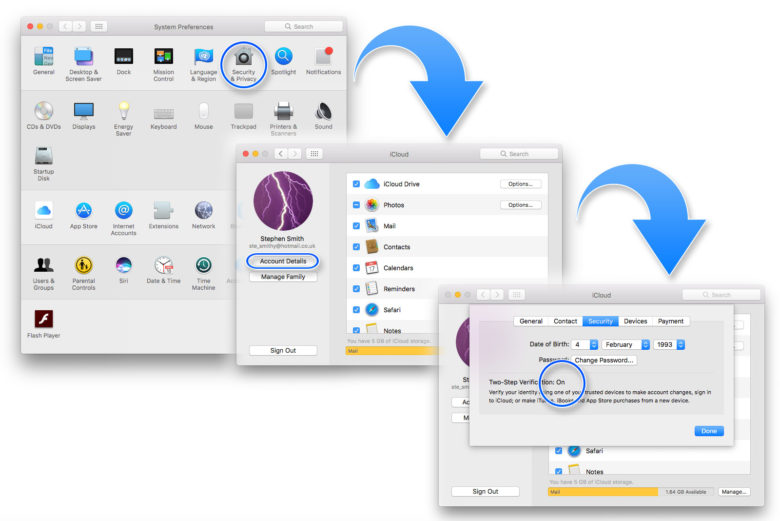
First off, ensure that Two-Factor Authentication is enabled. To do this, open up System Preferences on your Mac, then click on iCloud and go to Account Details. Next, select Security and Enable Two-Factor Authentication.

cult
Setting up Two-Factor Authentication is your first step.
Photo: Luke Dormehl/Cult of Mac

Set up passcode on Apple Watch

Next, you’ll need to ensure you have a passcode set up on your Apple Watch if you don’t already. To do this, tap the Watch icon on your iPhone’s home screen. Go to the My Watch tab, tap Passcode and then tap Turn Passcode On. You’ll then be asked to enter a four-digit passcode. (Make this different than the passcode you use with your iPhone, for security reasons!)
Cult of Mac
You’ll need to set up extra security on your Apple Watch.
Photo: Ste Smith/Cult of Mac

Disable automatic login on Mac

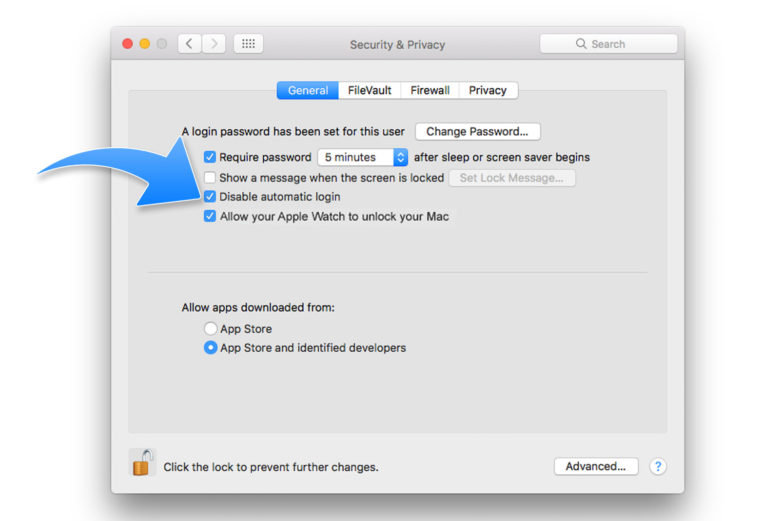
Now go back to System Preferences on your Mac and click Security & Privacy. Click the General tab. Once there, make sure that Disable Automatic Login is unchecked. You might have to enter the new password you created during two-factor authentication setup. If the option is grayed out, you might need to click the padlock icon at the bottom of the window to make the necessary changes.
apple watch
Almost there …
Photo: Luke Dormehl/Cult of Mac

Enable Apple Watch to unlock Mac

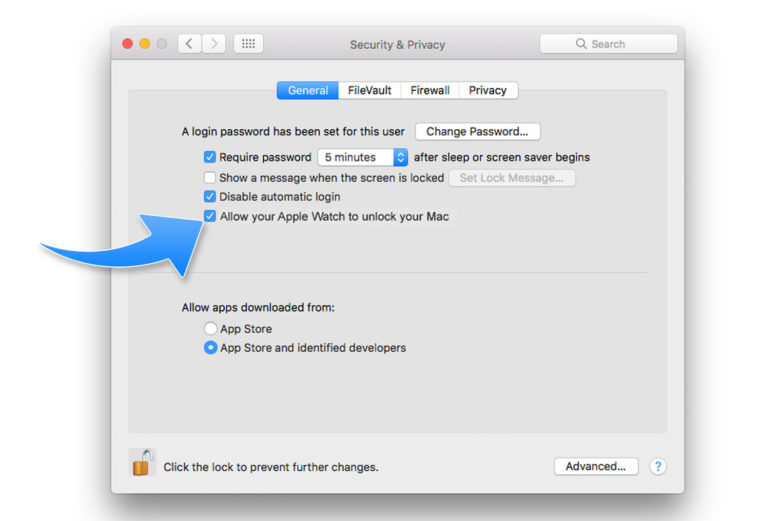
After that, make sure the 
Allow your Apple Watch to unlock your Mac box is checked. A Turning On message will then appear, and might ask you to enter your password.

Apple watch
One more step and you’re finished!
Photo: Luke Dormehl/Cult of Mac
Get a cheap and unlocked iPhone easily with this method!

Get a cheap and unlocked iPhone easily with this method!


Many of you may want an iPhone. The problem? It is expensive. That is why people go for an Android device or even a used iPhone. Don’t you want to have a cheap, new and unlocked iPhone? Well, it is easier than you think. I will show you how to get one with the aid of the best: UnlockSpector!

Buy a Carrier iPhone!

unlocked iphone, iphone, imei check
You may be wondering now: How am I going to get a cheap and “unlocked” iPhone if you recommend otherwise? Don’t rush! I will explain it in detail. You will get to your new, cheap and unlocked iPhone faster than you can imagine.

Carrier phones are locked to work only with the selected carrier. The good side of this (and the one we will take advantage of) is that those phones are way cheaper than unlocked ones. So, this will be your first goal in the checklist: Get a NEW Carrier iPhone!


How to get a Carrier iPhone?

I am an expert here lol. I am always seeking discounts and good prices on the Internet. Amazon is one of the best stores available with good discounts (I am not promoting Amazon, by the way), but you can browse through any website store of your choice.

Next thing, is to look for Carrier iPhones. I will take Amazon as an example:

unlocked iphone, iphone, imei check


1. First go to: Departments > Electronics, Computers & Office > Cell Phones & Accessories


unlocked iphone, iphone, imei check


2. Then, scroll down and click Carrier Phones


unlocked iphone, iphone, imei check


3. Next, scroll down and look for Operating System in the left sidebar and click on iOS


4. Finally, select the best option for you!


Once you have your new Carrier iPhone, you will need to unlock it. This process is completely legal and can be performed in ANY iPhone. Also, you won’t lose your warranty. You will get an iPhone exactly as a factory unlocked one in just one more step.
 Getting your unlocked iPhone with UnlockSpector!
unlocked iphone, iphone, imei check

This is the second step in the checklist. UnlockSpector is the most popular and affordable iPhone checker and unlocker of all. You can check their good customer reviews everywhere.


These are the benefits of UnlockSpector:

  • Quick and easy

  • iPhone experts support.

  • 100% legal.

  • 100% guaranteed.

  • Reports verified with Apple GSX servers.

  • Checks and unlocks Carrier, iCloud and blacklisted iPhones.

  • The Apple warranty remains active.

  • And the most important: Very AFFORDABLE!


Follow these steps to get your iPhone unlock right away!

unlocked iphone, iphone, imei check


  1. Go to: UnlockSpector Homepage.

  2. Place your IMEI number and Email.

  3. Wait for your complete report on your Email.

  4. You will be contacted by an UnlockSpector expert shortly after to give you the best unlock option available.

  5. Wait for the process to be completed.

  6. Enjoy your NEW, CHEAP and UNLOCKED iPhone!


As you can see, it is so easy to get an iPhone for a good price. Forget about sticking to annoying and expensive carrier rate plans. The decision is yours. UnlockSpector is the best choice for you.

Featured

[Featured][recentbylabel2]

Featured

[Featured][recentbylabel2]
Notification
This is just an example, you can fill it later with your own note.
Done