Android Tricks 4 All: Tricks
News Update
Loading...
Showing posts with label Tricks. Show all posts

Wednesday, February 3, 2021

Unlock iCloud Activation Lock 2021 remove the "Find My iPhone” Activation Lock

iCloud Activation Lock is an amazing feature which not only keeps your devices safe but makes sure that no one can access them without your permission. Besides that, this feature works great with "Find My iPhone," which ensures extra security for iPhone users. 


But sometimes, you’ve to remove the iCloud activation lock, and there can be several reasons for it. For Example, you've purchased a second-hand iPhone and want to unlock the iCloud Activation lock, or you have forgotten the Apple ID and password. 


So, how can you remove the "Find My iPhone” Activation Lock without the previous owner?  There are many methods that you can try to remove it, such as using a third-party application, jailbreaking, and more. Below is the complete process that you can try to unlock the iCloud Activation lock. 

Remove iCloud activation lock on iPhone with Tenorshare 4MeKey 

You can use Tenorshare 4MeKey to remove iCloud activation lock at home by yourself. It's a simple and effective solution to unlocking the iCloud Activation Lock. The good thing is that it’s compatible with new and old versions, so you can almost use it for all the iPhones.


 Moreover, it requires a few simple steps to unlock your device without erasing any data. Yes, you heard it right. This program won’t remove your data during the process. In addition, the good news is that you don’t have to add any Apple ID and password to unlock the iCloud activation. 


Below are the steps that you can follow to remove iCloud activation using Tenoshare 4MeKey. 


1. The first process is to download the application on your computer. You can visit Tenoshare, and from the categories, you can select 4MeKey software. 


2. Once you are done with installing, now launch the program. Click the "Start" button. You will see the user agreement, accept it, and hit the "Next" option. 


3. Before you use this application to unlock the iCloud Activation Lock, it's essential to jailbreak it, and for that, you have to select the “Next” option. 

Note: On the screen, you will see different methods to jailbreak your device. You can also click the tutorial link if you are a beginner and don’t know how to jailbreak your iPhone.  


4. Once you are done with the jailbreak, now it's time to follow the last process. And for that, you've to choose "Next," which will help you to unlock the iCloud Activation lock. However, to complete this process, make sure to add the right details of your phone. After completing all the steps successfully, click the “Done” option. 


Make sure to read all the warnings on the screen before closing it. Also, make sure that you can’t use the factory reset method as your device will be locked again. 

Activation Lock is a good feature provided by Apple, and it makes sure that no one can mess with your privacy. However, you still have to remove it, and for that, you can use Tenorshare 4MeKey. It’s a good program with less complicated steps. Along with that, it has an intuitive interface, which will make your work easier. You can download it on your computer and enjoy all its amazing features.


Saturday, August 8, 2020

Free Fire Unlimited Diamonds Hack 2020 | Working Methods ? FREE FIRE Diamond Hack and How to Hack Free Fire GUIDE!!!

Free Fire Unlimited Diamond, I saw many people searching free fire unlimited diamond hack or free unlimited diamond generator or free fire unlimited diamond script. But these tricks really works or not. Today I will tell you weather these script or hacks work or not, weather did they generate unlimited diamond in your account or not. All things I will tell. If they work then how these works and these unlimited diamond generator hacks does’t work then how some people scamming us in the name of free fire unlimited diamonds.
So firstly we will know that what is diamond in free fire so the answer is it is the in game currency which you can load in your free fire account by spending money. These money stored in the free fire cloud server by which free fire moderator manage.

Free Fire Unlimited Diamonds Script :

Free Fire unlimited Diamond script, does these types of scripts really exists or people only scamming in the name of these scripts and making money and wasting your time. So here is the answer these type of working scripts never exists in case if you have downloaded unlimited diamond script for free fire then you have just wasted your time as well as your data because these scripts will never work.

What Free Fire Unlimited Diamonds Script is About?

Since as I told you above these type of scripts never work so i am pretty sure that you have one question in your mind if these not works then why some people upload and guarantee that it is working. Than I want to tell you that person who is uploading these type of script can be a hacker or making traffic to their by fooling people in order to make money. If he is a hacker and you have downloaded these scripts from hacker source than he can steal your data and can use it for any illegal purpose. So be safe and don’t download these fake scripts.

Free Fire Unlimited Diamonds Generator :-

Some fake apps like unlimited diamond generator for free fire claims that you will get unlimited diamond in your free fire account after using this generator, then I want to tell you that these fake apps never work and will never generate unlimited diamonds in your account. So please stop wasting time in finding these non-working fake apps.

What Free Fire Unlimited Diamonds Generator is all About?

If you have downloaded these fake generator apps in order to generate unlimited diamonds in your account then uninstall that fake diamonds generator app from device because that fake app might steal your data from your device which further the developer of that app may misuse your personal information.

Free Fire Unlimited Diamonds Hack :

I saw many threads on net that is claiming unlimited diamond hack working 100% but when you go through their article you will see nothing hack like unlimited diamonds or if you find anything related to unlimited diamonds for free fire then that hack will not work or that hack is fake just fooling people in the name unlimited diamond hack.

What is Unlimited Diamonds hack is all about?

Firstly I want to tell you that nothing unlimited diamond hack works, so stop searching unlimited diamond hacks for free fire on net, you will result in wasting your time,and you also wasting your mobile data. They only generate traffic in the name of these non-working hacks and earn money by misleading us. So be aware from these type of hacks, they can also track your personal information and can misuse of of your personal information.

Why You need Unlimited diamonds in your Free Fire Account ?

This is the show-off generation we usually show off our skills to in order to make everybody’s attention towards you. So how you can show off in free fire using unlimited diamonds then here is the answer Free fire contains many outfits and gun skins which can be achieved only by spending money, so if you want these attractive outfits and skins of the gun you need to buy diamonds by spending money. There are many effect in the gun which are up-gradable but needs money to upgrade those effects. So this is the reason that everyone is searching for free diamonds or any unlimited diamonds hack.

Proof of non-working Unlimited Diamond Hacks :-

You might have a question on what basis I can say that these hacks not work. So here is the answer if you have already tried unlimited diamond hacks then I am 100% sure that you haven’t got a single working hack that can provide unlimited diamonds. Since it is online multiplayer game people play on a server so all the information regarding any player stored in the server not in the application, so all the money that you spent is stored in the Free Fire online server so no hack can provide unlimited diamonds in your application.

Conclusion :-

Searching Free Fire unlimited diamonds hack on the internet is totally waste of time risking your personal data which can be trackable after using those non-working third party untrusted hacks. So stop searching these unlimited diamond hack for free fire and pay legit because nothing is working like free fire unlimited diamond hacks.

Tuesday, July 28, 2020

How to Fix the Unknown Message Not Found Error on iPhone

How to Fix the Unknown Message Not Found Error on iPhone

Getting a 'message not found' error text from an unknown number on an iPhone can sometimes happen once or numerous times over several hours. The 'unknown message not found' iPhone error almost always appears as an actual text message and not as a system error or alert, but it can still be frustrating and confusing, especially when you get a lot of them. Here's what causes these errors and how to fix them.

A drawing of an iPhone getting a message error.
Cause of Unknown Address Message Not Found Errors
The 'unknown address message not found' texts are often not a major problem to worry about and aren’t a sign that your iPhone is damaged or dying. These messages are usually caused by a small software glitch in the iMessage or FaceTime apps, a weak Wi-Fi or cellular signal, or a minor disconnect between your device and your network provider.

Thursday, July 23, 2020

How to check imsi number on iPhone activation method

What means IMSI Number


We need to start from the ( SIM ) "Subscriber Identification Module" is a chip that stores:
  • International Mobile Subscriber Identity (IMSI)
  • ICCID – unique serial number
  • Security authentication and ciphering information
  • Info that is stored temporarily and stored to your local network
  • List of services available for user
  • Personal identification number (PIN)
  • Personal unblocking code (PUK)

How it works: Your own iPhone sends IMSI number to the current network while registering. IMSI number allows network hardware to recognize the subscriber, to prevent the interception IMSI is sent as rarely as it's possible. Sometimes rather than IMSI number, the device sends TMSI (Temporarily generated code for mobile subscriber identity).

NOTE: You should never to confuse IMSI and IMEI (International Mobile Equipment Identity, it's 15-digit number which is unique for each device). Your IMEI number is additionally provided for the carrier by signing up in network. Also, IMEI number can be simply used for tracking phones or blocking stolen devices.

But you are  not able to find your IMSI number (or you don't understand what it really is), then just keep reading this post. IMSI number is the original SIM card number, it includes 15 digits which can be split in three groups:


  • MCC (Mobile Country Code) – first 3 digits of IMSI code.
  • MNC (Mobile Network Code) – fourth and fifth for EMEA countries (Europe, the Middle East and Africa) or fourth, fifth and sixth digits from the code for the other (NAR) countries.
  • MSIN (Mobile Station Identification Number) – the last 9 /10 digits from the IMSI code.

IMSI code for EMEA countries:

How to Find IMSI Number for EMEA Countries

IMSI code for NAR countries:

How to Find IMSI Number for NAR Countries
MCC and MNC digits from 1 to 5 / 6 (colored with red and yellow) present the network. Regional operators could be calculated by last 8 / 9 digits (colored with blue and yellow) also known as MSIN code.

How to locate where is IMSI stored locally:

All of the IMSI bundles are saved in /System/Library/Carrier Bundles. For example, if you are using AT&T SIM, his identify name will be ATT_US.bundle var/mobile/Library/Carrier Bundles. Now iOS will generate shortcut to that folder that will look like this: var/mobile/Library/Carrier Bundle.bundle.

You should use two tested methods to locate your iPhone's IMSI number:

  • 1st method is to check your IMSI by running minicom in terminal:
AT+CIMI 
After that press Enter, now your IMSI number will be displayed.
 One mechanism if you have access to terminal software and can send AT commands (see: http://www.codeproject.com/Articles/85636/Introduction-to-AT-commands-and-its-uses ) to your mobile device, the command: AT+CIMI will return the IMSI as long as the SIM is initialized (will not return IMSI if the SIM is locked).

How to find your original carrier within IMSI number:

  • If you found the IMSI number click here
  • Type it into the field called "Enter IMSI number".
  • It's going to display your SIM carrier’s country, operator, your MCC and MCC code

Full IMSI list of International Carriers:

 IMSI to Operator

IMSI generator

Operator Codes

Finally, enter your IMSI number to "By Country and Carrier activation method":

We can imagine that your IMSI number is 234150829436108:
  • Country: 234 - United Kingdom
  • Carrier: 15 - Vodafone LTD
  • SIM ID: 23416
Be at Liberty to Ask any Questions Inside the Comment area Below!

Tuesday, July 7, 2020

How to Open a CBR File on iPhone or iPad

How to Open a CBR File on iPhone or iPad

how to open CBR files on iPhone and iPad. CBR files are used to compress, store, and display comic books in a digital format. They contain multiple JPEG, PNG, BMP, or GIF images compressed in RAR format.[1] You can open CRB files on your iPhone or iPad using an app called CloudReaders

Steps

  1. 1
    Open the App Store 
    Image titled Iphoneappstoreicon.png
    .
     The App Store has a blue icon with a white capital "A". This is where go to download apps for your iPhone or iPad.
  2. 2
    Tap the Search tab. The search tab is at the bottom of the App Store in the lower-right corner. It has an icon that resembles a magnifying glass. This displays a search bar you can use to search for apps.
  3. 3
    Type CloudReaders in the search bar. The Search bar is the grey bar in the center of the Search Page. When you type something in the search bar, it displays a list of apps that match what you type.
  4. 4
    Tap Cloudreaders pdf,cbz,cbr. This displays the app download along with an advertisement.
    1. 5
      Tap GET next to the Cloudreaders app. The Cloudreaders app has a blue icon with a cloud.
    2. 6
      Open the Cloudreaders app. You can open the Cloudreaders app by tapping it's icon on your Homescreen, or by tapping OPEN next to the app in the App Store once it is finished downloading and installing. When you open Cloudreaders, it displays My Bookshelf, or the last comic book your were reading.
    3. 7
      Copy the CBR file to Cloudreaders. This opens the file immediately in Cloudreaders. The way you do this is different depending on how you got the file.
      • If you have downloaded the CBR file in a web browser, tap "Open with..." next to the file name when the file finishes downloading. Then tap "Copy to Cloudreaders" in the list of apps. If you don't see Cloudreaders in the list of apps, swipe left to see more apps.
      • If you have the file saved to your iCloud or device storage. Tap the blue folder icon on your device and navigate to the file location. Tap and hold the file and then tap "Share". Then tap "Copy to Cloudreaders" in the list of apps. If you don't see Cloudreaders in the list of apps, swipe left to see more apps.
    4. 8
      Browse CBR files in Cloudreaders. To browse and open CBR, PDF, and CBZ files in Cloudreaders, simply tap the file in My Bookshelf. To access My Bookshelf while viewing a file, tap the center of the page and then tap "My Bookshelf" in the upper-left corner.

Sunday, July 5, 2020

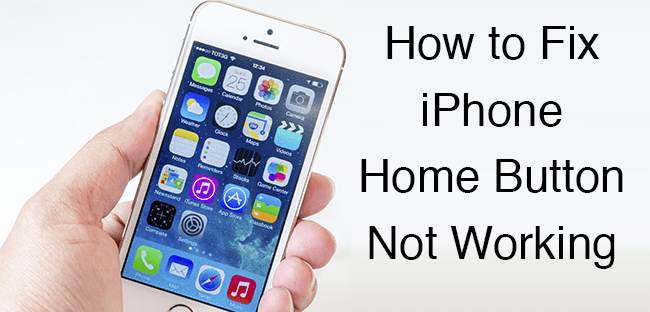
Four ways to fix an unresponsive iPhone home button

Four ways to fix an unresponsive iPhone home button

iPhone Home Button Not Working? Here are 4 Ways to Fix
No matter how anal you are about keeping your iPhone safe and intact, there is still a chance your home button will eventually suffer the effects of normal wear and tear.
The iPhone 5, which features a change to the anatomy of the home button, may solve this problem, but previous iPhone models are still susceptible to this common phenomenon.
If you're still within the provided one-year warranty and your phone doesn't show signs of accidental damage, head on over to Apple. As long as you're covered by warranty, the company will replace your phone or perform any necessary repairs.
Those who got hit with the home button plague after their warranty period can give the following four fixes a try. Just be warned: if you improperly perform methods 2 and 3 and damage your phone, we don't take responsibility.
Method 1: Calibrate (and possibly restore)
If you're lucky, your slow-to-respond home button is due to a software glitch. To find out, you'll need to calibrate your home button. Here's how:
Open up a stock app, like the Clock. Hold down the sleep button until "Slide to power off" appears. When it does, let go of the sleep button and hold down the home button. After about 5-10 seconds, the app will close.
If this solved your problem, you are one lucky iPhone owner. If it didn't you may want to try restoring your iPhone before continuing to the second method.
Method 2: Realign the docking port
There is a chance that through normal wear and tear, your phone's docking port got misaligned, moving the home button along with it. Although a repair shop might suggest you replace the home button,  YouTuber offered a different solution.
Plug a USB cable into your iPhone. Then, gently push down on the 30-pin connector, so that it pushes up behind the home button. While you apply the pressure, click the home button. Remove the cable, and see if that fixed the problem.
Method 3: Clean the home button
A splash of soda, sticky hands, dirt in the bottom of your purse or pocket -- any of these things can damage your iPhone's home button.
For this fix, you'll need 98-99 percent isopropyl alcohol, which can be found at hardware stores. Using a cotton swab, eye dropper, or tissue, apply 2-3 drops of the isopropyl alcohol directly to the home button, avoiding the screen. Then, with a narrow, dull object (like the eraser on the back of a pencil), repeatedly tap the home button so that the alcohol seeps into the frame.
Wipe clean, and wait about 10-15 minutes before checking to see if that did the trick.
Method 4: Enable the on-screen home button
If the previous three methods did not work, it sounds like perhaps you have a completely defunct home button. In this case, your home button's connectors may have been misaligned and would require professional repair. (Or, if you're willing to brave it, iFixit shows you how to DIY.)
The good news is, you can still use your phone using its on-screen home button. Normally, this is used as an accessibility option, but it's also a common solution for those with non-functioning home buttons.
To enable the on-screen home button, go to Settings > General > Accessibility > Assistive Touch. Turn Assistive Touch on, and you'll see a small circle appear on screen.
Tapping that circle gives you four options: Home, Siri, More (for things like multitasking and playback controls), and Favorites. In your case, ignore Favorites, but tap this on-screen button whenever you need to access your home screen, activate Siri, or get all the options you'd normally see when you double-tap the home button.
If the on-screen home button ever gets in the way, simply tap and hold to drag it anywhere else along the frame of your screen.
It's hardly an ideal solution, but it'll hold you over until you're ready to purchase a new phone or get your current one fixed.

Tuesday, June 9, 2020

Hidden tricks you didn't know your iPhone could do

a hand holding an iPhone
Plenty of features and functions hide behind the iPhone's unassuming exterior.Noah Silliman via Unsplash
Both iPhones and Android devices have their pros and cons, but the general consensus is that iOS is a little easier to pick up and use, while Android offers more in the way of customization and configuration. Still, simple as Apple’s operating system seems, you can find plenty of advanced features hidden below its polished surface.
If you don’t know these features exist, however, you might never discover them. Which is why we’re here to point them out. Learn how to hide private photos, use your phone as a level, activate a hidden trackpad, teach Siri nicknames, and more.

Use the keyboard as a trackpad

Did you know the iPhone keyboard can double as a trackpad? With this feature, you’ll be able to move the cursor more accurately and jump to bits of text, all without having to tap on the screen. To use it, you’ll need an iPhone with 3D Touch capabilities (iPhone 6S or newer), and this trick also works on any iPad.
On the iPhone, firmly press and hold anywhere on the keyboard to activate the trackpad. Once the keyboard goes blank, you’re in business. Then, drag your finger around to move the cursor through the text. On an iPad, drag two fingers in any direction on the keyboard to activate trackpad mode.

Check that a surface is level

a screenshot of the iOS leveling tool on the iPhone
The iPhone's built-in leveling tool will help you out around the house.
You might not have realized that the built-in iOS measurement app has leveling capabilities. Even if you did, you might not not have picked up on some of the things it can do. To find it, open Measure and tap Level on the right.
You can use the level with your phone laid flat or perched on its side in either portrait or landscape mode. If you want to measure the difference between two surfaces or are dealing with a set surface that’s not perfectly horizontal or vertical, tap the screen to set the angle to zero. Then move your phone—the red area will show you how much the two angles vary.
Use it to make sure your pictures are hanging correctly and your DIY is up to scratch. An iPhone may not be as precise as a dedicated bubble level, but it’s still handy.

Hit backspace in Calculator

If you spend a lot of time inside the iOS Calculator app, you know the frustration of mistyping a digit and having to start the calculation all over again. This hidden backspace function means you won’t have to hit the C or AC buttons every time you make a mistake. Just swipe to the left or right at the top of the screen where the digits are displayed. The motion acts as a backspace command, and will remove the number you entered last.
While we’re talking about Calculator, have you ever put the app into landscape mode with a twist of your iPhone? This view reveals a host of extra functions.

Hide your private photos

a screenshot of the option to hide photos in iOS
Yes, I'm hiding this photo of jalepeƱo poppers because they look too good. No, you can't see them.
We all hand our phones over to friends when we want to share photos or videos. But what if your collection includes sensitive images you'd rather not show anyone else? Luckily, the iPhone makes it easy to hide your most personal pictures from view
Inside Photos, select one or more images, then tap the Share button and choose Hide. As the confirmation message says, your chosen pictures will disappear from every location in your library, but you’ll still be able to see them in the Hidden album within your Albums.

Go to bed on time

In addition to letting you set alarms so you’ll wake up on time, iOS will help you stick to a given bedtime. Open up the Clock app on your iPhone and then tap on the Bedtime link at the bottom to get started.
First, your phone will ask you what time you want to wake up in the morning. When that’s set, you can decide what alarm sound you’d prefer, what time you’d like to go to bed, and what days of the week you’d like to stick to that schedule. Your iPhone will ping you when it’s time to hit the hay, automatically turn on Do Not Disturb, and track how well you’re doing at reaching your sleep targets.

Get your lost phone back

a screenshot of the Medical ID in iOS
Your medical ID can give first responders key information about you, but it can also help you get your phone back.
Even if you don’t use the Apple Health app, it’s worth filling out the Medical ID section. That’s because the details you enter here, such as your allergies and contact information for your next of kin, will appear on the lock screen when someone taps the dialer’s Emergency link. In other words, anyone who picks up your device can access this information. So, if you lose your phone, a helpful bystander can tap through to find a way to return it.
To find your Medical ID, enter the Settings app, tap Medical ID, and hit Edit. Then plug in whatever information you’d like. If you want to make sure people can it, toggle the Show When Locked switch to “on."
Another, better-known way to locate a lost device is the Find My iPhone feature, which lets you track your phone on a map. Activate the ability in the Settings app by tapping your name and selecting Find My.

Receive notifications via camera flash

Those of you who prefer a visual phone alert to an audible one will like this: You can get your iPhone’s flash to blink several times whenever you receive a notification.
To get the feature working, go into Settings and tap Accessibility. Then, enter Audio/Visual and switch the LED Flash for Alerts toggle switch to “on.” If you’d prefer to not be disturbed at all when the phone is in silent mode, you can tell the flash not to light up then.

Teach Siri to use nicknames

a screenshot of an iOS contact card with the contact's nickname set to "mom"
Nicknames will help you differentiate all the Davids and Johns in your contacts.
Siri is pretty adept at working out who you want to text or call. But you can speed up the process by adding nicknames like "mom" or "Lizzie" to your contacts. In fact, Apple's Contacts app has a field especially for this, and Siri can use it to identify people.
To manually input a nickname, open any contact card, tap Edit, choose Add field, and select Nickname from the list. Siri will also remember your relationships. Tell the assistant to “call mom” or “call my boss,” and it’ll ask which contact that designation belongs to and whether it should remember for future calls. If you want to manually assign a relationship, tap on your own contact card, hit Edit, and then add related name. Choose from a number of different relationships and tap the "i" icon to link that relationship to a specific contact.

Magnify what the camera sees

The ability to zoom in on real-world images might prove helpful in all kinds of situations, such as when you’re squinting at a menu in a dimly-lit restaurant. To use it, go to Settings, open Accessibility, and then tap Magnifier to toggle the feature on. You can also enable Auto-Adjust Exposure at this time, which means the camera screen will react to ambient light levels.
With Magnifier on, you can launch the iOS Camera app and triple-tap the side button (the Home button on older phones) to bring up the Magnifier option. Use the slider at the bottom of the screen to take a closer look at anything—even closer than your camera’s zoom.

Write on email attachments

a screenshot of a Popular Science image as an email attachment that has been marked up with the iOS markup tool
For when you're emailing someone who really needs a big red circle to see the important part of an image or PDF.
Sometimes, an email attachment just doesn’t convey enough information on its own. So annotate it with Apple’s built-in Mail app. Digital scribbles, text overlays, a zoom-in magnification window, digital signatures—you can add all of these on top of email attachments.
To modify an image or PDF attachment you’ve received, just open it and tap the markup icon (a pen tip in a circle) in the top right. When you hit Done, it’ll ask how you want to reply or if you want to discard your changes. If you choose to reply or create a new message, you’ll be able to review your email before you send it. For a file you’ve attached to a new email, tap the attachment and select Markup.
Source David Nield

Featured

[Featured][recentbylabel2]

Featured

[Featured][recentbylabel2]
Notification
This is just an example, you can fill it later with your own note.
Done