Android Tricks 4 All: iCloud
News Update
Loading...
Showing posts with label iCloud. Show all posts

Wednesday, February 3, 2021

Unlock iCloud Activation Lock 2021 remove the "Find My iPhone” Activation Lock

iCloud Activation Lock is an amazing feature which not only keeps your devices safe but makes sure that no one can access them without your permission. Besides that, this feature works great with "Find My iPhone," which ensures extra security for iPhone users. 


But sometimes, you’ve to remove the iCloud activation lock, and there can be several reasons for it. For Example, you've purchased a second-hand iPhone and want to unlock the iCloud Activation lock, or you have forgotten the Apple ID and password. 


So, how can you remove the "Find My iPhone” Activation Lock without the previous owner?  There are many methods that you can try to remove it, such as using a third-party application, jailbreaking, and more. Below is the complete process that you can try to unlock the iCloud Activation lock. 

Remove iCloud activation lock on iPhone with Tenorshare 4MeKey 

You can use Tenorshare 4MeKey to remove iCloud activation lock at home by yourself. It's a simple and effective solution to unlocking the iCloud Activation Lock. The good thing is that it’s compatible with new and old versions, so you can almost use it for all the iPhones.


 Moreover, it requires a few simple steps to unlock your device without erasing any data. Yes, you heard it right. This program won’t remove your data during the process. In addition, the good news is that you don’t have to add any Apple ID and password to unlock the iCloud activation. 


Below are the steps that you can follow to remove iCloud activation using Tenoshare 4MeKey. 


1. The first process is to download the application on your computer. You can visit Tenoshare, and from the categories, you can select 4MeKey software. 


2. Once you are done with installing, now launch the program. Click the "Start" button. You will see the user agreement, accept it, and hit the "Next" option. 


3. Before you use this application to unlock the iCloud Activation Lock, it's essential to jailbreak it, and for that, you have to select the “Next” option. 

Note: On the screen, you will see different methods to jailbreak your device. You can also click the tutorial link if you are a beginner and don’t know how to jailbreak your iPhone.  


4. Once you are done with the jailbreak, now it's time to follow the last process. And for that, you've to choose "Next," which will help you to unlock the iCloud Activation lock. However, to complete this process, make sure to add the right details of your phone. After completing all the steps successfully, click the “Done” option. 


Make sure to read all the warnings on the screen before closing it. Also, make sure that you can’t use the factory reset method as your device will be locked again. 

Activation Lock is a good feature provided by Apple, and it makes sure that no one can mess with your privacy. However, you still have to remove it, and for that, you can use Tenorshare 4MeKey. It’s a good program with less complicated steps. Along with that, it has an intuitive interface, which will make your work easier. You can download it on your computer and enjoy all its amazing features.


Wednesday, July 15, 2020

How to Turn Off Find My iPhone When You Sell Your Device

How to Turn Off Find My iPhone When You Sell Your Device

turnoff-find-iphone
iPhone theft or a misplaced phone will send alarm bells ringing. That’s why the Find My app on your iPhone and iPad is such an important security feature. From iOS 13 onward, Apple merged Find My iPhone and Find My Friends into this single app.
Find My is a vital radar to reduce your “lost and found” accidents. It’s also a critical hub to share your location with friends and family. But it’s also a feature you should turn off when you sell or give away your iPhone.
First, let’s answer why; we’ll then look at how to turn off Find My on your iPhone or iPad.

Why You Should Turn Off “Find My” When You Sell an iPhone?

There are three reasons to turn off Find My when you sell your iPhone, give it up for recycling, or hand it down to a friend or family member:
  • You cannot restore the iPhone or iPad to its original factory settings without disabling Find My.
  • Anyone with your Apple ID and password can track you through the Find My app on iCloud.
  • Activation Lock switches on to lock your device when you enable Find My, meaning the buyer cannot use it.
That’s why you must make sure to disable the feature before you pass on your device or send it in for service. You can turn off Find My from the app, as well as remotely from iCloud, by unlinking your device from your Apple account.

How to Turn Off Find My iPhone

The Find My app exists as a dedicated utility on your iOS device. In iOS 13, Find My Phone and Find My Friends were combined into one single app. Now, you can use it to share your location, mark a device as lost, and erase your data remotely.
But to turn it off, you have to head to a different place: the Settings menu on your iPhone:
  1. Open Settings.
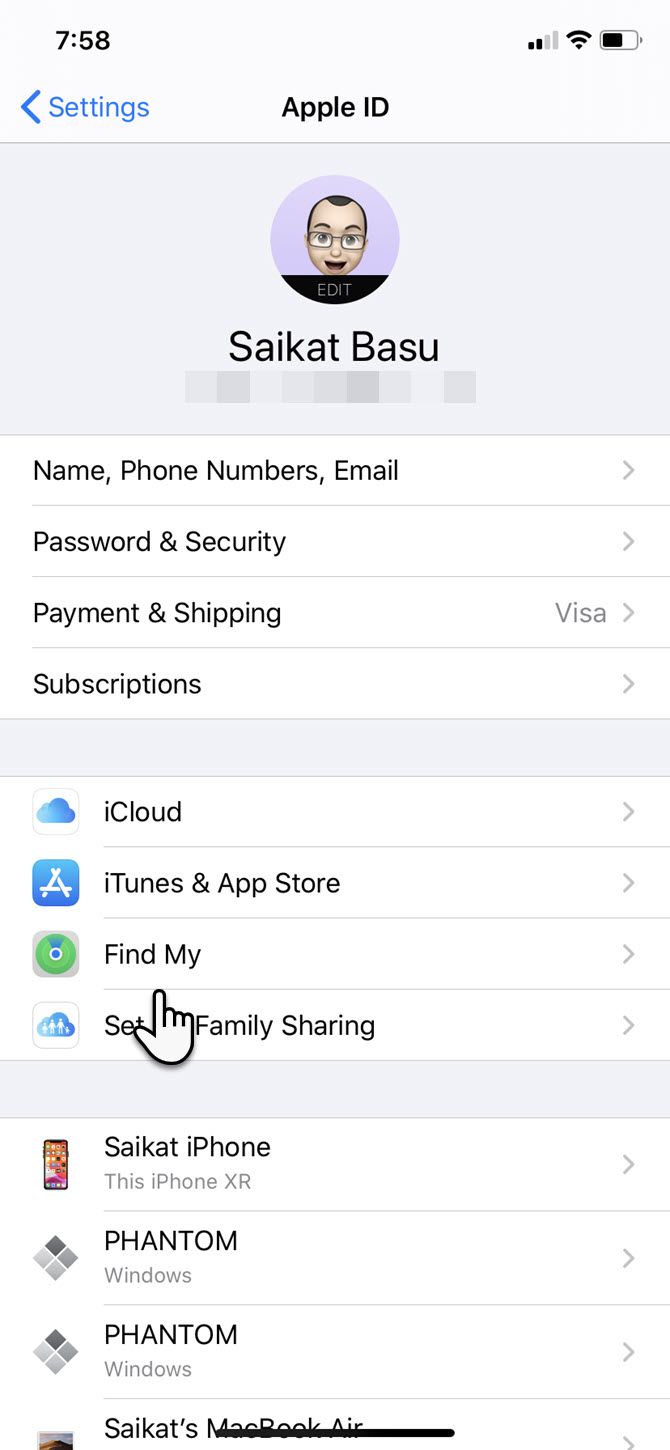
  2. Tap on the Apple ID banner with your name (the first item on the Settings screen).
  3. Scroll down to Find My on the next screen.
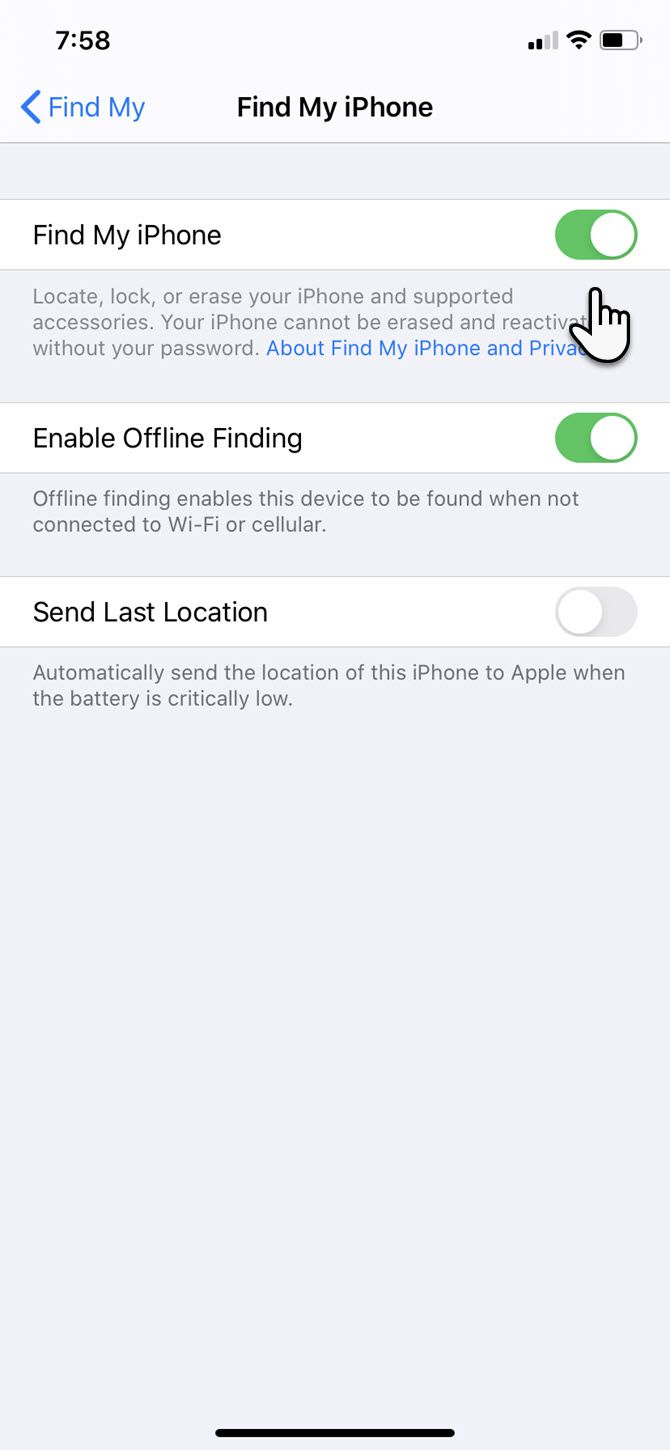
  4. Now, tap on Find My iPhone/iPad. Toggle the Find My iPhone/iPad slider to the off position.
  5. You will need to enter your Apple ID and password to turn off Find My iPhone.
  6. Find My iPhone will now be disabled for this iOS device.
If you are planning to sell the device, you can now restore your iPhone to factory defaults. Do this using Settings > General > Reset > Erase All Content and Settings. However, it’s a good idea to first sign out of iCloud completely by tapping Sign Out at the bottom of the Apple ID page, which you can access by tapping your name at the top of Settings.

How to Disable Find My From iCloud

You cannot disable just the Find My service from iCloud. Before you give your device to someone, you’ll need to sign into iCloud and erase all content and settings. This completely erases everything on your iPhone, removes it from the linked Apple ID, and turns off Find My.
If you use two-factor authentication on your Apple ID, you’ll get a verification code on your Apple devices as an extra layer of security when signing into iCloud from a browser. You can also sign into Find My iPhone directly on the web.
Use the same Apple ID and password linked to the phone you’re selling and follow the steps below. iCloud displays the map with the location of your iPhone:
  1. Click the dropdown arrow next to All Devices at the top of the map and select the specific device from the list.Sign into iCloud Find My iPhone Screen
  2. Click Erase iPhone in the dropdown that appears for the specific device you selected. Since you are the owner of the Apple device and wish to give it away, don’t enter a message or number here.Erase iPhone option in Find My iPhone screen
  3. If your phone is off, a reset prompt will appear on the next boot. The phone will be remotely erased and you will get an email after it completes.
  4. After your device is erased, click the green link that says Remove from Account.
The device will now be erased and reset. Another user can now activate it after completing the steps on the Set up your iPhone screen.
Note: The full set of iCloud features includes Find My iPhone. If you do not see Find My iPhone when visiting iCloud.com on your computer, your account only has access to iCloud’s web-only features. To use Find My iPhone, sign into iCloud on your Apple device from Settings.

Turn Off Find My iPhone Without the Apple ID

You cannot do this.
Find My on your Apple devices isn’t only a recovery feature, but also a security layer. Your Apple ID is at the core of it, which protects your device in case of theft or loss. Apple Support gives you a few ways to recover or reset your Apple ID in case of a memory lapse.

Don’t Sell Your iPhone Until It’s Unlocked

If you still have Find My Turned on or haven’t reset your iOS device, it’s not ready to sell. Keep an eye out for these two signs:
  1. When the device hasn’t been unlinked from your iCloud account, the Activation Lock screen will appear during the setup process.
  2. If you haven’t erased all the data on the phone, you will see the passcode lock or home screen upon startup. Make sure you see the Set up your iPhone screen when you turn the device on.
Always erase all content and remove the device from your iCloud account before you give it to someone. Otherwise, the person you give it to will have to contact you and ask you to do it remotely from your iCloud account.
Of course, you can be on the other side of the equation and come across a lost phone. Here are a few steps you can take to return a lost iPhone to its rightful owner.


Thursday, June 4, 2020

iCloud outage impacts Mail, web apps, more [u: fixed]


Apple's iCloud is experiencing unknown issues that in some cases prevents users from accessing the cloud storage and syncing service, as well as other products like Mail and certain web apps.
Problems began at around 7 p.m. Eastern, with impacted users taking to Apple's support forums to report the issue.
An update to Apple's system status webpage reveals multiple outages including iCloud Account & Sign In, iCloud Mail and iCloud Web Apps. Users attempting to access Mail on their iOS or Mac devices are met with login authentication roadblocks, while iCloud.com is completely inaccessible for some.
Certain apps that require Apple ID authentication are also affected, with in-app verification and app-specific passwords not functioning as intended. Some users are also reporting verification failures that trigger a pop-up reading, "The application you have selected does not exist." These problems appear to be tied to Apple ID's backend.
It is unclear what caused the issue or how many users are affected by downtime.
Apple has yet to comment on the difficulties and does not offer an estimate as to when the service will regain functionality.
Update 8:11 p.m. EDT: Apple has resolved the hour-long issue.

Wednesday, May 20, 2020

Friday, July 14, 2017

How to use Apple Watch to unlock your Mac in macOS Sierra

  • HOW-TO
  • TOP STORIES
cult of mac
Hey, presto! No more typing in passwords. 
Photo: Ste Smith/Cult of Mac
The devices in Apple’s ecosystem always work really well together, and macOS Sierra doesn’t buck that trend. In fact, the upcoming desktop operating system lets Apple Watch owners automatically unlock their Macs using the wearable device — no lengthy password needed.

It’s a small, but incredibly useful, new feature that rewards Mac owners who have taken the dive and invested in an Apple Watch. Here’s how to use it when running macOS Sierra, which is currently in public beta and will be released this fall.

Unlock Mac by Apple Watch

Set up two-factor authentication on your Mac

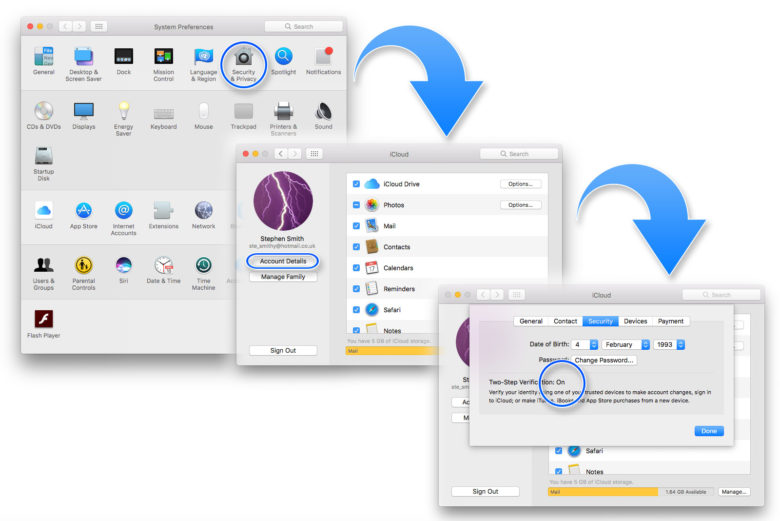
First off, ensure that Two-Factor Authentication is enabled. To do this, open up System Preferences on your Mac, then click on iCloud and go to Account Details. Next, select Security and Enable Two-Factor Authentication.

cult
Setting up Two-Factor Authentication is your first step.
Photo: Luke Dormehl/Cult of Mac

Set up passcode on Apple Watch

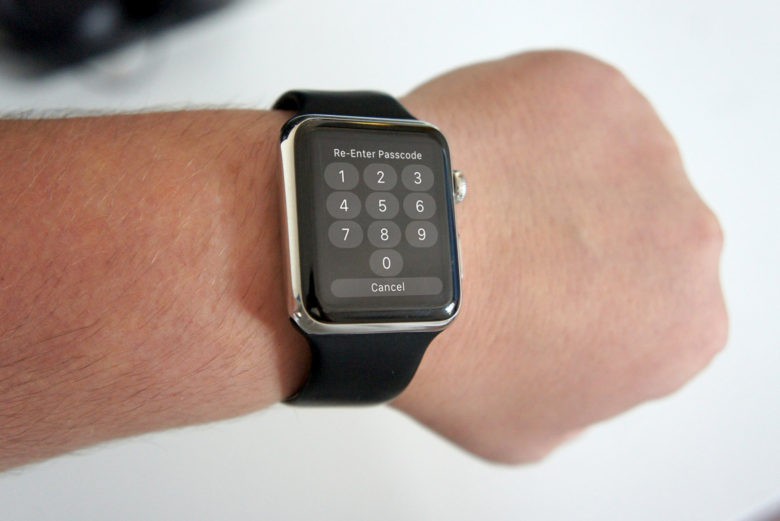
Next, you’ll need to ensure you have a passcode set up on your Apple Watch if you don’t already. To do this, tap the Watch icon on your iPhone’s home screen. Go to the My Watch tab, tap Passcode and then tap Turn Passcode On. You’ll then be asked to enter a four-digit passcode. (Make this different than the passcode you use with your iPhone, for security reasons!)
Cult of Mac
You’ll need to set up extra security on your Apple Watch.
Photo: Ste Smith/Cult of Mac

Disable automatic login on Mac

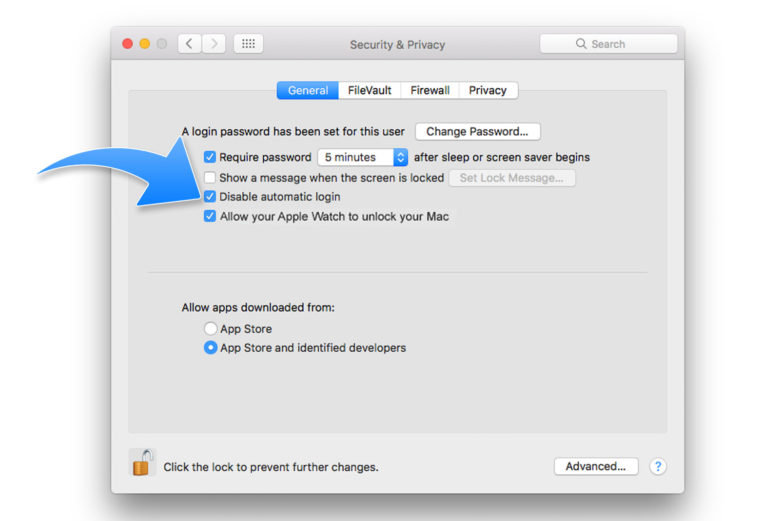
Now go back to System Preferences on your Mac and click Security & Privacy. Click the General tab. Once there, make sure that Disable Automatic Login is unchecked. You might have to enter the new password you created during two-factor authentication setup. If the option is grayed out, you might need to click the padlock icon at the bottom of the window to make the necessary changes.
apple watch
Almost there …
Photo: Luke Dormehl/Cult of Mac

Enable Apple Watch to unlock Mac

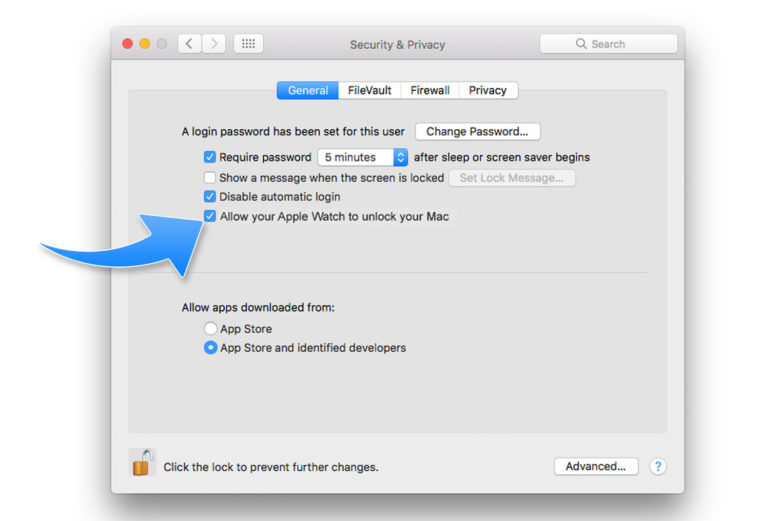
After that, make sure the 
Allow your Apple Watch to unlock your Mac box is checked. A Turning On message will then appear, and might ask you to enter your password.

Apple watch
One more step and you’re finished!
Photo: Luke Dormehl/Cult of Mac

Wednesday, July 12, 2017

Recover your Apple ID with two-factor authentication account recovery

Recover your Apple ID with two-factor authentication account recovery

If you use two-factor authentication and can't sign in or reset your password, you can regain access to your account with account recovery.
Résultat de recherche d'images pour "apple id and icloud password"

What is account recovery?

Account recovery is an automated process designed to get you back into your Apple ID account* as quickly as possible and deny access to unauthorized users. Recovery might take a few days or more, depending on the verification information that you can provide.
* Learn how to sign in to your Apple ID or how to reset your Apple ID password

Decide if you need account recovery

Use account recovery only as a last resort when you can’t sign in or reset your Apple ID password. Before you start account recovery, confirm that it’s right for you:
  • Will you soon have access to the trusted device that displays the verification code that’s required to sign in? If so, don’t use account recovery. It's faster to wait until you can access a trusted device than to wait on account recovery, which might take days.
  • Have you tried to reset your forgotten password from a trusted device? This is the quickest way to reset a password. Don’t start account recovery for a forgotten password unless you can't access a trusted device that has an enabled passcode.
Did you try the previous instructions and still need help? It’s time to request account recovery. Use Settings on your iOS device or System Preferences on your Mac:

On iPhone, iPad, or iPod touch

  1. Go to Settings > Sign in to your [device]. For iOS 10.2 or earlier, go to Settings > iCloud.
  2. Tap Don’t have an Apple ID or forgot it, then tap Forgot Apple ID.
  3. Enter your Apple ID, then tap Next.
  4. Enter your trusted phone number, then tap Next.
  5. Finish the onscreen steps, which differ based on your access to your trusted phone number or another device.

On Mac

  1. Go to Apple menu > System Preferences, then click iCloud.
  2. Click Forgot Apple ID or password.
  3. Enter your Apple ID, then click Continue.
  4. Enter your trusted phone number, then click Continue.
  5. Finish the onscreen steps, which differ based on your access to your trusted phone number or another device.

If you can't access any of your devices

You can request account recovery from a friend or family member’s iPhone, iPad, or iPod touch:
  1. Open the Find My iPhone app. If a Sign In screen appears, tap Forgot Apple ID or Password, then follow the onscreen steps.
  2. Don't see a Sign In screen? Tap Sign Out. After you sign out, tap Forgot Apple ID or Password, then follow the onscreen steps.
Are you still unable to start the account recovery process? Only if you can't access your trusted device or a different iPhone, iPad, iPod, or Mac, go to iforgot.apple.com. Enter your Apple ID, enter the code you see, then click Continue. Enter your trusted phone number, then click Continue. Choose "Don’t have access to your trusted devices or phone numbers." Choose Start Account Recovery.

What comes next?

After you request account recovery, you get an email with a confirmation of your request and a date and time of when you can expect to regain access to your account. Next, wait for the recovery process to finish, which might take a few days or more.
When the process completes, Apple sends you a text or automated phone call with instructions to regain access to your account. Follow the instructions to immediately resume use of your Apple ID.

Check the status, start over, or try to shorten the wait

Here's how to cancel or restart the process, see if recovery is pending, or try to shorten your wait time:
  • If you remember your Apple ID and sign in—or regain access to a trusted device that's already signed in—account recovery cancels itself for you. You can continue using your Apple ID as usual.
  • Did you start account recovery from iforgot.apple.com, and then access one of your trusted devices? If so, restart account recovery from the settings on that device, instead of through iforgot.apple.com.
  • Want to see if your recovery request is in progress? Check on iforgot.apple.com
  • You might be able to provide credit-card details and shorten the recovery period from iforgot.apple.com. If you’re given the option to confirm your credit-card details, an authorization request goes to the card issuer. If you enter the correct details but you're asked to reenter the correct security information, contact your card issuer. The issuer might be declining your authorization attempts.

Get help

  • If you need more help, contact Apple Support. While we can answer your questions about the account recovery process, we can't verify your identity or expedite the process in any way.
  • Did you forget your Apple ID password, but you don't use two-factor authentication?

Users GSX Accounts Blocked by Apple for Mass-Checking IMEI

Users who have access to Apple servers to check IMEI numbers experience problems with GSX accounts blocked by the company.

There are a lot of companies that use Apple GSX accounts to check different information about the iPhone by its IMEI code. Ordinary users cannot get such an account but they are able to order network and blacklist checker service from the companies that specialize on iPhone unlocking. Lately, as companies report, GSX accounts blocked problem is experienced by a lot of firms. Apple begins to block such accounts for mass IMEI checking.

GSX account IMEI check is the main way how users could learn their original network, country, warranty and other useful details. Such data is must know when you want to order factory unlock and use your handset on any compatible network across the world.


The issues with GSX account being deactivated surfaced about a week ago. Something has changed and Apple started to punish users who used Apple global service exchange option too often.

The same problem is reported by numerous business owners but no one knows what happens and why it happens. No one can tell you what went wrong but since these accounts are given out by Apple, this company is in the middle of this.


While companies state that their GSX accounts are blocked by the Cupertino-based giant, ordinary customers have to find other ways for checking their network, running IMEI blacklist checkers and get other information about the locked and unlocked handsets.

Apple block on GSX accounts should not trouble you if you are about to unlock your iPhone and need to check everything about it using the 15-digit IMEI code. There is a working IMEI network checking service imei.org that can answer all your questions. This is safe, fast, reliable and one of the best carrier checkers on the web. However it may delay like any other checker on the web.

Check Find My iPhone Activation Lock Status Before Paying for a Used iPhone

It doesn’t matter what iOS runs the iPhone you wish to purchase from someone on eBay, Craglist and similar websites. You should run Find My iPhone iCloud lock check service beforehand if you are thinking about unlocking, updating to iOS 7 or reselling the gadget in the future. Apple presented new changes this year with the release of iOS 7 and Activation lock feature can make the device completely useless if it is turned on by previous owner.


Found a Lost or Stolen iPhone? Here’s What to Do with few steps 


This firmware offers a lot of great options and a lot of people have already installed it on their gadget. Users who got the device from resellers might experience problems while updating because of Activation Lock feature being turned on by previous iPhone owner. The result can upset you, especially if you can’t contact that owner and ask for his Apple ID / passcode information in order to unlock your handset.

Should you buy a refurbished/Used iPhone? 5 Free Important tips for iPhone unlock


You can get stuck with the lock screen and not be able to use your smartphone on iOS 7 at all. Isn’t this problem frustrating? I bet it is. We advise you to run Find My iPhone iCloud Lock checker to learn whether it is on or off before you unlock or purchase a used iPhone.

The service will not protect you from getting a “brick” device, but it will be your weapon as you will know for sure whether or not to get the handset you have chosen from a third-party person. You can always ask the seller to turn Find My iPhone off before handing you the device so that you can either use your Apple ID / passcode for further unlocks or never use this feature.

The thing is if you forget this information [password and ID] you will not be able to reset it… So simply choose iCloud passcodeLock checker for iOS 7 devices and stay safe. If the problem with being locked once and forever already exists try to get rid of iOS 7 Find My iPhone Activation lock distantly by using this service. Hopefully you have no problems with the new lock option at all.


How to Find IMSI Number on iPhone [Helps with iOS Unlock][Updated]

Locked iPhone users who got their handset from a reseller or someone on eBay might not even know what their original mobile operator was. Knowing your carrier is the first step for factory iPhone unlock. There is one great way how you can check iPhone network to order unlock, and this method requires the first 5 digits of your iPhone IMSI code.

What IMSI number is and how to find iPhone IMSI number is . This is not IMEI code. This is a different number that is related to your SIM card. It is sent to your carrier when you register the iPhone. IMSI code is a 15-digit number [note that IMEI also has 15 digit, but it is a different number so don’t confuse them] where the first five digits can tell you what carrier and country your handset is locked to.


How to Turn Off Find My iPhone When You Sell Your Device


You must know your original country and mobile operator in order to unlock iPhone by IMEI code. Thus IMSI number becomes really useful. It saves much time and is free to get information from. It will be your time saver if you ever choose to SAM unlock your iPhone as well.

SIM card has the following information stored on it:

  • Your unique serial number ICCID
  • IMSI number known as International Mobile Subscriber Identity
  • PIN or your Personal Identification Number
  • PUK which stands for Personal Unblocking Code
  • Information sent to the local carrier
  • Ciphering info
  • Security authentication information

IMSI is used rarely, some carriers even prefer to use TMSI for mobile subscribe identity option. Once again, this is 15-digit code where:

  1. First 3 digit are your MCC or Mobile Country Code
  2. The 4th and 5th digits are for MNC or Mobile Network Code in a number of countries [EMEA: Africa, Europe and the Middle East]
  3. The 4th, 5th and 6th digits are for MNC in NAR countries [all other countries that don’t include EMEA]
  4. The next 9 or 10 digits are for MSIN or Mobile Station Identification Number

You need to know your MCC and MNC as this is the information about your network. You actually don’t need MSIN that much as it shows the info about your subsets / regional carriers.


IMSI iPhone Number How to Find It Instruction


In order to find your IMSI you must have a jailbroken and activated iPhone. Otherwise your attempts  fail.

Once you know it you can look up your network via this link: the most complete list of carrier and country codesThere are several methods for locating IMSI iPhone number.

Method 1

Open the Terminal app [you should download it for your iPhone]. You need to type AT+CIMI and click Enter key via Minicom app [remember to install it on your iDevice as well]. The IMSI code will be displayed.


Found a Lost or Stolen iPhone? Here’s What to Do with few steps 


Method 2

IMSI is stored in your /System/Library/Carrier Bundles where the name starts with your carrier. For example, users with Verizon SIM will see it as VERIZON_US.bundle var/mobile/Library/Carrier Bundles and people with AT&T SIM will have it as ATT_US.bundle var/mobile/Library/Carrier Bundles. Your iPhone firmware creates a shortcut to the bundle var/mobile/Library/Carrier Bundle.bundle and here is how you can find your IMSI code.

Method 3


Users who are unlocking with SAM and have SAMPrefs application [if you are jailbroken but don’t have this app, download it from http://repo.bingner.com] on their iDevice need to launch it and open More Information – IMSI. The code consists of 15 digit.

So let’s imagine you know your iPhone IMSI number. Let’s say it is 123456789101234. These are fifteen digit where 123 is your country [UK, US, CanadaFrance or any other where your iPhone was originally produced for]

45 or 456 goes for your carrier [Vodafone, EMEA, AT&T, Verizon, T-Mobil etc.]. 12345 is your SIM ID. 

Latest Method 


  1. getting cell tap difference imsi imsi  sim phone imei subscriber card international idetinty used international  iccid phone sim 
    may ios apple devices design general settings catcher catchers using identifier to connect just select iphones device catcher stingrays private bit data phone's ipad help module found primary list operators wait hardware activation cards tower auto base screen user numbers inside posts running framework two write dynamic answer allows scroll source mode xr cellular identify setting turbosite exploit want buying smartphone based software upon old simply to pretends heading still buy used android phones associated new esim worldwide location  identity cell catchers settings for imsi sim phone iccid


Featured

[Featured][recentbylabel2]

Featured

[Featured][recentbylabel2]
Notification
This is just an example, you can fill it later with your own note.
Done