Android Tricks 4 All: iCloud Removal
News Update
Loading...
Showing posts with label iCloud Removal. Show all posts

Wednesday, February 3, 2021

Unlock iCloud Activation Lock 2021 remove the "Find My iPhone” Activation Lock

iCloud Activation Lock is an amazing feature which not only keeps your devices safe but makes sure that no one can access them without your permission. Besides that, this feature works great with "Find My iPhone," which ensures extra security for iPhone users. 


But sometimes, you’ve to remove the iCloud activation lock, and there can be several reasons for it. For Example, you've purchased a second-hand iPhone and want to unlock the iCloud Activation lock, or you have forgotten the Apple ID and password. 


So, how can you remove the "Find My iPhone” Activation Lock without the previous owner?  There are many methods that you can try to remove it, such as using a third-party application, jailbreaking, and more. Below is the complete process that you can try to unlock the iCloud Activation lock. 

Remove iCloud activation lock on iPhone with Tenorshare 4MeKey 

You can use Tenorshare 4MeKey to remove iCloud activation lock at home by yourself. It's a simple and effective solution to unlocking the iCloud Activation Lock. The good thing is that it’s compatible with new and old versions, so you can almost use it for all the iPhones.


 Moreover, it requires a few simple steps to unlock your device without erasing any data. Yes, you heard it right. This program won’t remove your data during the process. In addition, the good news is that you don’t have to add any Apple ID and password to unlock the iCloud activation. 


Below are the steps that you can follow to remove iCloud activation using Tenoshare 4MeKey. 


1. The first process is to download the application on your computer. You can visit Tenoshare, and from the categories, you can select 4MeKey software. 


2. Once you are done with installing, now launch the program. Click the "Start" button. You will see the user agreement, accept it, and hit the "Next" option. 


3. Before you use this application to unlock the iCloud Activation Lock, it's essential to jailbreak it, and for that, you have to select the “Next” option. 

Note: On the screen, you will see different methods to jailbreak your device. You can also click the tutorial link if you are a beginner and don’t know how to jailbreak your iPhone.  


4. Once you are done with the jailbreak, now it's time to follow the last process. And for that, you've to choose "Next," which will help you to unlock the iCloud Activation lock. However, to complete this process, make sure to add the right details of your phone. After completing all the steps successfully, click the “Done” option. 


Make sure to read all the warnings on the screen before closing it. Also, make sure that you can’t use the factory reset method as your device will be locked again. 

Activation Lock is a good feature provided by Apple, and it makes sure that no one can mess with your privacy. However, you still have to remove it, and for that, you can use Tenorshare 4MeKey. It’s a good program with less complicated steps. Along with that, it has an intuitive interface, which will make your work easier. You can download it on your computer and enjoy all its amazing features.


Friday, July 14, 2017

How to use Apple Watch to unlock your Mac in macOS Sierra

  • HOW-TO
  • TOP STORIES
cult of mac
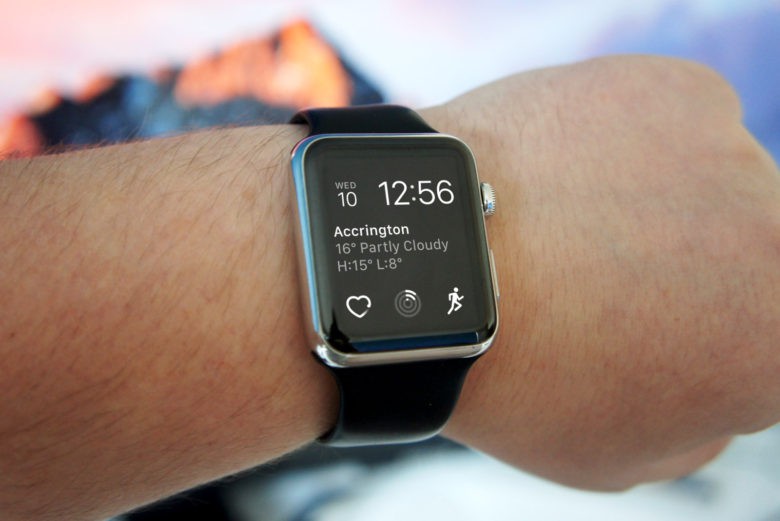
Hey, presto! No more typing in passwords. 
Photo: Ste Smith/Cult of Mac
The devices in Apple’s ecosystem always work really well together, and macOS Sierra doesn’t buck that trend. In fact, the upcoming desktop operating system lets Apple Watch owners automatically unlock their Macs using the wearable device — no lengthy password needed.

It’s a small, but incredibly useful, new feature that rewards Mac owners who have taken the dive and invested in an Apple Watch. Here’s how to use it when running macOS Sierra, which is currently in public beta and will be released this fall.

Unlock Mac by Apple Watch

Set up two-factor authentication on your Mac

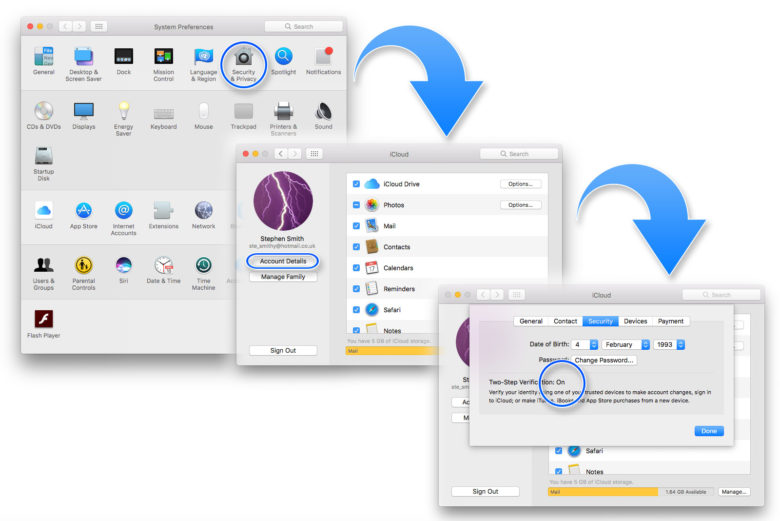
First off, ensure that Two-Factor Authentication is enabled. To do this, open up System Preferences on your Mac, then click on iCloud and go to Account Details. Next, select Security and Enable Two-Factor Authentication.

cult
Setting up Two-Factor Authentication is your first step.
Photo: Luke Dormehl/Cult of Mac

Set up passcode on Apple Watch

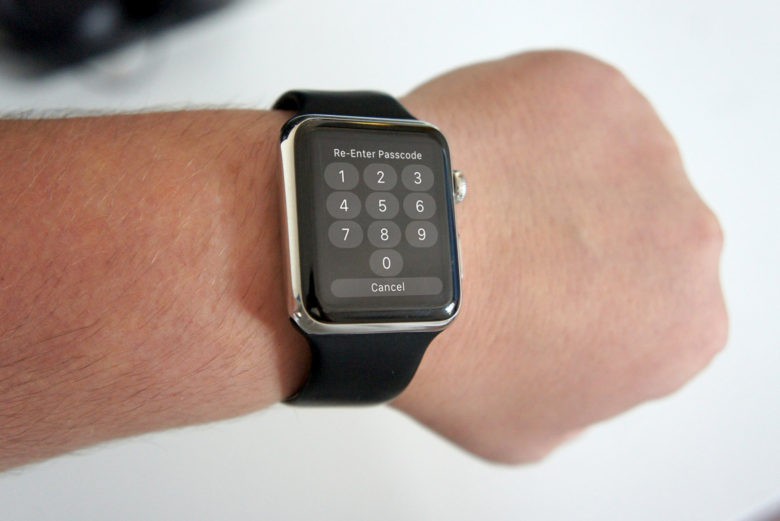
Next, you’ll need to ensure you have a passcode set up on your Apple Watch if you don’t already. To do this, tap the Watch icon on your iPhone’s home screen. Go to the My Watch tab, tap Passcode and then tap Turn Passcode On. You’ll then be asked to enter a four-digit passcode. (Make this different than the passcode you use with your iPhone, for security reasons!)
Cult of Mac
You’ll need to set up extra security on your Apple Watch.
Photo: Ste Smith/Cult of Mac

Disable automatic login on Mac

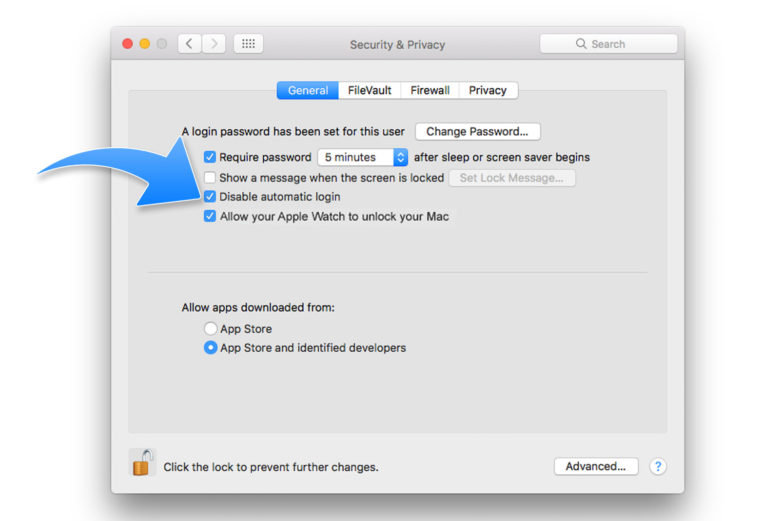
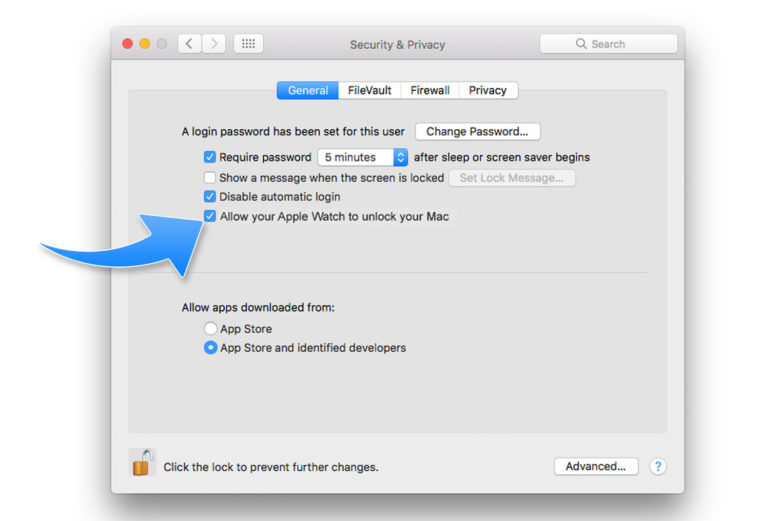
Now go back to System Preferences on your Mac and click Security & Privacy. Click the General tab. Once there, make sure that Disable Automatic Login is unchecked. You might have to enter the new password you created during two-factor authentication setup. If the option is grayed out, you might need to click the padlock icon at the bottom of the window to make the necessary changes.
apple watch
Almost there …
Photo: Luke Dormehl/Cult of Mac

Enable Apple Watch to unlock Mac

After that, make sure the 
Allow your Apple Watch to unlock your Mac box is checked. A Turning On message will then appear, and might ask you to enter your password.

Apple watch
One more step and you’re finished!
Photo: Luke Dormehl/Cult of Mac

Wednesday, July 12, 2017

Recover your Apple ID with two-factor authentication account recovery

Recover your Apple ID with two-factor authentication account recovery

If you use two-factor authentication and can't sign in or reset your password, you can regain access to your account with account recovery.
Résultat de recherche d'images pour "apple id and icloud password"

What is account recovery?

Account recovery is an automated process designed to get you back into your Apple ID account* as quickly as possible and deny access to unauthorized users. Recovery might take a few days or more, depending on the verification information that you can provide.
* Learn how to sign in to your Apple ID or how to reset your Apple ID password

Decide if you need account recovery

Use account recovery only as a last resort when you can’t sign in or reset your Apple ID password. Before you start account recovery, confirm that it’s right for you:
  • Will you soon have access to the trusted device that displays the verification code that’s required to sign in? If so, don’t use account recovery. It's faster to wait until you can access a trusted device than to wait on account recovery, which might take days.
  • Have you tried to reset your forgotten password from a trusted device? This is the quickest way to reset a password. Don’t start account recovery for a forgotten password unless you can't access a trusted device that has an enabled passcode.
Did you try the previous instructions and still need help? It’s time to request account recovery. Use Settings on your iOS device or System Preferences on your Mac:

On iPhone, iPad, or iPod touch

  1. Go to Settings > Sign in to your [device]. For iOS 10.2 or earlier, go to Settings > iCloud.
  2. Tap Don’t have an Apple ID or forgot it, then tap Forgot Apple ID.
  3. Enter your Apple ID, then tap Next.
  4. Enter your trusted phone number, then tap Next.
  5. Finish the onscreen steps, which differ based on your access to your trusted phone number or another device.

On Mac

  1. Go to Apple menu > System Preferences, then click iCloud.
  2. Click Forgot Apple ID or password.
  3. Enter your Apple ID, then click Continue.
  4. Enter your trusted phone number, then click Continue.
  5. Finish the onscreen steps, which differ based on your access to your trusted phone number or another device.

If you can't access any of your devices

You can request account recovery from a friend or family member’s iPhone, iPad, or iPod touch:
  1. Open the Find My iPhone app. If a Sign In screen appears, tap Forgot Apple ID or Password, then follow the onscreen steps.
  2. Don't see a Sign In screen? Tap Sign Out. After you sign out, tap Forgot Apple ID or Password, then follow the onscreen steps.
Are you still unable to start the account recovery process? Only if you can't access your trusted device or a different iPhone, iPad, iPod, or Mac, go to iforgot.apple.com. Enter your Apple ID, enter the code you see, then click Continue. Enter your trusted phone number, then click Continue. Choose "Don’t have access to your trusted devices or phone numbers." Choose Start Account Recovery.

What comes next?

After you request account recovery, you get an email with a confirmation of your request and a date and time of when you can expect to regain access to your account. Next, wait for the recovery process to finish, which might take a few days or more.
When the process completes, Apple sends you a text or automated phone call with instructions to regain access to your account. Follow the instructions to immediately resume use of your Apple ID.

Check the status, start over, or try to shorten the wait

Here's how to cancel or restart the process, see if recovery is pending, or try to shorten your wait time:
  • If you remember your Apple ID and sign in—or regain access to a trusted device that's already signed in—account recovery cancels itself for you. You can continue using your Apple ID as usual.
  • Did you start account recovery from iforgot.apple.com, and then access one of your trusted devices? If so, restart account recovery from the settings on that device, instead of through iforgot.apple.com.
  • Want to see if your recovery request is in progress? Check on iforgot.apple.com
  • You might be able to provide credit-card details and shorten the recovery period from iforgot.apple.com. If you’re given the option to confirm your credit-card details, an authorization request goes to the card issuer. If you enter the correct details but you're asked to reenter the correct security information, contact your card issuer. The issuer might be declining your authorization attempts.

Get help

  • If you need more help, contact Apple Support. While we can answer your questions about the account recovery process, we can't verify your identity or expedite the process in any way.
  • Did you forget your Apple ID password, but you don't use two-factor authentication?

Users GSX Accounts Blocked by Apple for Mass-Checking IMEI

Users who have access to Apple servers to check IMEI numbers experience problems with GSX accounts blocked by the company.

There are a lot of companies that use Apple GSX accounts to check different information about the iPhone by its IMEI code. Ordinary users cannot get such an account but they are able to order network and blacklist checker service from the companies that specialize on iPhone unlocking. Lately, as companies report, GSX accounts blocked problem is experienced by a lot of firms. Apple begins to block such accounts for mass IMEI checking.

GSX account IMEI check is the main way how users could learn their original network, country, warranty and other useful details. Such data is must know when you want to order factory unlock and use your handset on any compatible network across the world.


The issues with GSX account being deactivated surfaced about a week ago. Something has changed and Apple started to punish users who used Apple global service exchange option too often.

The same problem is reported by numerous business owners but no one knows what happens and why it happens. No one can tell you what went wrong but since these accounts are given out by Apple, this company is in the middle of this.


While companies state that their GSX accounts are blocked by the Cupertino-based giant, ordinary customers have to find other ways for checking their network, running IMEI blacklist checkers and get other information about the locked and unlocked handsets.

Apple block on GSX accounts should not trouble you if you are about to unlock your iPhone and need to check everything about it using the 15-digit IMEI code. There is a working IMEI network checking service imei.org that can answer all your questions. This is safe, fast, reliable and one of the best carrier checkers on the web. However it may delay like any other checker on the web.

Check Find My iPhone Activation Lock Status Before Paying for a Used iPhone

It doesn’t matter what iOS runs the iPhone you wish to purchase from someone on eBay, Craglist and similar websites. You should run Find My iPhone iCloud lock check service beforehand if you are thinking about unlocking, updating to iOS 7 or reselling the gadget in the future. Apple presented new changes this year with the release of iOS 7 and Activation lock feature can make the device completely useless if it is turned on by previous owner.


Found a Lost or Stolen iPhone? Here’s What to Do with few steps 


This firmware offers a lot of great options and a lot of people have already installed it on their gadget. Users who got the device from resellers might experience problems while updating because of Activation Lock feature being turned on by previous iPhone owner. The result can upset you, especially if you can’t contact that owner and ask for his Apple ID / passcode information in order to unlock your handset.

Should you buy a refurbished/Used iPhone? 5 Free Important tips for iPhone unlock


You can get stuck with the lock screen and not be able to use your smartphone on iOS 7 at all. Isn’t this problem frustrating? I bet it is. We advise you to run Find My iPhone iCloud Lock checker to learn whether it is on or off before you unlock or purchase a used iPhone.

The service will not protect you from getting a “brick” device, but it will be your weapon as you will know for sure whether or not to get the handset you have chosen from a third-party person. You can always ask the seller to turn Find My iPhone off before handing you the device so that you can either use your Apple ID / passcode for further unlocks or never use this feature.

The thing is if you forget this information [password and ID] you will not be able to reset it… So simply choose iCloud passcodeLock checker for iOS 7 devices and stay safe. If the problem with being locked once and forever already exists try to get rid of iOS 7 Find My iPhone Activation lock distantly by using this service. Hopefully you have no problems with the new lock option at all.


How to Find IMSI Number on iPhone [Helps with iOS Unlock][Updated]

Locked iPhone users who got their handset from a reseller or someone on eBay might not even know what their original mobile operator was. Knowing your carrier is the first step for factory iPhone unlock. There is one great way how you can check iPhone network to order unlock, and this method requires the first 5 digits of your iPhone IMSI code.

What IMSI number is and how to find iPhone IMSI number is . This is not IMEI code. This is a different number that is related to your SIM card. It is sent to your carrier when you register the iPhone. IMSI code is a 15-digit number [note that IMEI also has 15 digit, but it is a different number so don’t confuse them] where the first five digits can tell you what carrier and country your handset is locked to.


How to Turn Off Find My iPhone When You Sell Your Device


You must know your original country and mobile operator in order to unlock iPhone by IMEI code. Thus IMSI number becomes really useful. It saves much time and is free to get information from. It will be your time saver if you ever choose to SAM unlock your iPhone as well.

SIM card has the following information stored on it:

  • Your unique serial number ICCID
  • IMSI number known as International Mobile Subscriber Identity
  • PIN or your Personal Identification Number
  • PUK which stands for Personal Unblocking Code
  • Information sent to the local carrier
  • Ciphering info
  • Security authentication information

IMSI is used rarely, some carriers even prefer to use TMSI for mobile subscribe identity option. Once again, this is 15-digit code where:

  1. First 3 digit are your MCC or Mobile Country Code
  2. The 4th and 5th digits are for MNC or Mobile Network Code in a number of countries [EMEA: Africa, Europe and the Middle East]
  3. The 4th, 5th and 6th digits are for MNC in NAR countries [all other countries that don’t include EMEA]
  4. The next 9 or 10 digits are for MSIN or Mobile Station Identification Number

You need to know your MCC and MNC as this is the information about your network. You actually don’t need MSIN that much as it shows the info about your subsets / regional carriers.


IMSI iPhone Number How to Find It Instruction


In order to find your IMSI you must have a jailbroken and activated iPhone. Otherwise your attempts  fail.

Once you know it you can look up your network via this link: the most complete list of carrier and country codesThere are several methods for locating IMSI iPhone number.

Method 1

Open the Terminal app [you should download it for your iPhone]. You need to type AT+CIMI and click Enter key via Minicom app [remember to install it on your iDevice as well]. The IMSI code will be displayed.


Found a Lost or Stolen iPhone? Here’s What to Do with few steps 


Method 2

IMSI is stored in your /System/Library/Carrier Bundles where the name starts with your carrier. For example, users with Verizon SIM will see it as VERIZON_US.bundle var/mobile/Library/Carrier Bundles and people with AT&T SIM will have it as ATT_US.bundle var/mobile/Library/Carrier Bundles. Your iPhone firmware creates a shortcut to the bundle var/mobile/Library/Carrier Bundle.bundle and here is how you can find your IMSI code.

Method 3


Users who are unlocking with SAM and have SAMPrefs application [if you are jailbroken but don’t have this app, download it from http://repo.bingner.com] on their iDevice need to launch it and open More Information – IMSI. The code consists of 15 digit.

So let’s imagine you know your iPhone IMSI number. Let’s say it is 123456789101234. These are fifteen digit where 123 is your country [UK, US, CanadaFrance or any other where your iPhone was originally produced for]

45 or 456 goes for your carrier [Vodafone, EMEA, AT&T, Verizon, T-Mobil etc.]. 12345 is your SIM ID. 

Latest Method 


  1. getting cell tap difference imsi imsi  sim phone imei subscriber card international idetinty used international  iccid phone sim 
    may ios apple devices design general settings catcher catchers using identifier to connect just select iphones device catcher stingrays private bit data phone's ipad help module found primary list operators wait hardware activation cards tower auto base screen user numbers inside posts running framework two write dynamic answer allows scroll source mode xr cellular identify setting turbosite exploit want buying smartphone based software upon old simply to pretends heading still buy used android phones associated new esim worldwide location  identity cell catchers settings for imsi sim phone iccid


New R-SIM 9 Unlock iPhone 5S / 5C / 5 / 4S [How to Guide]


This R-Sim 9 card was specifically designed to unlock iPhone 5S and iPhone 5c. This is great solution to unlock iPhone, which supports all versions of baseband, CDMA and GSM + CDMA devices , 2G, 3G, 4G sim card and 260 carriers around the world.

The card has a simple and intuitive software interface. All you need is to insert R-Sim 9 ( together with your SIM card) into iPhone, go to Settings > Phone > SIM Menu and enter a seven-digit IMSI code of your carrier. After that you will need to reboot the device.


R-SIM 9 Features

  • ·         Easy-to- use interface.  
  • ·         No need to dial 112 or 911  
  • ·         After replacing the SIM card just choose the new network and enjoy.
  • ·         If you cannot find the right operator in the available list in SIM Menu you can enter it manually using IMSI code.

Supported models: iPhone 5S, iPhone 5c, iPhone 5, iPhone 4s
Supported iOS versions: iOS 7 / 6
Supported basebands: R-Sim 9 supports all baseband versions.

Note: Please keep in mind that you have to activate the R-Sim 9 via WiFi to have an opportunity to unlock the iPhone 5S or iPhone 4S.


User Guide to unlock iPhone 5S, iPhone 4C using R-SIM 9

1.       Insert R-Sim 9 together with the SIM card in the iPhone.

2.       Go to Settings > Phone > SIM Menu.

3.       Select the carrier from a list of available operators, or click “Change IMSI" to enter the code manually.
4.       Restart iPhone.

Here below you can see a list with IMSI numbers of the most popular networks from around the world. Just type 7 digits to verify your carrier and reboot iPhone 5S / 5C / 5/ 4S:
  • Albania Albanian Mobile 2760111
  • Albania Eagle Mobile 2760311
  • Albania Vodafone 2760211
  • Algeria AlgeTel 6030111
  • Algeria Nedjma 6030311
  • Algeria Orascom 6030211
  • Andorra mobiland 2130311
  • Angola Unitel 6310211
  • Anguilla Cabl&wi 3654011
  • Anguilla Mossel 3650511
  • Anguilla Weblink 3651011
  • Argentina Claro 7161003
  • Argentina compala 7161003
  • Argentina CTI 7223101
  • Movistar 7220104
  • Argentina Nextel 7220211
  • Argentina Nextel2 7222011
  • Argentina Telecom 7223411
  • Argentina Telefoni 7220711
  • Argentina Telfonic 7227011
  • Armenia Armentel 2830134
  • Armenia Karabakh 2830434
  • Armenia Orange 2831034
  • Armenia Vivacell 2830534
  • Australia 3 5050610 / 2321069
  • Australia Optus 5050210
  • Australia Vodafone 5050390
  • Australia 3GIS 5051570
  • Australia AAPT 5051470
  • Australia Advan 5052470
  • Australia Localstar 5058870
  • Australia One 5050870
  • Australia OZITEL 5050534
  • Australia Telstra71 5057170
  • Australia Telstra72 5057270
  • Australia Telstra11 5051170
  • Australia Telstra 5050134
  • Austria 3Hutch 2321070
  • Austria A1 Telekom 2320170 / 2320100 / 2320186
  • Austria Barabl 2321570
  • Austria BobA1 2321170
  • Austria OneOra 2320570
  • Austria Teleri 2320770
  • Austria T-mobi le 2320370 / 2320328
  • Austria yesOra 2321270
  • Austria Orange 2320588
  • Austria Three 2321069
  • Aux-Airnet Airnet 5050970
  • Aux-Depart Depart 5050434
  • Belarus Best 2570434
  • Belarus MDC 2570134
  • Belarus MTS 2270234
  • Belgium Base 2061034
  • Belgium Globul 2060534
  • Belgium mobistar 2061034
  • Belgium Proximus 2060134 / 2060122
  • Belgium Ortel 2062050
  • Bulgaria MTel 2840179 / 2840189
  • Bulgaria Vivacom 2840310
  • Bulgaria Globul 2840510 / 2840500
  • Canada BELL610 3026104
  • Canada Bell pacific 3101703 / 3026103
  • Canada Fido 3023704 3023703
  • Canada Rogers 3027204 / 3027203
  • Canada Telus220 3022204 / 3022203
  • Canada MTS 3026600
  • Chile Claro 7300304
  • Chile Entel 7300104
  • Chile Entel10 7301004
  • Chile Movistar 7300204
  • China Mobile 4600202
  • China Unicom 4600158
  • Colombia ColomTel 7320014
  • Colombia Comcel 7321014
  • Colombia Edatel 7320024
  • Colombia Movista3 7321234
  • Colombia Movistar 7321024
  • Colombia Tigo1 7321114
  • Colombia Tigo3 7321034
  • Czech Mobikom 2300434
  • Czech O2telefh 2300234
  • Czech Sprava 2309834
  • Czech Tmobi 2300134
  • Czech Vodafone 2300334
  • Czech Vodaf2 2309934
  • Croatia T-Mobile 2190199
  • Croatia VIP 2191065
  • Denmark TM 2620125
  • Denmark Demark 2382010
  • Denmark APS 2380534
  • Denmark Barablu 2380734 / 2380734
  • Denmark H3G 2380634
  • Denmark 3 2380632
  • Denmark Telen 2380241
  • Denmark MiGway 2380334
  • Denmark TDC 2380134
  • Denmark TDC2 2381034
  • Denmark Telenor 2387734 / 2380234
  • Denmark Telia 2382034
  • Denmark Telia30 2383034
  • Dominican Movil 7321234
  • Ecuador Alegro 7400234
  • Ecuador Movista 7400034
  • Ecuador Porta 7400134
  • Egypt Mobinil 6020111 / 8920016
  • Egypt Vodafone 6020211
  • Egypt Etisalat 6020311
  • El Salvador Claro/CTE 7061034
  • El Salvador CTE/Claro 7060134
  • El Salvador Digice 7060234
  • El Salvador Movita 7060434
  • El Salvador Telemo 7060334
  • Estonia EMT 2480134
  • Finland NDA 2440311 / 2441211 / 2440367
  • Finland Sonera 2449111
  • France Bouygues 2082136 / 2082015
  • France BT 2082031
  • France Orange 2080189 / 2080131
  • France Bouygues 2082011
  • France Bouygues21 2082111
  • France Bouygues88 2088811
  • France Orange01 2080111
  • France Orange02 2080211
  • France SFR10 2081011
  • France SFR11 2081111
  • France SFR 2081031
  • France Virgin 2080191
  • Germany T-mobile 2620111 / 2620125 / 2620155 / 2620166
  • Germany Vodafone 2620208
  • Greece Cosmote 2020134
  • Greece QTelecom 2020934
  • Greece Vodafone 2020534
  • Greece Wind 2021034
  • Honduras Claro 7080111
  • Hungary T-mobile 2163011 / 2163000
  • Hungary Vodafone 2167000
  • India Airtel02 4040211
  • India Vodaf01 4040111
  • India Vodaf05 4040511
  • India Vodaf46 4044611
  • Ireland Vodafone 2720110 / 2720172
  • Ireland O2 2720211 / 2720231
  • Ireland E-Mobile 2720320
  • Ireland Meteor 2720303
  • Ireland 3 2720500 272536
  • Italy Blu 2229834
  • Italy Elsacom 2220234
  • Italy H3G 2229934
  • Italy IPSE 2227734
  • Italy Telecom 2220134
  • Italy TIM 2220134 2220195(128k)
  • Italy Vodafone 2221034
  • Italy Wind 2228834
  • Japan AU 4540492
  • Japan Sofbank 4402011
  • Japan SofbankGre 4402016
  • Japan SoftbankBla 4402081
  • Japan Kiddi 4540492 / 4407002
  • Jo_rdan Orange 4167711
  • Korea Telecome 4500826
  • Liechtenstein Orange 2950211
  • Liechtenstein Swisco 2950111
  • Lithuania Omnitel IMSI:2460165
  • Luxembo Luxgsm 2700101
  • Luxembo Tango 2707701
  • Luxembo Voxmobi 2709901
  • Macao China 4550234
  • Macao CMT 4550134
  • Macao Hutchis 4550534
  • Macao SmartT 4550034
  • Macedonia Vip 2940387
  • Macedonia One(Ex-Cosmofon) 2940200
  • Macedonia T-Mobile 2940102
  • Moldova Orange 2590101
  • Montenegro T-Mobile 2970200
  • Morocco Meditel 6040011
  • Mexico Telcel 3340202 3340200
  • Mexico Nextel 3340100
  • Mexico Lusacell 3340500
  • Netherland T-Mobile 2041611
  • Netherland Reserve 5300134
  • Netherland Vodafone 2040438
  • New Zeland Econet 5302834
  • New Zeland Nzcomunic 5302434
  • New Zeland Telecom 5300534
  • New Zeland Teltracle 5300434
  • New Zeland Vodafone 5300134 5300166
  • New Zeland Woosh 5300334
  • Norway Netcom 2420211
  • Norway Telenor 2420111
  • Norway Tele2 2400768
  • Peru Claro 7161011
  • Peru TIM 7161011
  • Philipine GB 51502220
  • Philipine SM 5150303
  • Philipine Sun 5150509
  • Philipine Globe 5150211
  • Poland Era 2600211
  • Poland Orange 2600311 2600300
  • Poland T-Mobile 2600200
  • Portugal Optimus 2680311
  • Portugal Vodafone 2680111
  • Portugal TMN 2680611
  • Russian Beeline28 2502834
  • Russian Beeline99 2509934
  • Russian Megafon 2500234
  • Russian MTS10 2501034
  • Russian Telecom 2509334
  • Saudi Arabia EAE 4200734
  • Saudi Arabia Mobily 4200334
  • Saudi Arabia STC 4200134
  • Saudi Arabia ZainSA 4200434
  • Slovakia T-Mobile 2 2310411
  • Slovakia Eurotel 2 2310234
  • Slovakia Orange 2310134
  • Slovakia Orange UMT 2310534
  • Slovakia Orange UMT2 2311534
  • Slovakia TeleficO2 2310634
  • Slovakia Vodacom 6550134
  • Slovenia Si-Mobile 2934001
  • Spain Movistar 2140711 2140785
  • Spain Orange 2140333
  • Spain Vodafone 2140198 2140130
  • Spain Yoigo 2140401
  • Sweden 3 2400200 2400232
  • Sweden Telia 2400111
  • Sweden Tele2 2400700 2400782
  • Sweden Telia 2400100 2400111
  • Sweden Telenor 2400885
  • Switzerland Swisscom 2280167
  • Switzerland Orange 2280311 2280300
  • Switzerland Sunrise 2280200
  • Switzerland Swiscom 2280111, 0829821
  • Switzerland Sunrise 2280211 2280167 2280203
  • Switzerland Swiscom (un-offical) 2280121
  • Taiwan Chungwa 4669234
  • Turkey Turcell 2860134
  • Turkey Vodafone 2860211
  • Turkey Vodafone 2862034
  • United Kingdom 3 2342091 2342073
  • United Kingdom O2 2341091
  • United Kingdom Orange/T-Mobile 2343320 2343091 2343302
  • United Kingdom Vodafone 2 2341590
  • United Kingdom O2 - 2 2340211
  • United Kingdom Orange33 2343334
  • United Kingdom T-Mobile/Orange 2343091 2343302
  • United Kingdom Vectone 2340100
  • USA ATT 3104101
  • USA Verizon 2040400
  • USA Sprint(CDMA) 3160101 / 3160100
  • USA Cable and Wireless Lime J 3461401
  • GCI Wireless USA (United States) 310430
  • United Arab Emirates DU 4240334
  • United Arab Emirates ETisal 4240234
  • Uruguay CTimov 7481011
  • Uruguay Movistar 7480711
  • Venezuela Movistar 7340486
  • Venezuela Digitel 7340100, 7340200, 7340300
  • Venezuela Movilnet 7340600
  • Venezuela Telefonica 7340400
 But still the factory unlock method seems to be the best one for is the price for you network is under $100. So I advise to use our free IMEI network checker and search for the best unlocking deals for your network.

Featured

[Featured][recentbylabel2]

Featured

[Featured][recentbylabel2]
Notification
This is just an example, you can fill it later with your own note.
Done