Android Tricks 4 All: update
News Update
Loading...
Showing posts with label update. Show all posts

Tuesday, June 9, 2020

OnePlus pulls update that disabled the 8 Pro's 'X-ray' camera in Oxygen OS after accidental rollout

OnePlus pulls update


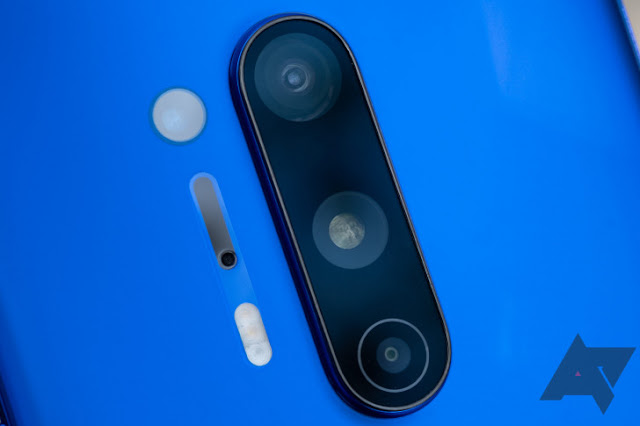
OnePlus initially claimed that the color filter camera and associated Photochrom color mode for the OnePlus 8 Pro, accused of allowing people to see through clothing, would only be disabled in China pending an undefined fix. However, an Oxygen OS update disabling the feature globally was "inadvertently" rolled out. OnePlus has since pulled the update, according to the folks at Oxygen Updater, and a subsequent OTA will re-enable the feature.

Wednesday, June 15, 2016

BYPASS ICLOUD ACTIVATION LOCK PERMANENTLY FOR IOS 9 TO OLDER VERSIONS

unlock icloud
icloud unlocked iphone lock removal account on iphone 6 plus, 5s,5,4s on ios 8.4
Apple's iCloud Unlock or iCloud Bypass Activation & iCloud Removal for iPhone 6 plus 5s, 5c,4s, iPad Air, iPod Touch and iOS 8.4 latest version.iCloud lock removal solution@ Download DoulCi iCloud Proxy Server Activator Alternative to Bypass Unlock iCloud and Remove iCloud Lock screen. Bypass 0r Unlock iCloud Activation lock screen for iPhone 6,6 Plus,5,5s,5c,4s iPad Air, iPod Touch. The iCloud Lock-Screen specially indicate user have to follow Unlock iCloud or Bypass iCloud Account Activation Process. Until user can't use the Brand New/Second Hand iPhone, iPad Air, iPod Touch because of the iCloud Activation Security feature. But that doesn't have to be the case anymore, as a new service has announced that it can provide a solution for bypass Or delete/remove iCloud account activation lock screen at iPhone 6, 6+, 5S, 5C, 5, 4S, 4 or iPad Air, 4, 3, 2, iPod Touch and let you use to device. No need to find doulci activator activation code for iCloud Account ID Access.
If you are you a victim of locked or lost or stolen and Forget iCloud Account ID Password? A new service found that you can use to remove/delete/bypass or unlock iCloud Account on iOS 7 and iOS 8.1.3/8.1.2 for iPhone, iPad and iPod,
Visit Official Service Website: http://www.newsden.us
M mobile shop-keepers first check whether iCloud is active or not. If there is any account attached with device, they ask the seller to remove it first and then purchase it. If you want to sell your iPhone/iPad or you have forgotten the password or you don't know the password, you can remove iCloud account by using the mentioned site.
The company is able to bypass and remove/disable iCloud activation account if you own an iPhone that is found as lost or stolen. Bypassing iCloud activation is a blessing in disguise for those who bought a second hand iPhone and the previous owner still has his/her credentials stored as they forget to restore the device or the device is lost or stolen.
Follow These Steps to Bypass iCloud Activation Lock:
Step 1: Go to the Official iCloud Activation Lock Removal Go To: www.newsden.us
Step 2: Order the service and then enter your IMEI in the server.
Step 3: Wait for the confirmation email.
Step 4: Congrats, now you can add the new iCloud account + Find my iPhone option is disabled.
Find my iPhone Activation lock: After the process comes to an end, you can set your new device with a new Apple ID account before iCloud Activation Lock is removed and the option for Find my iPhone option is disabled. If you enjoyed this post, please consider leaving a comment or subscribing to the RSS feed to have future articles delivered to your feed reader.
how to permanently bypass or unlock icloud locked account smoothly
Bypass iCloud activation now the demand od general iOS device users.Team of magnificent apps developerWWW.NEWSDEN.US finally release the mega solution of remove iCloud locked account or totally iCloud unlock solution for iPhone, iPad Air and iPod Touch the Apple mobile gadgets users . This team is completely support and solving the icloud locked accounts and perfect solution for unlock iPhone 6+, 6, 5s, 5, 4s. It's available for up to iOS 8.4.1 and iOS 9 bata.
"The ultimate word is that for some even though ICloud seems idiot proof," says Mac Josh president of NewSden, "Always remember75% to 90% of consumers are not as tech savvy as they present themselves to be" He continued "It's our job to assist this crowd with everything we have to be able to successfully and permanently unlock or remove their iCloud settings for their gadgets." "Most of the customers are purchasing iPhone, iPad and others iDevice legally on Craigslist, eBay, Amazon and forgetting to verify every setting has been reset back and in that case we are here for them" He Concluded.
Some real issue remembered that it regularly takes a couple of days to remove an iCloud lock on an iphone or iPad Air, and the iCloud removal tool is effective for 95% of devices.
Important to note the iCloud lock is not the same as an iPhone that's password protected with a 4 digit PIN set in General Settings up to IOS 8.1. Before you order this service, we recommend that you make sure about the activity of the protection status "Find my iPhone".
iCloud unlock document what are the team needed:
Submit Your IMEI Or serial Number through the reply email after purchase.
Sometimes some of theft device are in blacklisted. Your IMEI will be submitted for white listing and within a couple of days you should have your ICloud unlocked. Please be patient and we will make sure we get it done for you because it's our job and we always want to satisfy our customers.
Customer receives a confirmation notice after iCloud unlock completion and others important notifications.
NewSden team complete their job for permanent solution. Official icloud removal support as usually served by the istore server support and sometimes it's takes long time for iStore approval, at that time customers should be keep their patience for weighting.
About New Sden Team,
NewSden.us is a leading global Unlocking and Phone digital services like iPhone jailbreak, unlock website, processing over 40,000 unlocks and jailbreak monthly. We remotely factory unlock and jailbreak iPhones, and IMEI unlock Blackberries and smart phones from every major brand, including Samsung, Nokia, HTC, and Motorola.
We are the fast growing mobile phone apps developer in the world. 24/7 mobile gadget unlocking services, visit us at http://newsden.us/
Media Contact: Samuel Scheffler, PRO, NewSden.US, 217-410-7335, Email contact@newsden.us
stay with newsdenus team for icloud unlock trusted solver
How to Unlock iCloud Activation Lock Removal Feature for latest iPhone on iOS 9.x.x Version. The iCloud Activation Lock Removal has been a problem for quite some time now. There have been many software's offering to remove iCloud lock for you but somehow the deal never turned out as promised. Today we are proud to present to you a new way to deal with the permanent iCloud lock problem.
We have worked hard and long to create this amazing server tool. There are already many users that satisfied and recommending our iCloud Lock Remover or unlock tool. We certainly hope that you will be one of them. The only thing you need to do is to try and download our free tool from this very same page.
More Details of iCloud Bypass Activation http://www.newsden.us
iCloud Activation Lock Removal Bypass Information...
The way we deal with the Bypass iCloud Activation lock problem is completely genuine. Before us the problem was solved by producing the previous iCloud password, the password of the previous owner. Now we offer removing of the iCloud services which is completely different thing from what was done before. Our tool is compatible with any Apple devices: iPhone, iPad, iPod…
With our remove iCloud lock tool you can set up entirely new iCloud account on any of the above mentioned device. It is no wonder why so many people try to unlock iCloud lock. The restrictions that come with it are simply incomprehensible and utterly unnecessary. No one wants to see thet blue screen on their iPhone signifying the end of their phones. Now the story takes another turn, now you can forget about the deadly blue screen.<br>
Once you download and go thru our iCloud removal process you can even buy yourself a nice iPhone which was used before and set up your unique iCloud account.
How To Use Remove iCloud Activation Lock Removal Tools There is no reason to hesitate. Just download our software here and enjoy the benefits that come with it. Carefully follow the procedure and complete it step by step. Try not to mess up the steps and don't hurry through the process. Take your time and fill in the information with great attention. this may sound a bit complicated for the skeptics, but believe me- it is super easy, extra simple and very fast. Complete the Bypass iCloud Activation lock removal procedure step by step a insert a new iCloud account on you iPhone , on your iPod, on your IPad. The choice is completely yours.
The best thing about ou software is that it is for free and it is forever. once you remove iCloud lock you do not have to perform the process again. you will be free to use as many different SIM cards as you like, as many times as you wish.
Download iCloud Removal Service Tool
To start download this great iCloud Activation Lock Remova tool just click on the download link here:http://goo.gl/1a9CTj
iCloud Activation Lock Removal Supported Devices
  • Unlock iCloud iPhone 6S+
  • Unlock iCloud iPhone 5s
  • Unlock iCloud iPhone 5
  • Unlock iCloud iPhone 4s
  • Unlock iCloud iPhone 5c
  • Unlock iCloud iPhone 6
  • Unlock iCloud iPhone 6 Plus
  • Unlock iCloud iPhone 4
  • Unlock iCloud iPhone 6s Plus
  • Unlock iCloud iPod Touch
  • Unlock iCloud iPad Air
iCloud Activation Lock Removal Supported Firmware
  • iCloud Removal Tool iOS 9.0.2
  • iCloud Removal Tool iOS 8.4
  • iCloud Removal Tool iOS 8.3
  • iCloud Removal Tool iOS 8.2
  • iCloud Removal Tool iOS 8.1.3/2
  • iCloud Removal Tool iOS 8.1
  • iCloud Removal Tool iOS 7.1.1
  • iClous Removal Tool iOS 7.0.6
  • iCloud Removal Tool iOS 7.0.5
  • iCloud Removal Tool iOS 7.0.4
  • iCloud Removal Tool iOS 7.0.3
  • iCloud Removal Tool iOS 7.0.2
iCloud Activation Lock Removal Procedure
Download iCloud Remover Tool on your device Put your Apple device in DFU mode
Connect your device whit your computer via USB cable Selec't your iPhone , iPod or iPad mo

Saturday, May 23, 2015

Nvidia starts rolling out Android 5.1 update for SHIELD tablet

Nvidia starts rolling out Android 5.1 update for SHIELD tablet

Nvidia_Shield_tablet_controller
Nvidia today announced that it has started rolling out the Android 5.1 update for the SHIELD tablet.
The latest version of Lollipop brings improved system performance and stability, an improved display thanks to global tone mapping and an updated firmware for the SHIELD controller. It also brings “system wide” improvements to LTE, audio, camera and other components of the device.Android 5.1 update for Nvidia SHIELD tablet
The 200MB OTA update is available for both Wi-Fi and LTE variants of the tablet.
The rollout of the update was announced by Nvidia earlier today, so the OTA update could take up to two weeks to land your SHIELD tablet.
[Via Nvidia]
Like this post? Share it!

Tuesday, May 5, 2015

Nexus 9 now receiving Android 5.0.2 update

Nexus 9 now receiving Android 5.0.2 update

Nexus 9 Android 5.0.2 update
In March, the update to Android 5.1 for the Nexus 5, Nexus 6, Nexus 7 and Nexus 10began rolling out. The Nexus 9 was left out of the first wave, and apparently the wait is still happening despite a new update landing on the tablet now.
Today, it’s been confirmed by several different Nexus 9 owners that the tablet is receiving an update, but it’s not Android 5.1. Instead, it appears to be Android 5.0.2, and it measures in at just 23.3MB. Considering the small size of the update, and the fact the Nexus 9 was previously on Android 5.0.1, this update is more than likely geared towards security and bug fixes behind the scenes.
More than likely, this update is gearing the Nexus 9 up for the arrival of Android 5.1 at some point in the near future, too.
In case you cannot wait for the update, you can manually sideload it by downloading theOTA update from here.
If you own a Nexus 9, have you received the Android 5.0.2 update yet?

Like this post? Share it!
Google testing new tools for developers to make apps more appealing in the Play Store

Google testing new tools for developers to make apps more appealing in the Play Store

Android_eating_Apple_evil
Within the Google Play Store, there are a lot of applications and the list continues to grow. But, for some developers, another platform has been the best place to start.
Google’s fully aware that many developers choose to ship their apps on iOS instead of Android to begin with, and it is now reportedly testing new tools for developers that will hopefully change the tide a little bit. According to The Information, Google is currently utilizing what’s called “A/B” testing, which allows developers to make changes on the fly, in several different ways, and see how those changes relate to the buying habits of Android users.
Specifically, as noted in the report, developers could find out how many more people download an app when it costs only $1.99, versus a price marked at $2.99. More than that, though, developers can see how apps are perceived when the promotional video tied to the landing page for the app is animated or live action, and how a colored icon can make the difference between a download or not.
It’s a relatively small change at face value, but the information provided to developers could prove to be invaluable to those trying to get their app on as many devices as possible.
It will be interesting to see how this impacts developers publishing apps for Android.

Like this post? Share it!

Friday, May 1, 2015

Google releases Android 5.1.1 factory images for Nexus 7 and Nexus 10

Google releases Android 5.1.1 factory images for Nexus 7 and Nexus 10


image Android 5.1 handset

Google today released the Android 5.1.1 factory images for the Wi-Fi only 2012 and 2013 Nexus 7 along with the Nexus 10.
The company also seems to have started rolling out the OTA update for the Nexus 10. The OTA update for the Nexus 7 is still not rolling out, so if you own a Nexus 7 and cannot wait to try out the latest version of Lollipop on it, feel free to download and install the factory image manually.
The factory images for the 3G variant of the Nexus 7 (2012 and 2013) have not been released yet, and if Google’s past track record is anything to by, these factory images are not going to pop up anytime soon.
It is strange to see Google updating its previous generations Nexus tablets to the latest version of Lollipop, while its existing flagship tablet — the Nexus 9 — is still stuck on Android 5.0.1.
Like this post? Share it!

Thursday, April 30, 2015

Update Xiaomi Mi3 to Android 5.0.2 Lollipop via CyanogenMod 12-CancroCM ROM

Update Xiaomi Mi3 to Android 5.0.2 Lollipop via CyanogenMod 12-CancroCM ROM

Xiaomi Mi 3 users can now avail Android 5.0.2 lollipop through CyanogenMod 12 based custom ROM CancroCM. The ROM is of course, unofficial and still not evolved fully to consider as a stable build for daily use. According to the developer, CancroCM does have some bugs including Bluetooth, NFC, USB-OTG and camcorder in default camera. These bugs have already been identified by the OP and they’re working hard to fix it and release an update to the ROM.
Mi 3 always had great developer support in the developer forums like XDA and it has got many ROMs based on KitKat including CM11. If you own an Mi3 and want to update your device to the latest android Lollipop version, you can use this guide. Don’t be panic about the current bugs as they will be fixed very soon and you will be getting a stable build at the earliest.
Pre-requisites
  • Necessary USB drivers should be installed in your computer. Download the Mi 3 driversfrom here.
  • Your bootloader should be unlocked with elevated root access.
  • A custom recovery is required, either CWM or TWRP.
  • Backup important data or take a Nandroid backup (recommended) using recovery.

Disclaimer

This guide to update Xiaomi Mi 3 to unofficial CyanogenMod 12 is meant only for the respective device and does not suit with any other devices of Xiaomi. In case you’ve got any trouble while following this guide will not affect us as TechBii will not be held responsible for any aftereffects by following this tutorial. You’re the developer of your own destiny and don’t blame us. We will try to fix your issues however.

CyanogenMod 12 Lollipop 5.0.2 CancroCM ROM for Mi 3 – Installation

  1. Download the CM12 CancroCM ROM from here and copy it to your device.
  2. Reboot your Mi 3 to custom recovery by pressing and holding Vol Up+Power buttons simultaneously followed by switching off the device.
  3. Do a Nandroid backup of your current version.
  4. Perform  Factory Reset, Wipe Cache Partition, Format System and Wipe Dalvik.
  5. Now get back to the recovery home and install the copied ROM file.
  6. After successful flashing, go back and reboot system. It may take a while to boot up for the first time.
  7. In case you need Google Apps, get it from here and flash it in a similar manner (You don’t need to wipe anything here).
  8. So that was installing CM12 based CancroCM ROM in your Mi 3. If you felt any difficulties while following this guide or stuck at any step, let us know. We will try our level best to help you install CM12 in your Mi 3.

Wednesday, April 22, 2015

Jide make Remix Tablet OS available for Nexus 9 and Nexus 10

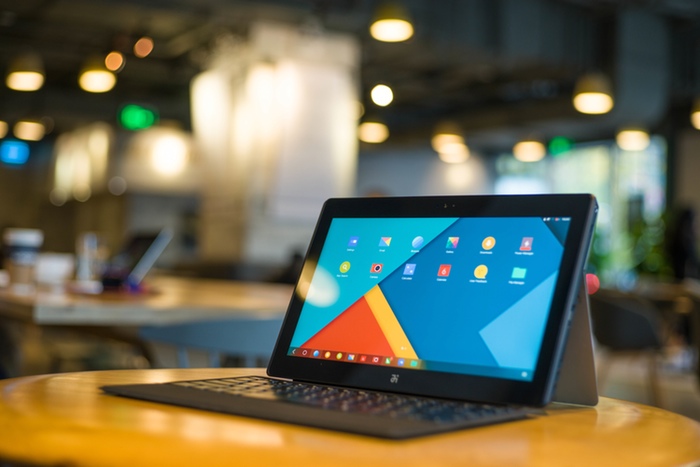
Jide make Remix Tablet OS available for Nexus 9 and Nexus 10Remember the Remix Ultra Tablet? I have been talking about for the last few weeks now and it turns out that buying one on Kickstarter is not the only way to get the OS. The clever boys and girls at Jide Tech have made a $1 backer option to allow you get a copy of the ROM sent to you so you can play with the Remix OS on a Nexus 9 / 10.
Obviously this means that you will not get the keyboard for the device or indeed the kickstand, however these two tablets have been out for long enough that it may be worth picking up one on eBay for a bargain if to play with the new OS. I am particularly intrigued to see how fast it feels on the Nvidia Tegra K1 of the Nexus 9. Unfortunately it will not be optimised for 64bit chip-sets which is a downer.
Here is a video of the OS, it is in Chinese with subtitles
Please bear in mind that this will involve you having root access to your Nexus device and it will invalidate any and all warranties that you may have in place. Jide will provide detailed instructions on how to install the ROM but you will need to gain ROOT access by yourself. Also if you are using a Cellular model of either device then Remix OS in its current version may not support this feature as the Remix Tablet is not cellular equipped.
So if you are feeling adventurous or have an old Nexus 10 lying unused in the drawer dig it out and get backing on Kickstarter
Android Lollipop OS update live for AT&T-driven Samsung Galaxy S4 Active: How to download and install

Android Lollipop OS update live for AT&T-driven Samsung Galaxy S4 Active: How to download and install

Samsung Galaxy S4 Active
Owners of AT&T-driven Samsung Galaxy S4 Active smartphone residing in the US can check for the Google Android 5.0.1 (Lollipop) OS update, which has been released by the network provider.
According to an official AT&T listing, the Android Lollipop is currently rolling out to Galaxy S4 Active (bearing model number SGH-I537), in the form of a 1GB-sized file, via OTA.
What's new with Lollipop?
The Android Lollipop firmware upgrade brings along a host of new features and enhancements mentioned below:
  • Material Design: Material design offers fluid animations, vivid coloured themes and 3D-views.
  • Improved Lockscreen: Shortcuts for both Phone and Camera are provided, along with material design-inspired notifications.
  • Touchwiz: Brighter look and feel, bold colours, fluid animation inspired by material design.
  • Floating Action Button: Floating action buttons provide easy access to the app's most important features, such as adding a new contact or favourite, or composing a text message.
  • Smart Lock: Secure smartphone by pairing it with a trusted device like a wearable or car.
  • Interruptions: Priority notifications such as events and reminders, phone calls, and messages can be set up to sound or vibrate while all other notifications are muted.
  • Recents: Easy access to your Chrome tabs right from the Recent apps page. Multi-window icons for ease of use during multi-tasking.
  • Activation of 'OK Google' voice command: With OK Google, it is possible to issue voice commands to Galaxy S4 Active smartphones.
  • Battery saving features: Indicates remaining time left to charge.
How to download and install Android Lollipop on AT&T-driven Galaxy S4 Active:
The Android Lollipop is available on AT&T-driven Galaxy S4 Active smartphones via an OTA notification, but users can manually search and download it by following the steps mentioned below.
Manual search, download and installation of Lollipop:
  • From the Home screen, press the Menu key, and tap Settings.
  • From the More tab, tap About device.
  • Tap Software update.
  • Tap Check for updates.
  • Tap OK
  • Tap Done.
Verification of software update:
  • From the Home screen, press the Menu key, and tap Settings.
  • From the More tab, tap About device.
  • The following information displays:
  • Android version: 5.0.1
  • Baseband version: I537UCUCOC6
  • Kernel Version: 3.4.0-4554112
  • Build Number: LRX22C.I537UCUCOC6.
Update Nexus 5 (hammerhead) to Android 5.0.2 LRX22G Lollipop with OptiPop F2FS-ALL custom ROM

Update Nexus 5 (hammerhead) to Android 5.0.2 LRX22G Lollipop with OptiPop F2FS-ALL custom ROM

Google Nexus 5
OptiPop ROM for Nexus 5
The Nexus 5 codenamed hammerhead has received another custom ROM called OptiPop F2FS-ALL, based on SaberMod 4.8.5 for speed and performance.
Featuring Google's latest Android Lollipop version, 5.0.2 with build LRX22G, the OptiPop ROM is based on AOSP sources. It integrates plenty of customisations and even some features from the Nexus 6 like its Ambient display. This custom build has been developed by XDA member Cl3Kener.
OptiPop ROM features
  • Lollipop 5.0.2 LRX22G
  • AOSP sources based
  • Dark Material or White Material Builds
  • Deodexed for Customisability
  • ROM built with SaberMod 4.8.5 (for speed and performance)
  • Faster animations (fling velocity, window animations, faster rotation, etc.)
  • Opticharging to reduce apk size using pngquant which gives up to 70% compression
  • Smoother scrolling
  • Soft reboot option
  • Strict aliasing
  • Graphite and -O3 Optimisations
  • Built with optimised compiler flags
  • Art - Bionic - Dalvik optimisations
  • Busybox
  • Slim Heads Up changes for LP
  • Disable Search Bar in Recents
  • Quick pulldown settings
  • Display rotate settings
  • Power notification sound preference
  • Status bar clock and date customisations 
  • Statusbar brightness control
  • Extended power menu with settings (currently non-configurable)
  • Clear all button on recent apps
  • Preference for custom clear all recents button position
  • Volume rocker wake
  • Volume music control
  • Volume adjust preference
  • Volume panel style preference
  • Safe headset volume preference
  • LED control settings
  • Incall vibration
  • Navbar DPI settings
  • Custom apns (Updated regularly)
  • App ops (enhanced features from Slim)
  • Quick unlock
  • Kill app longpress back
  • Preference for status bar activity indicators for mobile data and Wi-Fi settings
  • Option to use volume keys to control media volume anytime
  • National data roaming
  • Increasing ring feature
  • Dialer lookup settings
  • Pin keypad shuffler
  • Statusbar ticker
  • Volume button longpress seeks Music track on screen off
  • MediaScanner Disable option
  • ADB over network
  • SMS rate limiting
  • Blacklist support
  • Wakeup on charger enabled/disable option
  • Ambient display from Nexus 6 (This will drain more battery)
  • SystemUI restart option
  • CM Clock & Hide Alarm icon
  • Power Menu configurability
  • Proximity wakeup block
  • QuickBoot pre-installed
  • CM system profiles
  • Battery style options
  • PA style clear all
  • Speed tweaks
  • Cabinet file explorer  
  • QuickBoot pre-installed
  • F2FS All Support (just needs to flash F2FS compatible Kernel or if you are using UBER flashF2FS for ramdisk)
If you wish to experience the customisations of OptiPop ROM with Android 5.0.2 on your Nexus 5, check out the following installation method.
Pre-requisites
  • As the tutorial might wipe out all data of the phone, create a backup using any custom recovery.
  • Enable USB Debugging Mode on the phone to connect it with the computer and use Android SDK with it. [Go to Settings>> About phone. Scroll down to Build number, Tap seven times on the build number. The Developer options under Settings should appear now. You can now enable USB debugging mode.]
  • Your Nexus 5 should have above 80% battery charge.
  • The phone should be rooted and have the latest version of recovery installed.
  • The bootloader of the phone should be unlocked.
  • The OptiPop F2FS-ALL SM 4.8.5 ROM works only with Nexus 5 hammerhead. Applying these on any incorrect variant might brick the device. Verify the model number of the smartphone by navigating to Settings>> About phone>> Model number and install firmware accordingly.
  • Since the custom firmware, bugs are highly likely, but these are expected to be fixed in due course of development.
  • IBTimes UK will not be held liable for any damage to the device. Installation will be completely at your risk.
Download links
OptiPop F2FS ROM [Alternate link-12]
How to install Android 5.0.2 LRX22G on Nexus 5 with OptiPop F2FS-All SM ROM
Step-1: Connect and mount your Nexus 5 USB memory on your PC through USB cable. Then move the downloaded files to the internal storage of the phone, which is also called internal SD card. But keep in mind that the files are in the SD card root
Step-2: Switch off the Nexus 5 and unplug the USB cable from it
Step-3: Boot your Nexus 4 into Bootloader mode. For this turn the phone on while pressing and holding the Volume Up, Volume Down and Power buttons together
Step-4: Follow the on-screen instructions, select Bootloader and then go to Recovery
Step-5: While in recovery mode, perform data wipe. Head over to wipe data/factory reset. Use the Power button to select everything in the Recovery mode
Step-6: Perform a cache wipe by selecting wipe cache partition
Step-7: Perform a wipe of your dalvik cache to avoid boot loops or, any other errors. From recovery go to advanced>> wipe dalvik cache
Step-8: Return to the main recovery menu and select install zip from sdcard>> choose zip from sdcard. Using the Volume buttons navigate to the SimpleAOSP ROM, select it and confirm installation
Step-9: Once you have flashed the ROM, follow the same steps to install the Gapps package
Step-10: Flash stock EXT4/F2FS kernel according to your choice. This is for the ramdisk fix
Step-11: Flash UBER kernel (highly recommended)
Step-12: Also install the Superuser package if you want root (You can flash SuperSU)
Note: Always flash SuperSU last to avoid issues. If you choose dirty flash to wipe system partition then flash everything according to the above mentioned guide.
Step-13: Finally reboot your Android device. Wait for some time, the first boot might take a few minutes, until then do not press any button on the device
Your Nexus 5 should now be running OptiPop ROM featuring Android 5.0.2 LRX22G.
Thursday, April 16, 2015

Common Nexus 7 Lollipop problems and how to fix them

Common Nexus 7 Lollipop problems and how to fix them

android lollipop teaser 01The Android 5.1 Lollipop update is rolling out to Nexus 7 owners at the moment (or at least, owners of the LTE version) and it’s hoped that it’ll plug the annoying memory leak bug that’s affected some Nexuses since earlier updates. There’s no detail as yet of what’s actually fixed in the latest update, but here’s hoping it addresses at least some, and ideally all, of the issues detailed here. Here’s our list of the most common Nexus 7 Lollipop problems and how to fix them.

Lollipop. It's all fun and games until someone loses their Wi-Fi.

  • Nexus 7 problem: random shutdowns and the occasional brick
Of all the Nexus 7 Lollipop problems, this one’s the nastiest: several users of the Google Product forums have encountered a bug that turns off their Nexuses and then refuses to get past the boot screen, effectively bricking the device. There’s even a Twitter hashtag for it, #nexus7bricked. The most upsetting thing isn’t the bricking. It’s that Google and Asus, Google’s manufacturing partner, don’t appear to be taking it seriously. As far as we’re aware there’s no fix to this one beyond praying it doesn’t happen to your Nexus. The good news is that it seems to be limited to the Lollipop 5.0.2 OTA (over the air) update, so you might want to skip that one if you haven’t already installed it.

androidpit big battery teaser
Battery issues can be caused by pre-Lollipop apps that haven't been updated.

Nexus 7 problem: bad battery

You’re happy, because Lollipop - but then you’re sad, because Lollipop appears to have banjaxed your battery. A factory reset is the usual solution to this one, but have a look in the Battery page to see if the problem is being caused by an app rather than by Android itself.

Nexus 7 problem: wonky Wi-Fi

Has there been an Android update that didn’t mess with some people’s wireless? If there is we can’t remember it, because Wi-Fi and Bluetooth problems have been a common factor in every recent Android release. If your Wi-Fi is wonky or your Bluetooth is making you feel blue, the old reboot-and-restart method is always worth a try. Next step with Wi-Fi is to try forgetting and re-joining the offending network(s), and if that doesn’t work a factory reset might do the trick. In some cases the problem appears to be caused by older, pre-update apps that haven’t been updated by the developers, so it’s worth killing your apps to see if that makes your wireless work properly again.
Make sure you’re blaming the right thing, too. 99% of our Wi-Fi problems are because we haven’t given our Wi-Fi router a swift kick for a while, and rebooting it often fixes our issues.

andrdoipit wi fi android
Is your Wi-Fi wonky? Don't forget to give your router a kick.

Nexus 7 problem: freezing, crashing, stuttering and lag

For most people updating to Android Lollipop has made their Nexuses happier, their teeth whiter and their days just dandy. But some users have encountered a range of issues including freezes, crashes, stutter and lag. In-place upgrades can be the cause of that - installing updates on top of updates on top of updates can eventually cause issues, so a factory reset might be on the cards here - but once again have a look at your apps to check they’ve been updated to Lollipop. As with any performance issues, try switching off anything you don’t need to see if you can identify a specific cause.

Nexus 7 problem: YouTube won’t work

This one doesn’t just apply to YouTube, but to any app that uses video: some Nexus 7 owners have reported problems getting video playback to work on their device. In many cases clearing the app’s cache has solved the problem, but some users have found that the culprit is something called NuPlayer. This is hidden away in the developer options page and is a new video playback feature Google’s experimenting with. Turning it on if it’s off or turning it off if it’s on might solve your problem with that one. If all else fails, it’s factory reset time again.

root nexus 7 teaser
Losing patience with Lollipop? Rooting might make your Nexus more nimble. 

Nexus 7 problem: everything’s terrible and you’re getting annoyed

Has sir or madam considered rooting the device? If you’re not getting the results you want from stock Lollipop, switching to Cyanogen (or another custom ROM of your choice) may make the birds sing and the sun shine. Rooting your device means you can tinker with it to your heart’s content, and for many people it’s the best way to solve irritating problems with stock Android releases.
Have you encountered any other nasties, or found other solutions to the issues above? Did you root your Nexus and never look back? Let us know in the comments.

Wednesday, April 15, 2015

Galaxy S6 Android update: Samsung working on Android 5.1 Lollipop update already

Galaxy S6 Android update: Samsung working on Android 5.1 Lollipop update already

android lollipop updateNo sooner had it been spread that Samsung was not working on the Android 5.1 Lollipop update for any of its devices, including the brand-spanking-new Galaxy S6 and Galaxy S6 Edge, than it comes out that Sammy is indeed working on the Galaxy S6 Android 5.1 update right now. Here's what we know so far about the Galaxy S6 Android update.
The Galaxy S6 will be the first Samsung device to receive Android 5.1 Lollipop. 
  • Funnily enough, the source that previously claimed that Samsung was not working on Android 5.1 for the Galaxy S6 – Sam Mobile – is the same source that is now claiming that it is working on the update for both the S6 and the S6 Edge. So take this news with a grain of salt.
Having said that, there is no reason to believe that Samsung would not have been working on updating its current and recent flagships to the latest version of Android for weeks, especially when the company had updated its previous flagships to Lollipop so quickly.
samsung galaxy s6 quick settings
The Galaxy S6 is already super fast, slick and smooth. Just how much better can it get
Unfortunately there are no time lines for the update rollout, so you'll just have to stay tuned until we hear a little more. Be sure though, that the Galaxy S6 and S6 Edge will be the first devices receiving the update. Although hopefully the patch for the Galaxy S6 camera problem will roll out a little sooner than Android 5.1.
  • When did you buy your Galaxy S6? What are your thoughts on the new TouchWiz on the latest Lollipop version?

Featured

[Featured][recentbylabel2]

Featured

[Featured][recentbylabel2]
Notification
This is just an example, you can fill it later with your own note.
Done